
Product
Certificate inventory
TLSPilot keeps a certificate inventory of every public and internal certificate you manage, on your own management host.
On the management host
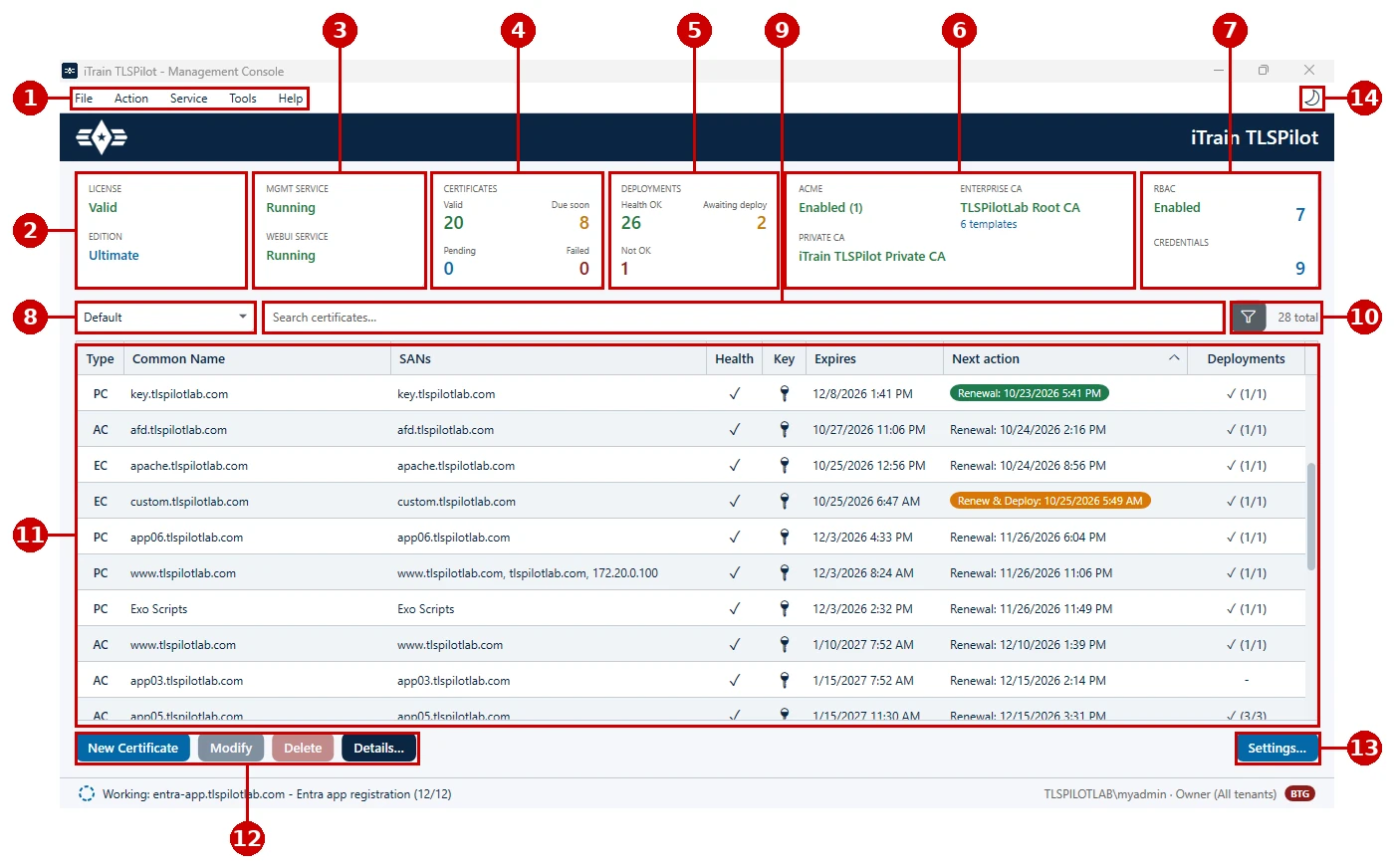
The certificate dashboard of the Desktop Admin console shows the state at a glance: how many certificates are valid, due soon, pending or failed, and how many deployments are healthy or awaiting deploy.
The list below shows each certificate with its issuer type, expiry date, next action and deployments.
Find a certificate fast
A search field narrows the list by name, and filters show one issuer type, certificates with or without deployments, or those due for renewal. The column Next action shows the next step for each certificate. Once a week TLSPilot can mail the Upcoming week report, a PDF with the renewals and deployments of the next seven days.
Tenants keep inventories apart
From the Ultimate edition, tenants separate certificates, deployments and credentials into independent areas on one host, so each customer or company keeps its own certificate inventory. Roles can also be granted on a single tenant.