My first certificates · 5.2
Enterprise CA (EC)
On this page
Tutorial 04: Enterprise CA certificate · 2:03Open on the Tutorials page
This example issues a certificate from the Enterprise CA.
- Click New Certificate at the bottom left of the Desktop Admin console.
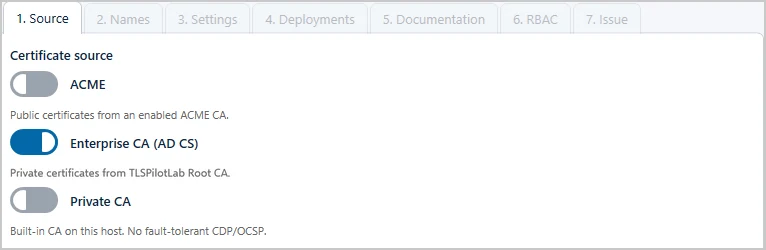
- Source: Select Enterprise CA (AD CS) if it is enabled. The hint below it names the configured CA, for example Private certificates from TLSPilotLab Root CA.
- Names: Enter the Common Name, for example “app01.tlspilot.com”, and further names or IP addresses under Domains / SANs if required and supported by the certificate template.
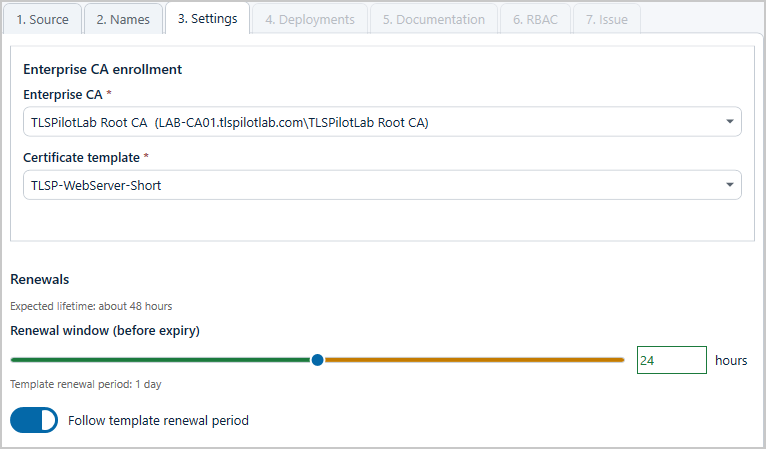
- Settings: Select the issuing CA under Enterprise CA and the Certificate template. The template defines the validity. Under Renewals, TLSPilot shows the renewal period of the template, for example Template renewal period: 2 weeks. With Follow template renewal period switched on, which is the default for new certificates, the renewal window follows this period of the template, also when the template is changed later. Switch it off only if this certificate has to be renewed earlier than the template intends, and then set Renewal window (before expiry) yourself.
- Deployments, Documentation and RBAC: Proceed as described in chapter Private CA (PC).
- Issue: Select Issue now and click Finish.
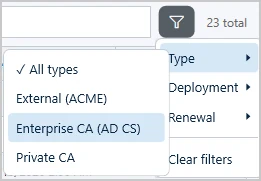
In the certificate list, the column Type shows the source of each certificate, for example EC for the Enterprise CA, PC for the Private CA or AC for ACME. To narrow down the list, click the filter button, for example to filter by type, or enter a name such as “APP01” in the search field.