
My first certificates · 5.4
Export options
On this page
You can export any certificate from TLSPilot in the format that the target system requires. This is easier than exporting it from the certificate store with certlm.msc, as you select the format directly.
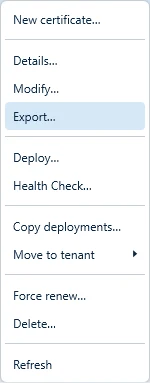
- Right-click the certificate in the list and choose Export…
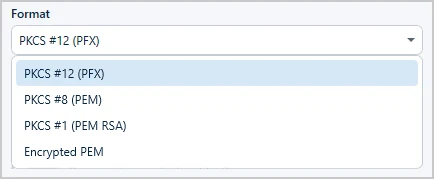
- Format: Select the format of the file:
- PKCS #12 (PFX): A password-protected and encrypted file that always contains the certificate and the private key. Certificate and key cannot be separated.
- PKCS #8 (PEM): The private key is stored unencrypted.
- PKCS #1 (PEM RSA): For older applications that require RSA keys in this format, for example because they do not accept elliptic curve keys. Only available for RSA keys; for other keys the hint reads PKCS#1 requires RSA.
- Encrypted PEM: Only the private key is encrypted, never the certificate. A password is therefore only required if Include private key is switched on.
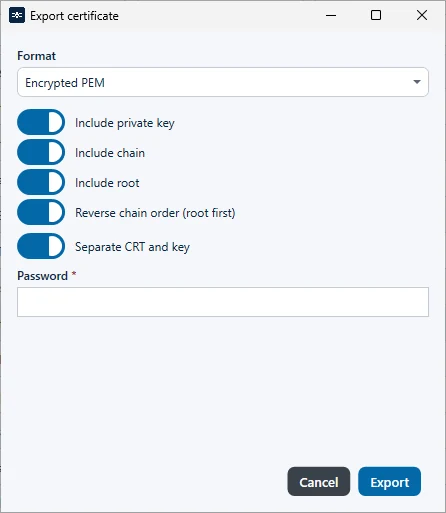
- Options: Select what the file contains:
- Include private key: Adds the private key. For PFX, it is always included.
- Include chain: Adds the intermediate certificates after the certificate (full chain). On by default. Off: the file contains only the certificate itself (leaf).
- Include root: Also adds the root certificate at the end. Off by default and only available when Include chain is on. If the root is not part of the chain received from the CA, TLSPilot looks for it in the local certificate stores of the management host. If it is not found there, the file is written without the root and a warning is shown.
- Reverse chain order (root first): Writes the chain with the root first. Off by default, only available when Include chain is on, and only for software that expects this order. It has no effect on a PFX, which always starts with the certificate.
- Separate CRT and key: Creates a ZIP file with the certificate and the key as separate files. Off by default, only available with Include private key and not for PFX.
- Password: Enter the password. The field appears for PFX and for Encrypted PEM with private key and is marked as required. For Encrypted PEM, it is required and protects the private key only; for PFX, it protects the whole file. For PFX, the password is required: without it, TLSPilot does not export and shows A PFX password is required. With PFX, Reverse chain order (root first) is grayed out, because a PFX always starts with the certificate.
- Click Export, select the folder and click Save.
TLSPilot saves the file in the selected folder and confirms it with Saved to and the path. If Include root is on and the root was not found, the confirmation also shows The root certificate was not in the stored chain and was not found on this management host. The file was written without the root. Export needs the private key on the management host; otherwise the Desktop Admin console reports No retained private key. Use Renew or Force Renew. and the WebUI No private key for this certificate on this management host. Issue or renew once so the key is stored.
The same formats and options, including the chain options, are available for the deployment targets File Path (WinRM), UNC share and File Path (SSH), see chapter My first deployments. Formats, chain order and file names in detail: chapter Certificate formats.