WebUI · 8.1
Configure or change the WebUI
On this page
Tutorial 15: Web UI · 3:23Open on the Tutorials page
If you have not set up the WebUI in the Initial Setup Wizard, or if you want to change its settings, proceed as follows:
- Click Settings… at the bottom right of the Desktop Admin console and open the tab WebUI.
- Switch on Enable Web UI.

- HTTP and HTTPS: Switch on the protocols the WebUI should use, and select the IP addresses and the port for each, for example all configured IP addresses and port 8443 for HTTPS. HTTPS is recommended.

- HTTPS certificate: Select the certificate for the WebUI. If the WebUI uses a certificate created by TLSPilot, for example in the Initial Setup Wizard, it is already selected, and TLSPilot renews it automatically and deploys it to the WebUI service. If you selected an existing certificate in the wizard, you can replace it here, or switch on Create a new certificate with TLSPilot to have TLSPilot manage the certificate from then on. The list accepts every certificate with Server Authentication and its private key on this host, regardless of the issuer. For a new certificate, select the issuer: the Private CA, the Enterprise CA (if found) or any active ACME provider. Without an issuer, Save is blocked.

- Click Save.
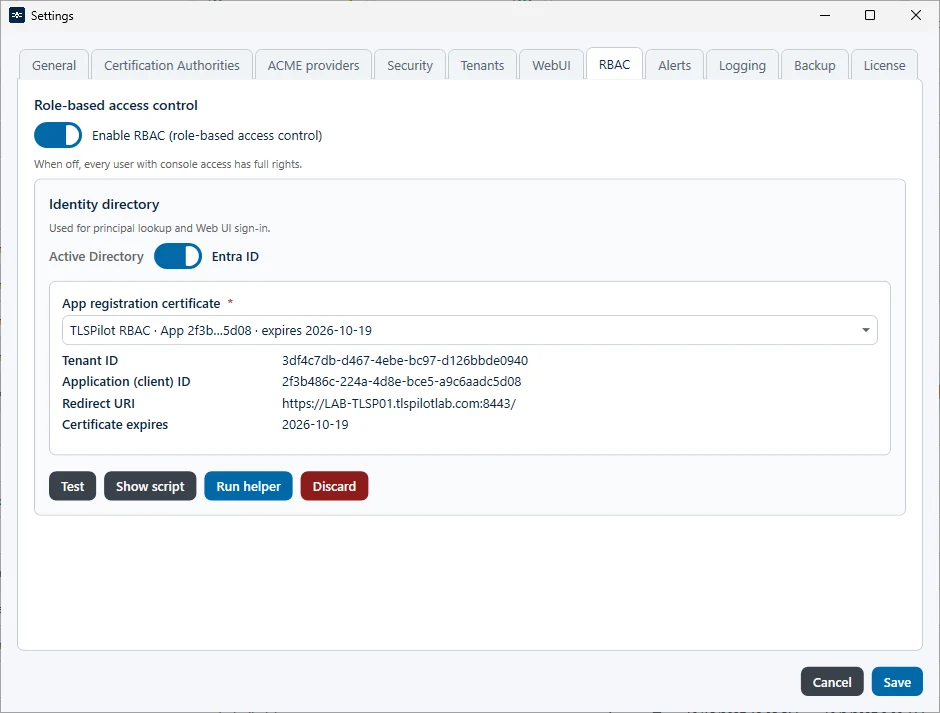
Users sign in to the WebUI with RBAC. You can check the RBAC configuration in the settings on the tab RBAC: Click Test to verify that TLSPilot can reach the app registration in Entra ID and has the required Graph permissions. The certificate with which this app registration authenticates is managed by TLSPilot and renewed automatically. For details on RBAC, see chapter RBAC.