WebUI · 8.2
Open the WebUI
Once the WebUI is configured, you can open it as follows.
- Open the address of the WebUI in a browser, for example https://tlspilot01.example.com:8443/. It consists of the name of the management host and the port of the WebUI, which you find in the settings on the tab WebUI, see chapter Configure or change the WebUI. You can also click Open next to the port on this tab to open the WebUI directly.
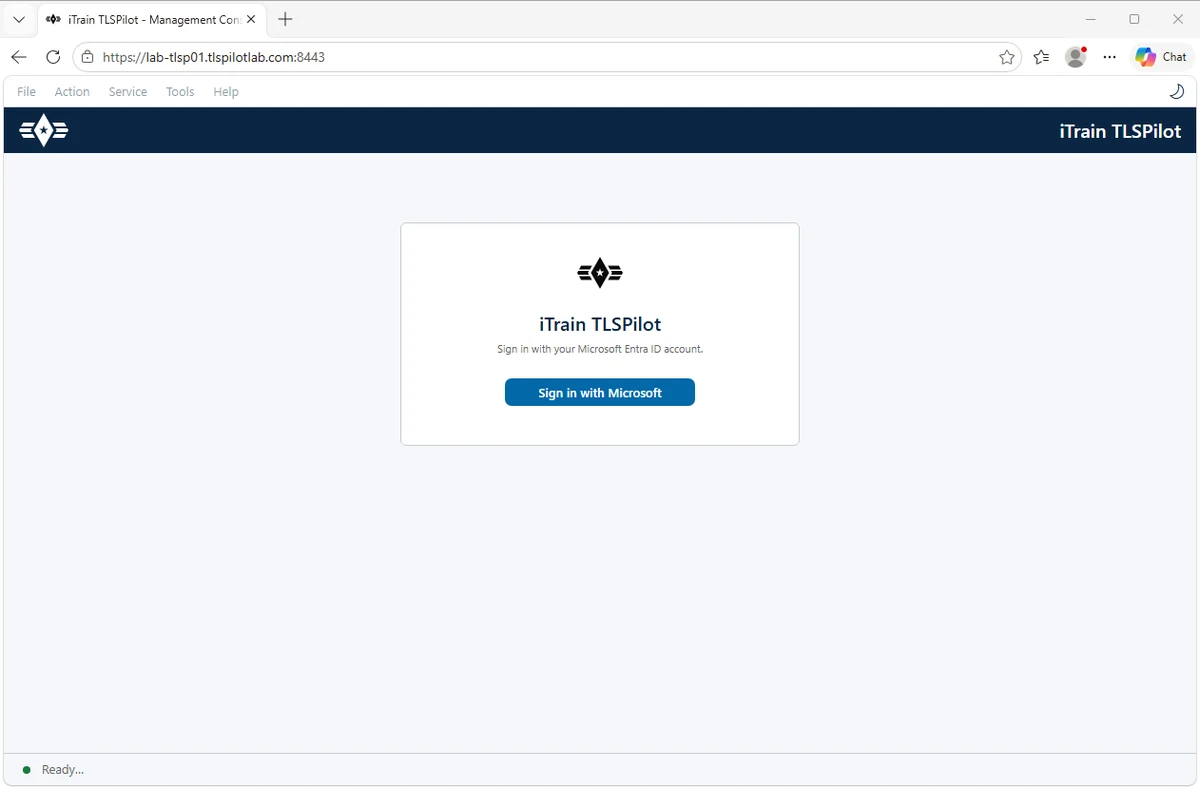
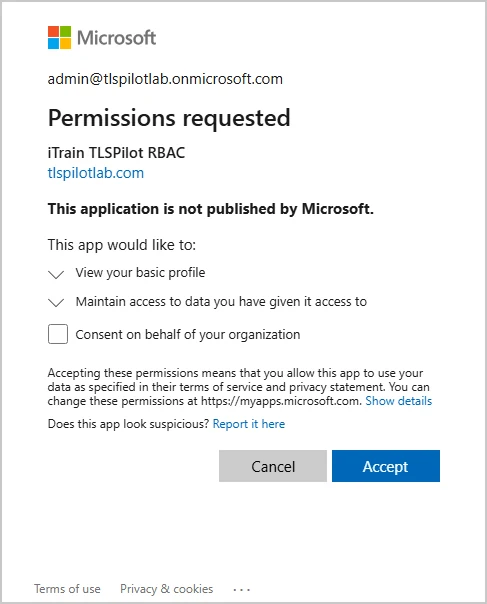
- If RBAC is connected to Entra ID, click Sign in with Microsoft and sign in with an account that has a role in TLSPilot. On the first sign-in, Microsoft may ask you to accept the permissions of the app registration iTrain TLSPilot RBAC; click Accept. An administrator can accept them for all users by selecting Consent on behalf of your organization. If RBAC is connected to Active Directory, click Sign in with Windows. The browser signs you in with your Windows account; depending on the browser, it asks for your user name and password.
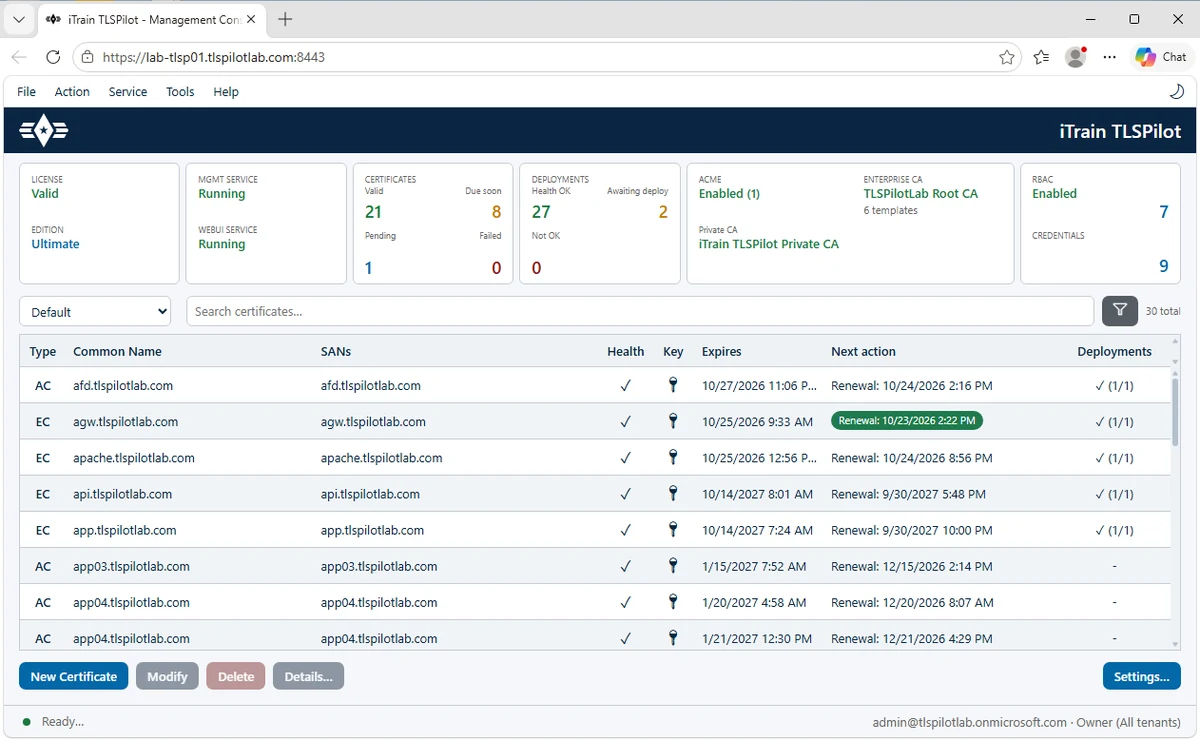
The WebUI shows the same dashboard as the Desktop Admin console. You can edit certificates and deployments as usual, for example by double-clicking a certificate, run dry runs and use the Credentials Manager.