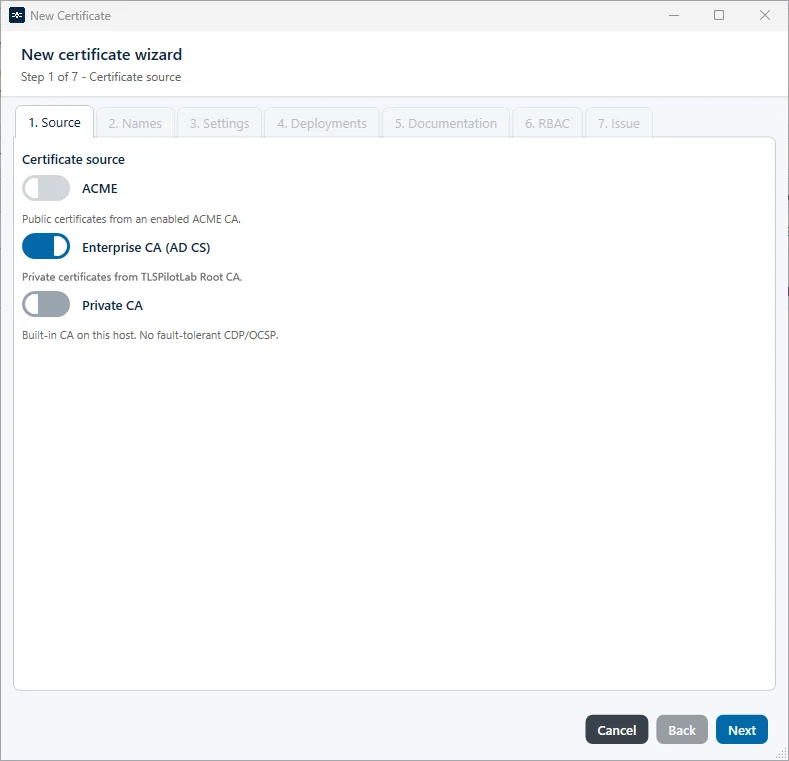
Tenants · 10.1
Create a tenant
On this page
Tutorial 17: Tenants · 3:00Open on the Tutorials page
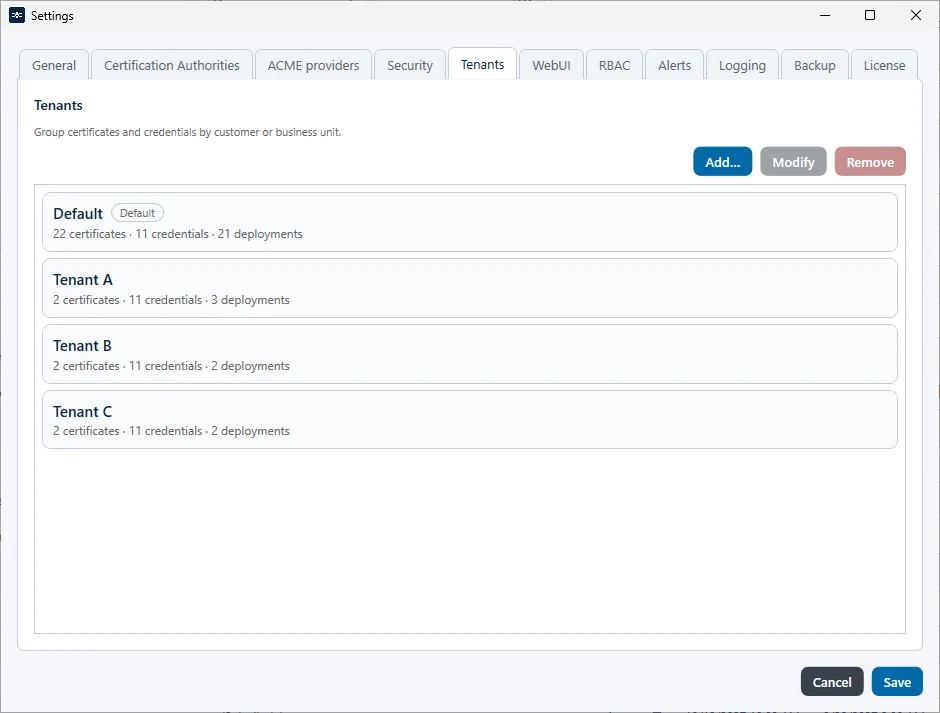
You create tenants in the settings and define which issuers are available in each of them. The tab Tenants lists each tenant as a card. The second line shows its counts, for example 6 certificates · 2 credentials · 4 deployments. The tenant Default carries the pill Default.
- Click Settings… at the bottom right of the Desktop Admin console and open the tab Tenants.
- Click Add…
- Name: Enter a name for the tenant, for example “Customer A”. The name is required; without it, the dialog shows an error and stays open. Optionally, add Notes.
- Allowed issuers: Select the issuers from which certificates can be obtained in this tenant: ACME, Enterprise CA and Private CA. Under Allowed Enterprise CA templates, select the templates that are available in this tenant, or use Select all and Deselect all.
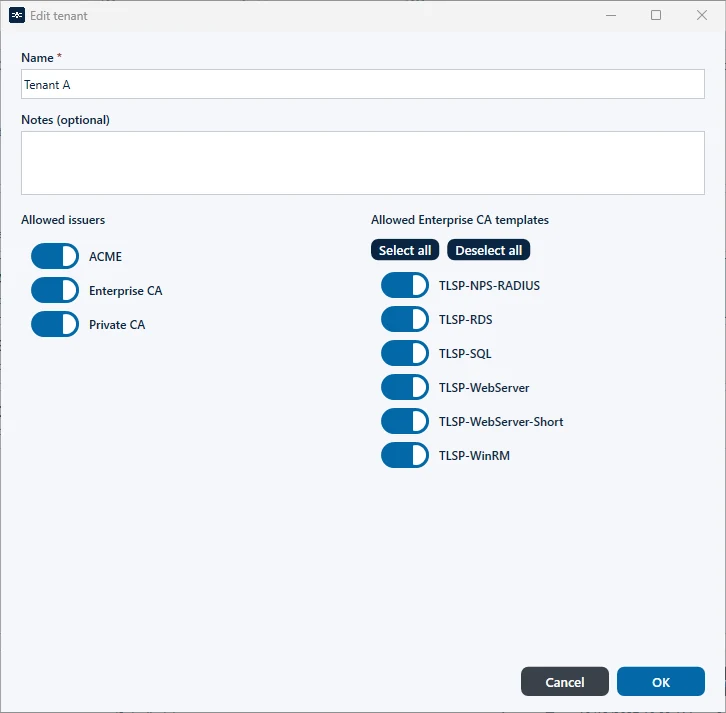
- Click OK and then Save.
The tenant then appears in the tenant picker. If you select it and click New Certificate, only the issuers allowed for this tenant are available.