Backup and restore · 14.3
Restore
You can restore a complete installation on a freshly installed management host from a migration backup, or individual settings from a same-host backup.
- Complete migration: On a freshly installed management host, select the migration backup in the first step of the Initial Setup Wizard, see chapter Migration or fresh start. A migration backup is restored only there, on a management host that has not been set up yet, and always completely. Restore configuration… refuses a migration backup with the message This is a migration backup. It can only be restored on a fresh installation. Uninstall TLSPilot with 'Delete all TLSPilot data', install it again and choose 'Restore from a migration backup' on the first screen of the Initial Setup Wizard.
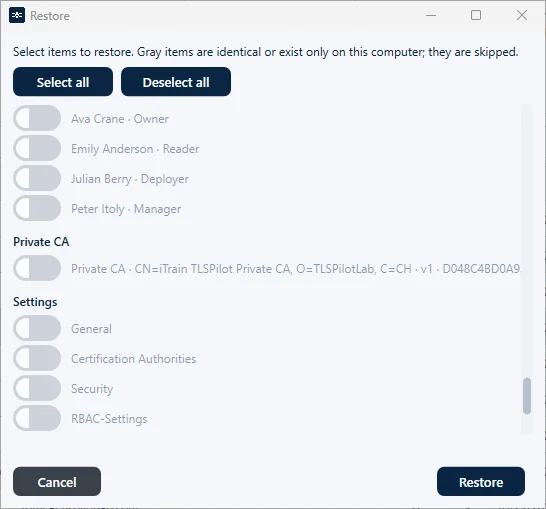
- Restore individual settings: Choose Restore configuration… in the File menu, select a same-host backup and click Open. A same-host backup with private keys and credentials from another computer is refused with the message This backup was created on another computer. To move TLSPilot to this computer, create a migration backup on the source computer and restore it in the Initial Setup Wizard. A backup from a newer TLSPilot version cannot be restored. TLSPilot lists all areas of the backup, sorted by name, with the lead Select items to restore. Gray items are identical or exist only on this computer; they are skipped. Only items that are missing or differ from the current configuration can be selected. Notes follow the name of an item, for example Not in backup, kept. The Private CA has its own area Private CA, between the RBAC assignments and the settings, see Figure Areas of a backup during restore, with the area Private CA. Its row shows the subject, version, thumbprint and state: not on this host, identical, differs or not in backup. TLSPilot restores or keeps the Private CA as a whole. If the backup was created without private keys, the row reads Private CA - key not in backup. Use Select all or Deselect all, or select individual items, for example a deleted alert profile or a disabled deployment. Areas without content in the backup show a note, for example This archive has no stored credentials. Click Restore and confirm with OK. The result lists the restored areas, the items that the backup did not include, and every item that could not be restored as Not restored: <item> - <reason>, for example a key that cannot be decrypted on this computer. The history of the restored certificates is restored with them. If the live certificate is newer than the certificate in the backup, the note Live certificate is newer. The live certificate is kept. follows the name of the item, and TLSPilot keeps the live certificate and restores only the settings of the item.