My first certificates · 5.3
ACME certificate (AC)
On this page
This example issues a certificate from a public ACME provider with the DNS-01 challenge.
- Click New Certificate at the bottom left of the Desktop Admin console.
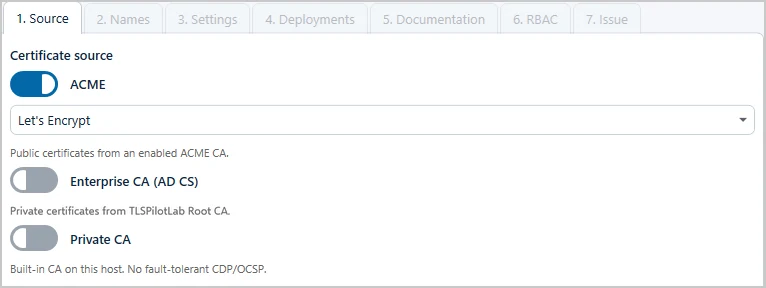
- Source: Select ACME and the ACME provider. The hint reads Public certificates from an enabled ACME CA. How to add further ACME providers is described in chapter ACME settings.
- Names: Enter the Common Name, for example “app02.tlspilotlab.com”, and further names under Domains / SANs if required. Some ACME providers do not support wildcard names.
- Settings: The available options depend on the ACME provider. The validity is defined by the provider, and if it shortens its validity, TLSPilot adjusts it automatically. Configure the following settings:
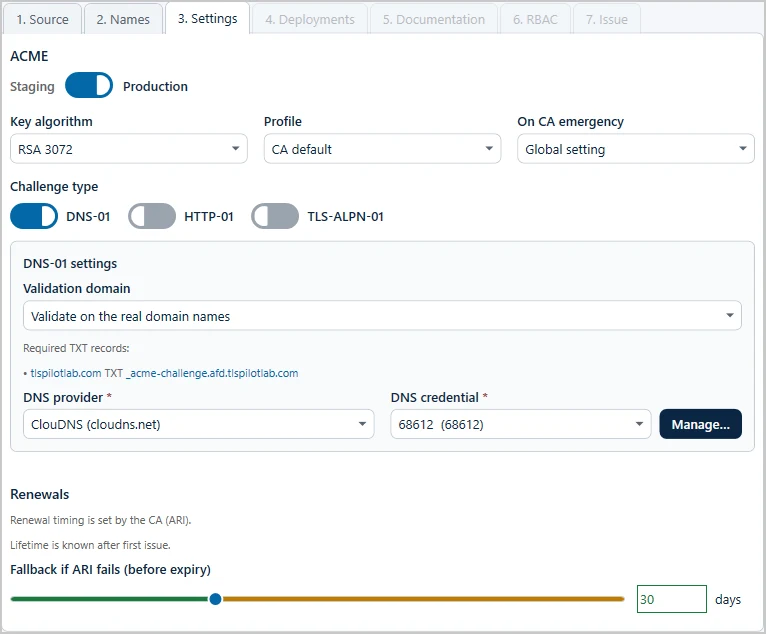
- ACME (section): Environment: Select Staging or Production, if the provider offers both. The default is taken from the TLSPilot settings.
- Key algorithm, Profile and On CA emergency sit side by side on one row. Key algorithm: Select the key algorithm supported by the provider. The default is taken from the TLSPilot settings.
- Profile: Only shown if the ACME provider offers profiles. You select the profile for each certificate: the list contains CA default and the profiles offered by the provider. Keep CA default unless you need a specific profile, see chapter ACME profiles. If the provider does not offer the selected profile, TLSPilot uses the CA default and shows a hint.
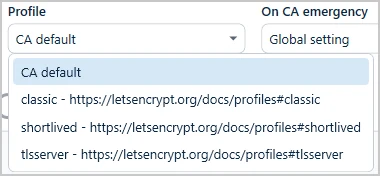
- On CA emergency: Only shown for ACME certificates. Select Global setting to follow the global switch in the tab ACME providers of the settings, see chapter ACME settings, On to switch it on for this certificate, or Off to switch it off for this certificate. When it is on, TLSPilot renews the certificate immediately if the CA pulls its renewal window forward, for example after a mass revocation. With the switch off, that window is renewed at a random time and deployed on the next cycle. Keep Global setting unless this certificate needs a different behavior.
- Challenge type: Select DNS-01 to prove that you own all domain names in the certificate. HTTP-01 and TLS-ALPN-01 are described in chapter Additional challenge types.
- DNS provider: Select your DNS provider, for example ClouDNS. Besides the integrated providers, all DNS servers that accept RFC 2136 DNS UPDATE with TSIG are supported with the provider RFC 2136 (BIND / PowerDNS / Knot …); it needs nsupdate on the management host. If your provider is not listed and does not support RFC 2136, select DNS Manual, see chapter Manual DNS validation. For Hetzner, select Hetzner (Cloud DNS). Its credential needs a Hetzner Cloud API token from the Hetzner Console, as tokens of the Hetzner DNS Console do not work.
- DNS credential: Select the credential for your DNS provider. With Validate on the real domain names, TLSPilot lists below Required TXT records: one line per TXT record, for example
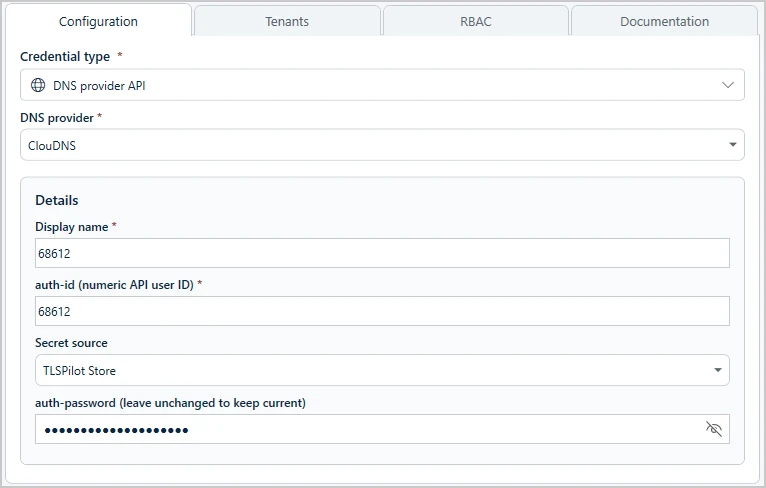
• tlspilotlab.com TXT _acme-challenge.app02.tlspilotlab.com. Click the zone or the name to copy it. The credential must have API access to every listed zone. If none exists yet, click Manage… and enter the credentials for the API of your DNS provider in the Credentials Manager, for example the Auth ID and Auth Password for ClouDNS. Click Save and close the Credentials Manager. The credential is then selected automatically.
- Renewal window (before expiry): For a new certificate, TLSPilot presets the window from the expected lifetime of the selected ACME profile: one third of the lifetime, at most 30 days. For lifetimes below 10 days, the value is entered in hours; the unit hours appears next to the field. The line Expected lifetime: about <n> days (or hours) shows the lifetime before the certificate is first issued; if it is not known yet, the line reads Lifetime is known after first issue. Once the certificate is issued, the line is hidden. If the directory of the ACME provider offers ARI, the section Renewals shows Renewal timing is set by the CA (ARI). already before the first order, and the slider is labeled Fallback if ARI fails (before expiry). After the issue, it shows the line Controlled by the CA (ARI): renewal between followed by the start and the end of this window and, if the CA provides one, a link to its explanation. The slider is then labeled Fallback if ARI fails: TLSPilot renews within the window of the CA and uses the slider value if ARI fails. The maximum of the slider is just below the validity of the current certificate: one day less, or one hour less for certificates valid for less than 10 days. At most 30 days or one third of the validity is recommended, see chapter When the renewal runs. An example with the profile shortlived is shown in chapter ARI – ACME Renewal Information.
- Deployments, Documentation and RBAC: Proceed as described in chapter Private CA (PC).
- Issue: Select Issue now and click Finish.
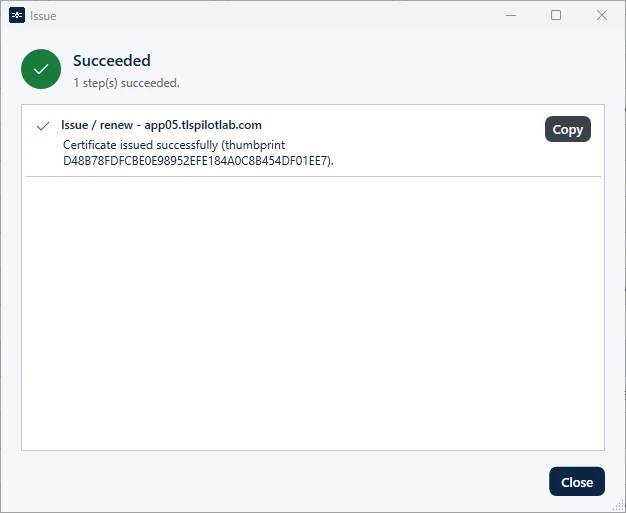
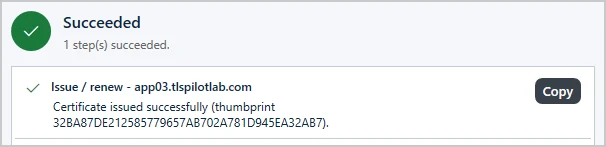
TLSPilot requests the certificate from the ACME provider, creates the TXT record and validates the domain. This usually takes about one minute, as the DNS record has to propagate first and the ACME provider then validates it from several locations, see chapter Multi-perspective validation. The status bar at the bottom of the Desktop Admin console shows the progress. Click Close once the certificate has been issued.

Set up DNS-01 Alias Mode
With DNS-01 Alias Mode, TLSPilot writes the TXT records in an alias zone instead of the production zone. How it works is described in chapter DNS-01 challenge delegation (CNAME alias). Prerequisite: an alias zone of your own at a DNS provider supported by TLSPilot, for example servicedomain.net, and a DNS credential with API access to this zone. Restrict the credential to the alias zone if the provider allows it.
Create or modify the ACME certificate, open the step Settings and select the challenge type DNS-01. Then, under DNS-01 settings:
- Validation domain: Select Validate with DNS-01 Alias Mode. The default is Validate on the real domain names.
- Alias domain: Enter the alias zone, for example
servicedomain.net. The field only appears when DNS-01 Alias Mode is selected and is then required; if it is empty, TLSPilot does not save and shows Alias domain is required. It is also the zone at the DNS provider and is not derived from the names of the certificate. - DNS provider and DNS credential: Select the DNS provider and the DNS credential of the alias zone. They apply to the alias zone only.
- CNAME records: Below Alias domain, TLSPilot shows Create these CNAME records before issuing: and one line per name of the certificate, created from the Common Name and the SANs, in the form
_acme-challenge.<name> CNAME _acme-challenge.<name>.<alias domain>. For a certificate with the single name shop.example.com, this is_acme-challenge.shop.example.com CNAME _acme-challenge.shop.example.com.servicedomain.net; each further SAN adds a line of its own. A wildcard name*.xcounts asx. Click an entry to copy it and create the CNAME records at the DNS hoster of the production zone, or have them created by the team that manages it. While Alias domain is empty, the target shows a placeholder that cannot be copied. TLSPilot writes the TXT record in the alias zone only.
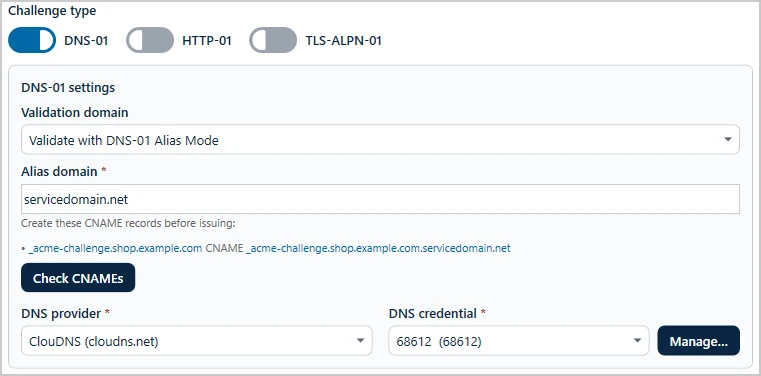
- Check CNAMEs: Once the CNAME records exist, click Check CNAMEs below the list. TLSPilot shows the result in the status window Check CNAMEs, with one line per CNAME record: green for a correct record, red for a missing or wrong record, and orange for could not check. For the messages, see chapter DNS-01.
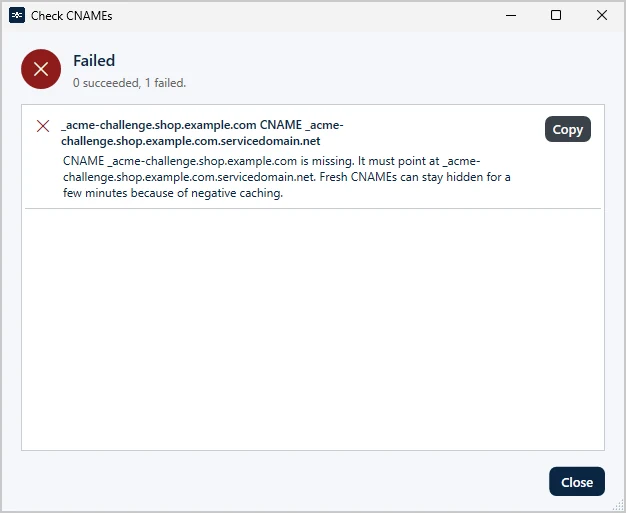
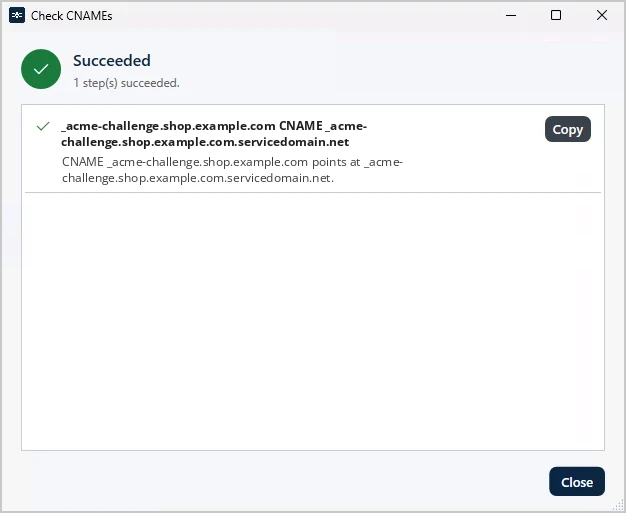
- Save: Save the certificate. If a CNAME record is missing or wrong, TLSPilot shows the result of the check in the dialog DNS-01 Alias Mode. The certificate is saved, but no order starts until the records are correct.
Check before every order
Before every order, TLSPilot checks each CNAME record at the public resolvers of Cloudflare and Google (DNS over HTTPS): Does the CNAME exist, does it point to the expected target, is there exactly one CNAME and no TXT record at the same name? If a check fails, TLSPilot does not start the order and shows which CNAME record is missing or wrong. If neither resolver answers, TLSPilot cannot check the records and only logs the warning CNAME _acme-challenge.<name> could not check. No DNS-over-HTTPS resolver answered. The order starts nevertheless. For a reliable check, the management host needs outbound HTTPS to cloudflare-dns.com and dns.google. After writing the TXT record, TLSPilot queries the original name _acme-challenge.<name>, so the resolvers follow the CNAME and the whole chain is checked. Check a record yourself with:
dig +short CNAME _acme-challenge.shop.example.com
dig @8.8.8.8 TXT _acme-challenge.shop.example.com
Errors and solutions: chapter DNS-01.
ACME settings
In the settings, you can configure and enable further ACME providers. Besides the built-in providers, you can import any provider that complies with ACME v2 as a JSON definition.
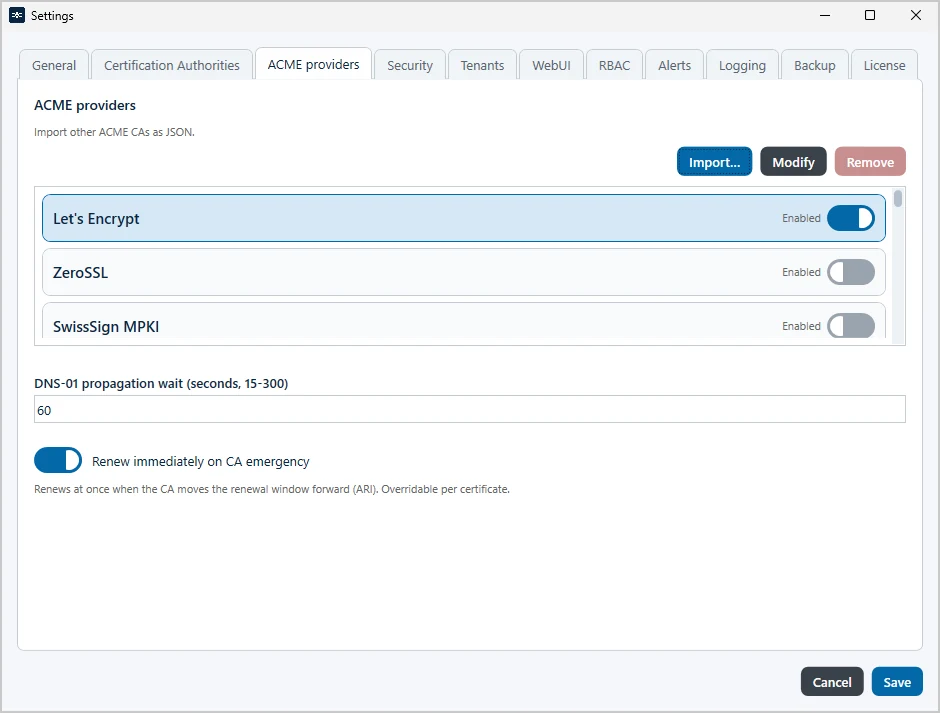
- Click Settings… at the bottom right of the Desktop Admin console and open the tab ACME providers. From top to bottom, the tab shows the buttons Import…, Modify and Remove, the list of ACME providers as cards in one framed list with a switch Enabled for each provider, the field DNS-01 propagation wait (seconds, 15-300) and the switch Renew immediately on CA emergency.
- Select the provider, for example ZeroSSL, and click Modify. To add a provider that is not listed, click Import… and select its JSON definition.
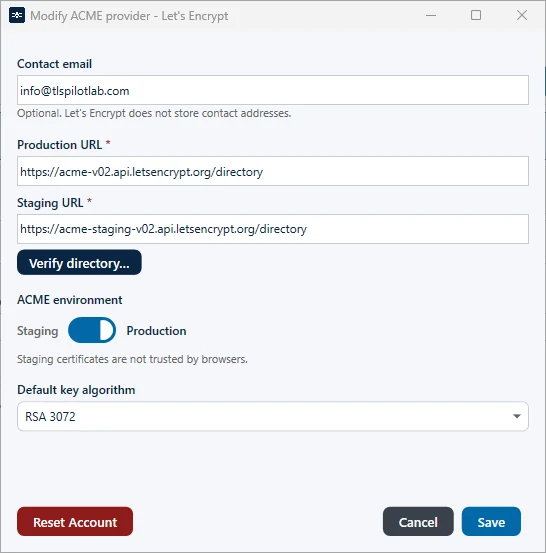
- Modify ACME provider: Configure the provider:
- Contact email: Shown only for providers without EAB, that is Let’s Encrypt, SwissSign and custom providers without EAB. The field is optional and is stored for this provider. If you enter an address, TLSPilot registers it as the contact of the ACME account; if the field is empty, the account is registered without a contact. For Let’s Encrypt, the dialog shows Optional. Let’s Encrypt does not store contact addresses. For the other providers with this field, it shows ACME account contact for CA notices. Separate from TLSPilot alerts. Providers with EAB, for example ZeroSSL, show no contact field and register the account without a contact; the contact address is managed in your account at the CA.
- Production URL and Staging URL: The directory URLs of the provider. For the built-in providers, TLSPilot prefills them with the URLs of the provider; providers that use one URL per customer start with an empty field, so clarify the URL with the provider. Providers without a staging environment show a single field Directory URL, SSL.com shows ECC directory URL and RSA directory URL. Every URL field is required, marked with a red asterisk, and must contain an absolute
https://URL. The fields are editable, and the value in the field is the URL that TLSPilot uses for issue, renewal and revocation; there is no hidden default. If a URL is empty, the provider is incomplete, and an issue fails with Directory URL is required. - Verify directory…: Checks the URLs as typed in the dialog. The stored settings of the provider stay unchanged until you click Save.
- ACME environment: For providers with a staging environment, the switch selects Production, the default, or Staging, and TLSPilot uses the stored URL of the selected environment. Staging certificates are not trusted by browsers.
- EAB credential: Select the EAB credential if the provider requires one, for example ZeroSSL, which provides EAB credentials free of charge. If none exists yet, click Manage and create a credential of the type ACME/EAB with the EAB Key ID and the EAB HMAC Key.
- Default key algorithm: The key algorithm that is preselected for new certificates, for example RSA 3072. Only the algorithms supported by the provider are listed, and you can change the algorithm for each certificate.
- Reset Account: Resets the ACME account for this provider. Use it only if something went wrong. Otherwise, keep working with the existing account.
Built-in providers cannot be removed; Remove is greyed out for them. Switch off Enabled instead.
- Click Save to close the dialog, and switch on Enabled for the provider.
- DNS-01 propagation wait (seconds, 15-300): Adjust how long TLSPilot waits for DNS records to propagate, if required. The default is 60 seconds. Allowed are 15 to 300 seconds; a value outside this range is set to 15 or 300 when you save.
- Renew immediately on CA emergency: Switch it on if ACME certificates should renew immediately when the CA pulls their renewal window forward, for example after a mass revocation. With the switch off, that window is renewed at a random time and deployed on the next cycle. The switch is off by default and applies to all certificates set to Global setting; each certificate can also set it to On or Off, see chapter ACME certificate (AC).
- Click Save to apply the settings.
The provider is then available under Source when you create a new certificate with ACME. Depending on the provider, ACME can also be used for private certificates.
TLSPilot includes the following ACME providers. Providers that require EAB need an account with the provider; only the challenge types and options listed here can be selected for a provider.
| Provider | EAB | Staging | Wildcard | Challenge types |
|---|---|---|---|---|
| Let’s Encrypt | No | Yes | Yes | DNS-01, HTTP-01, TLS-ALPN-01 |
| ZeroSSL | Required | No | Yes | DNS-01, HTTP-01 |
| Actalis | Required | No | Yes | DNS-01, HTTP-01 |
| Certigna OV ACME | Required | Yes | No | DNS-01, HTTP-01 |
| Certum SSL ACME | Required | No | Yes | DNS-01, HTTP-01 |
| DigiCert CertCentral ACME | Required | No | Yes | DNS-01, HTTP-01 |
| emSign (CERTInext) | Required | No | No | DNS-01, HTTP-01 |
| GlobalSign Atlas | Required | No | Yes | DNS-01, HTTP-01 |
| GoDaddy SSL ACME | Required | No | Yes | DNS-01, HTTP-01 |
| Google Trust Services | Required | Yes | Yes | DNS-01, HTTP-01 |
| HARICA | Required | No | No | DNS-01, HTTP-01 |
| Sectigo CaaS | Required | No | Yes | DNS-01, HTTP-01 |
| SSL.com DV | Required | No | Yes | DNS-01, HTTP-01 |
| SwissSign MPKI | No | No | No | DNS-01, HTTP-01 |
| Telia Certificate Service | Required | No | Yes | DNS-01, HTTP-01 |
To add a provider that complies with ACME v2 but is not included in TLSPilot, create a JSON definition for it and import it with Import… as described above. A template is provided under %ProgramData%\iTrain\TLSPilot\Examples\ACME Provider Template\acme-provider-template.json. The template is provided without support. The definition contains the ID and display name of the provider, the directory URL, optionally a separate directory URL for RSA keys and a staging directory URL, whether EAB is required, the supported key algorithms and challenge types, and whether wildcard certificates are supported.
Additional challenge types
Besides DNS-01, domains can also be validated with HTTP-01 or TLS-ALPN-01. Only the challenge types that the ACME provider supports can be selected; of the providers included in TLSPilot, only Let’s Encrypt supports TLS-ALPN-01. For other providers, the switch is greyed out with the tooltip This challenge is not allowed for the selected ACME provider. You can change the challenge type of an existing certificate at any time.
- Double-click the certificate in the list, or right-click it and choose Modify…
- Settings: Under Challenge type, select the method:
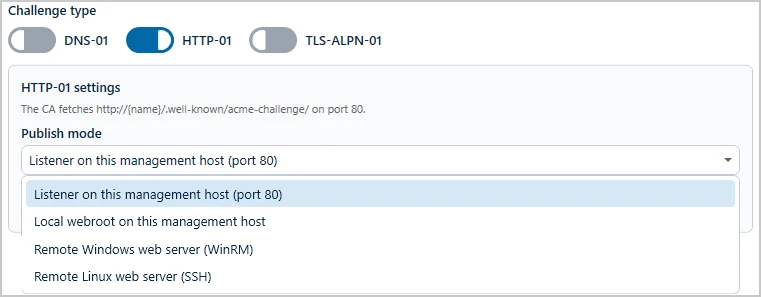
- HTTP-01: The CA retrieves a file with a validation code from /.well-known/acme-challenge/ under every name in the certificate. Under Publish mode, choose where TLSPilot provides the file:
- Listener on this management host (port 80): The simplest option. Forward port 80 to the management host, for example through a reverse proxy with WAF.
- Local webroot on this management host: TLSPilot places the file in a web root on the management host. Choose the target path accordingly, so that the web server delivers the file for the domain.
- Remote Windows web server (WinRM) or Remote Linux web server (SSH): TLSPilot places the file on another server. Specify the Target host, the Web root path and the WinRM or SSH credential.
- HTTP-01: The CA retrieves a file with a validation code from /.well-known/acme-challenge/ under every name in the certificate. Under Publish mode, choose where TLSPilot provides the file:
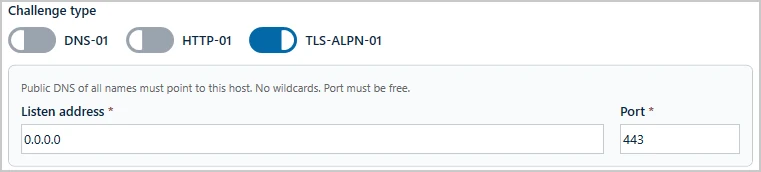
- TLS-ALPN-01: The CA always connects to port 443, so the validation has to be answered by the management host. Enter the Listen address (default 0.0.0.0) and the Port (default 443). All names must resolve publicly to the management host, and wildcards are not possible. As the certificate is usually used on another system, this method is often not practical.
- Click Save.
Manual DNS validation
If your DNS provider is not integrated in TLSPilot and does not support RFC 2136, you can validate the domain with DNS-01 manually. TLSPilot then sends the required TXT record by email, and the record has to be created manually at your DNS provider.
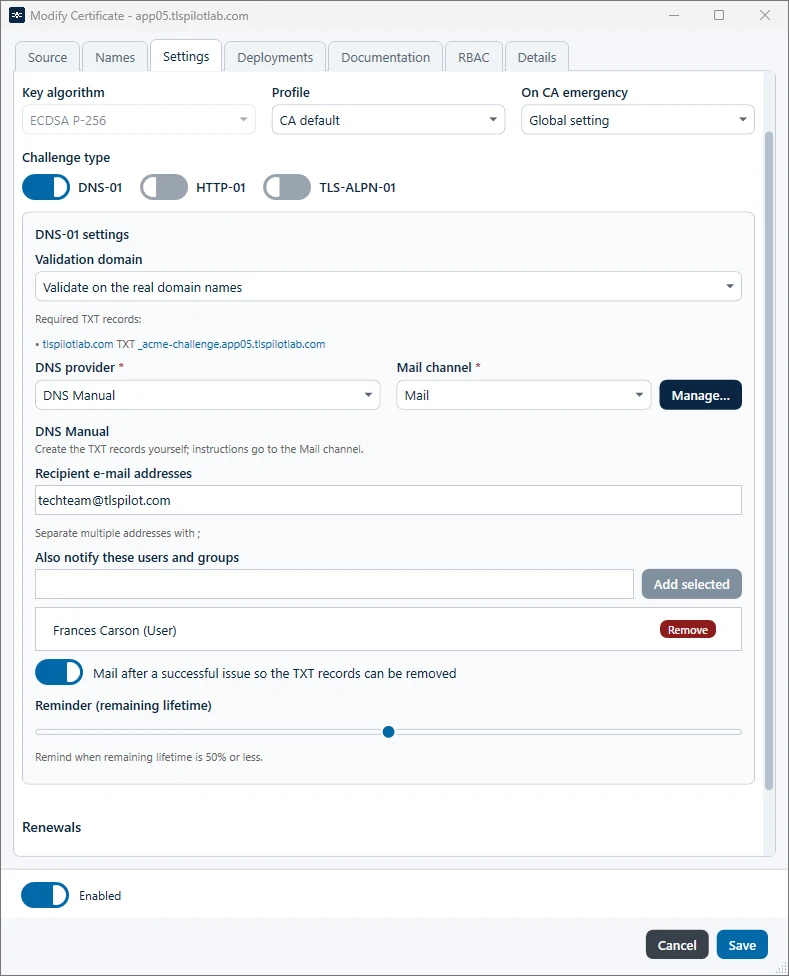
- Open the step Settings in the New Certificate wizard as described in chapter ACME certificate (AC), or double-click an existing certificate and open the tab Settings.
- Challenge type: Select DNS-01.
- DNS provider: Select DNS Manual.
- Mail channel and Recipient e-mail addresses: Select the mail channel through which TLSPilot sends the TXT record, or create one with Manage…, see chapter Configure alert channels. The mail channel is required; without a channel or recipients, TLSPilot sends no email and only writes a log entry. Enter the recipients under Recipient e-mail addresses and separate several addresses with a semicolon. Under Required TXT records, the step lists the zone and the name of each TXT record. Click a zone or a name to copy it.
- Also notify these users and groups: Search for users or groups (at least two characters) and click Add selected. TLSPilot resolves them to their mailboxes and adds them to the recipients.
- Mail after a successful issue so the TXT records can be removed: On by default. Sends the confirmation email after the issue.
- Reminder (remaining lifetime): 5 to 95 %, default 50 %. Remind when remaining lifetime is n% or less. The percentage refers to the lifetime of the current ACME order, from the time the order is opened until it expires at the CA. This applies to a first issue as well as to a renewal in the ARI window, in the fallback window or out of cycle. If the TXT record is still missing at that point, TLSPilot sends a reminder, at most once a day, see Figure Reminder email of DNS Manual with the TXT records.
- Complete the remaining steps and issue the certificate with Issue now.
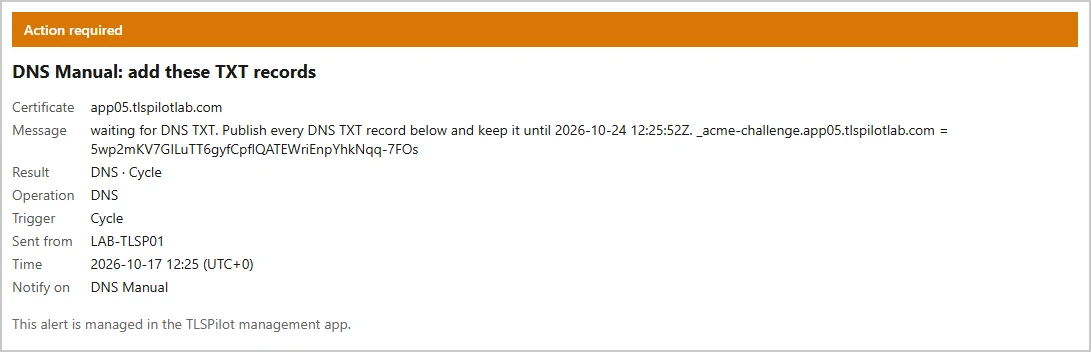
- The recipient receives an email with the orange header Action required. It names the certificate and asks you to publish the TXT records and keep them until the order expires; the email states the expiry time set by the CA, at Let’s Encrypt seven days after the request. Below, the block DNS TXT records shows one record per line in standard zone format, for example
_acme-challenge.app05.tlspilotlab.com TXT "uL0MeC8…", and name, type and value of each record as separate fields, so you can copy a complete line or a single value. Create the TXT record at your DNS provider.
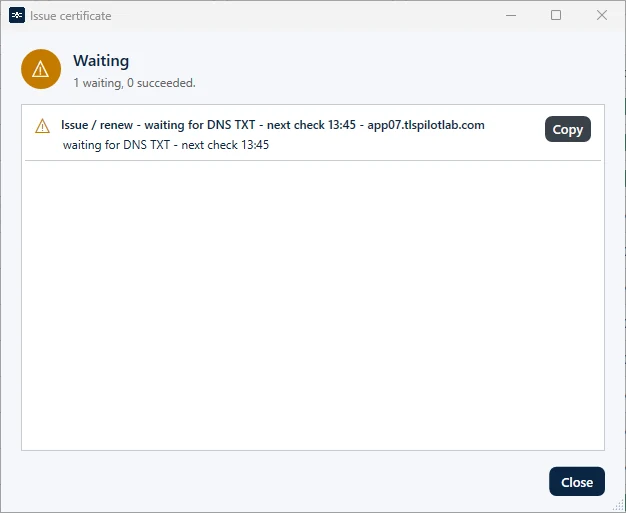
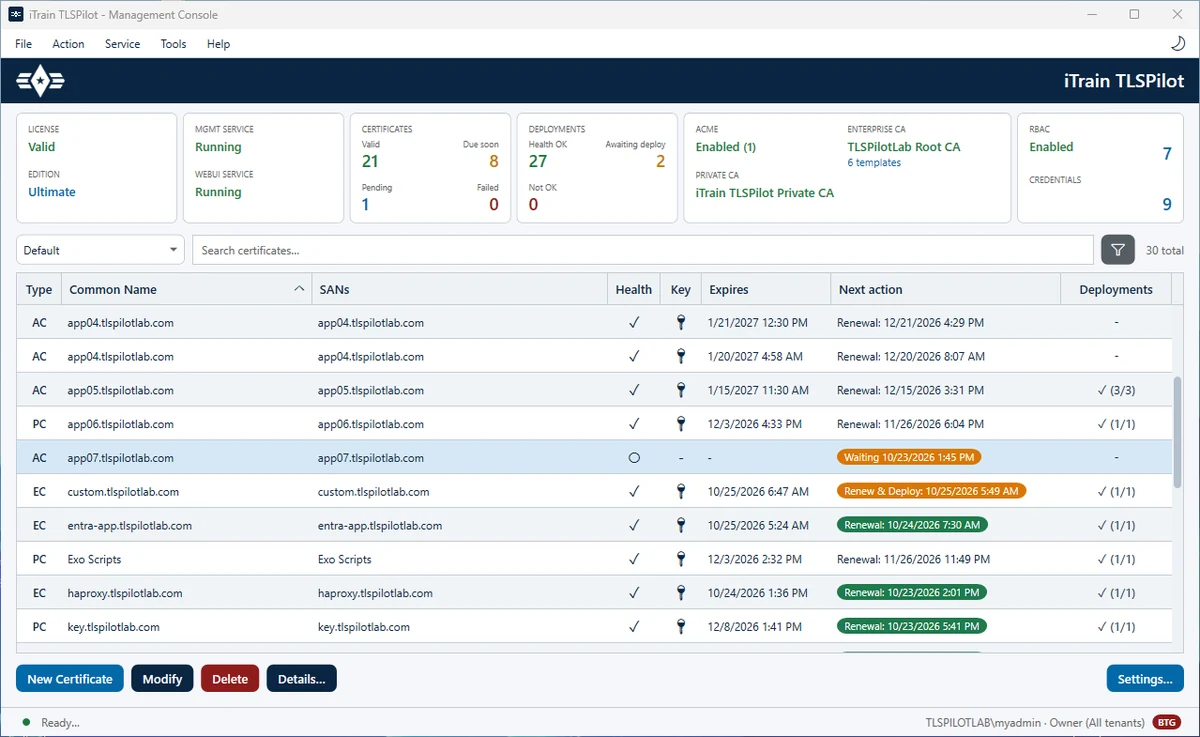
Meanwhile, the issue dialog shows the status Waiting with waiting for DNS TXT - next check HH:mm, see Figure Status Waiting during manual DNS validation. TLSPilot checks the public TXT record of a waiting order every 15 minutes, independently of the daily cycle. In the certificate list, the column Next action shows the time of the next check in an orange pill; its tooltip reads Waiting for DNS TXT - next check with the time and the expiry of the order, see Figure Column Next action with the next check of a waiting certificate.
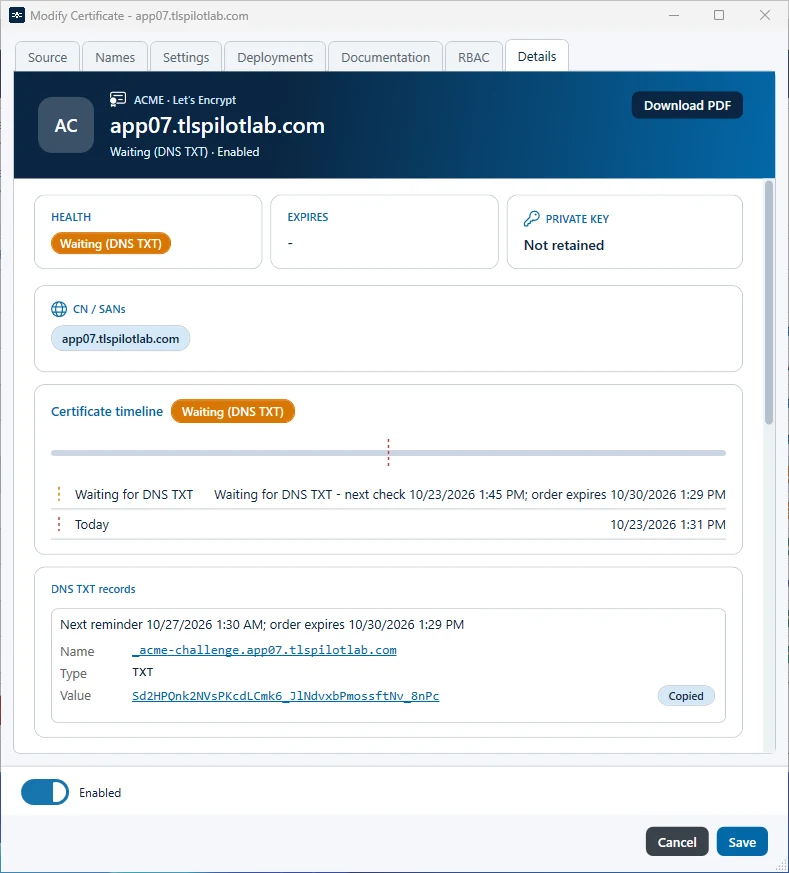
While the order is waiting, the tab Details of the certificate shows the card DNS TXT records, in the Desktop Admin console and in the WebUI. The first line shows Next reminder with the time of the next reminder and order expires with the expiry of the order. Below, each record is listed with Name (the FQDN of the record), Type (TXT) and Value (the value of the record), one below the other; several records are shown as separate groups. Click the name or the value to copy it to the clipboard. TLSPilot confirms with Copied to the right of the value, see Figure Card DNS TXT records in the details of a waiting certificate, value copied. The emails and the PDF report of the certificate (Download PDF) show the records as a table with the columns Name, Type and Value.
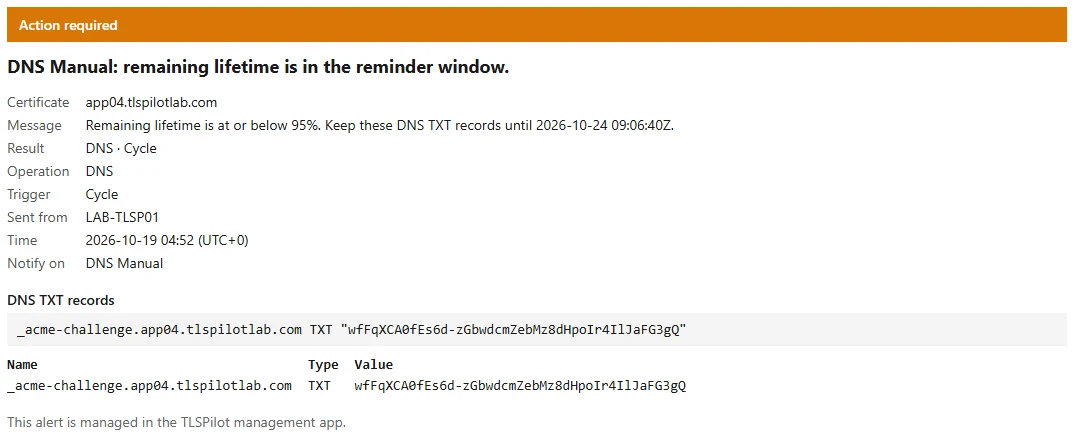
If the TXT record is still missing when the remaining lifetime of the order reaches the value set under Reminder (remaining lifetime), TLSPilot sends a reminder with the orange header Action required and the title DNS Manual: remaining lifetime is in the reminder window. The message states the threshold and how long the TXT records must be kept, for example Remaining lifetime is at or below 95%. Keep these DNS TXT records until 2026-10-24 09:06:40Z., and the block DNS TXT records lists the records in zone format and as a table with Name, Type and Value, see Figure Reminder email of DNS Manual with the TXT records. TLSPilot checks the reminder during the 15-minute check of the waiting order and sends at most one reminder per day.
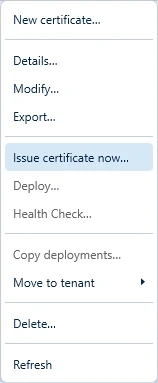
Once the TXT record is visible, the ACME provider validates the domain and TLSPilot issues the certificate, see Figure Result of the issue after the TXT record was found. TLSPilot then sends one more email with the orange header Action required, DNS Manual: certificate issued. You can remove the TXT records., which lists the records, and no further reminders are sent. To start the check yourself, right-click the certificate in the certificate list and choose Issue certificate now… for a first issue or Force renew… for a renewal, see Figure Context menu with Issue certificate now….