
Alerts and logging · 12.1
Configure alert channels
On this page
Tutorial 19: Alerts & Logging · 7:46Open on the Tutorials page
An alert channel defines how TLSPilot sends a notification. A channel that alert profiles use cannot be removed; the status dialog lists one error per profile. TLSPilot sends at most 10 alert mails per minute, including one notice Alert emails are throttled. to the recipients of the profiles; further mails are queued and sent later. The available channels depend on your edition, see chapter Optional features.
- Click Settings… at the bottom right of the Desktop Admin console and open the tab Alerts.
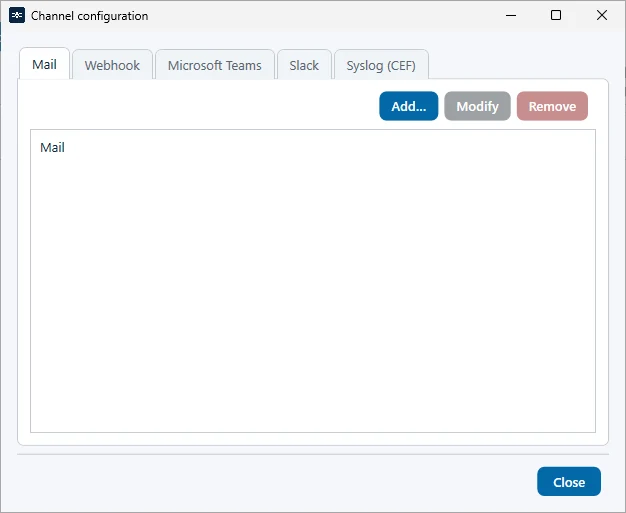
- Click Channel configuration and add a channel with Add…:
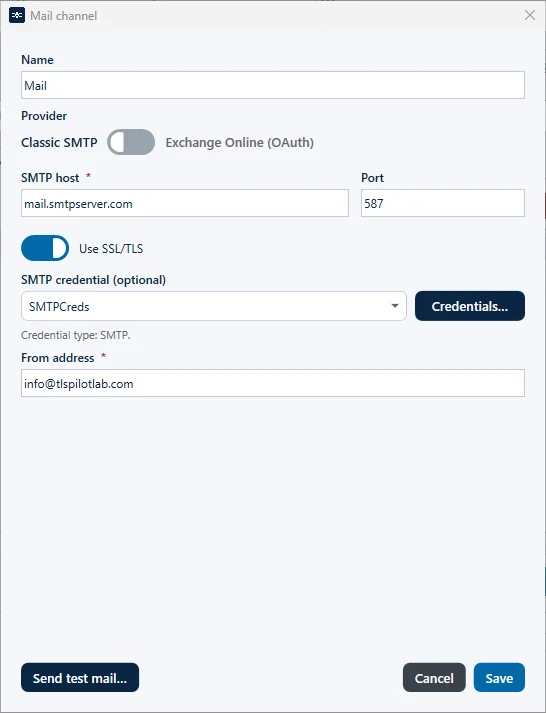
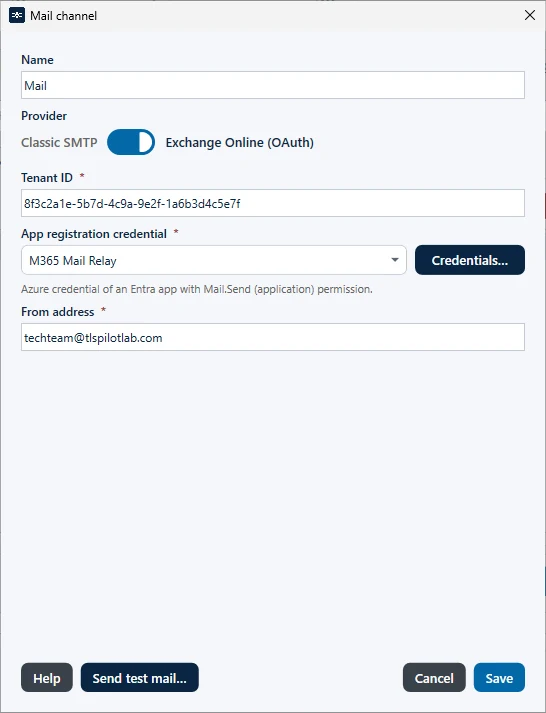
- Mail: Sends emails via Classic SMTP or Exchange Online (OAuth). For Classic SMTP, enter the SMTP host, the Port, Use SSL/TLS and the From address; the SMTP credential is optional. For Exchange Online, enter the Tenant ID, select the App registration credential and enter the From address, which is the mailbox used for sending. The app registration must have the application permission Mail.Send in Entra ID. You can create several mail channels, for example for different SMTP servers, and send a test email with Send test mail…
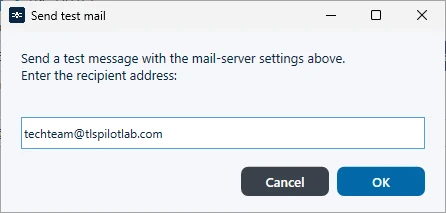
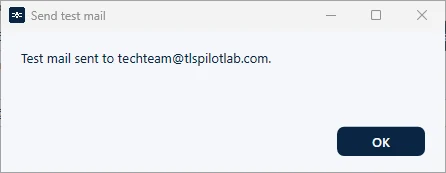
Click Send test mail… for a mail channel, or Send test… for the other channels, to check the channel. TLSPilot asks for a recipient address and confirms the sent mail, see Figure Recipient of the test mail and Figure Confirmation of the test mail.
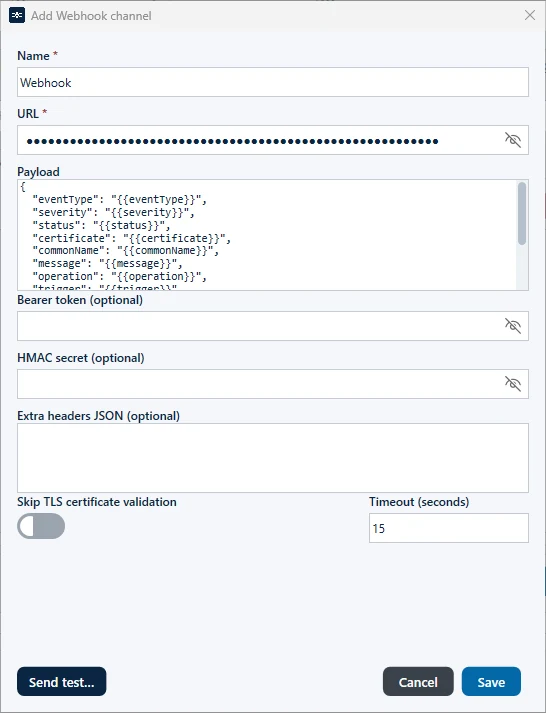
- Webhook: Sends the alert as a JSON POST request to an HTTP(S) endpoint. Enter the URL and, if required, a Bearer token (optional), an HMAC secret (optional) and Extra headers JSON (optional). The bearer token and the HMAC secret allow the receiver to verify that the call comes from TLSPilot; with an HMAC secret, TLSPilot adds the header
X-TLSPilot-Signature: sha256=<HMAC-SHA256 of the body>. Optionally, switch on Skip TLS certificate validation and set Timeout (seconds) (default 15). Under Payload, you define the JSON body using variables. The field is prefilled with a template that contains the supported variables: {{eventType}}, {{severity}}, {{status}}, {{certificate}}, {{commonName}}, {{message}}, {{operation}}, {{trigger}}, {{isManual}}, {{timestamp}}, {{timestampLocal}}, {{profile}} and {{subject}}. The payload must be valid JSON after the variables are replaced; otherwise sending fails with Webhook payload is not valid JSON after variable substitution.
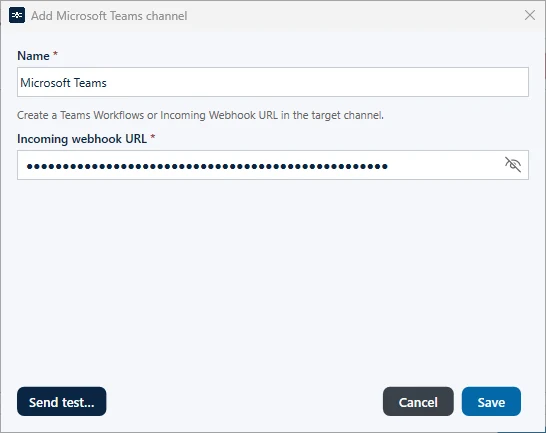
- Microsoft Teams: Posts a message to a Teams channel or chat. Enter the Incoming webhook URL. To get it, set up a workflow in the Teams channel via the three dots, search for the webhook workflow and create it. Teams then provides a URL that includes a secret.
- Slack: Posts a message to Slack. Create an app with a webhook in Slack and enter its URL.
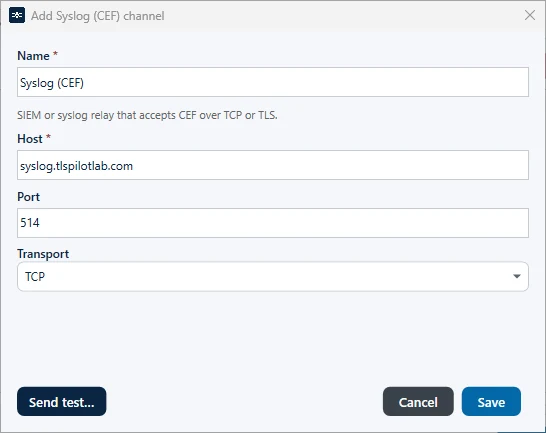
- Syslog: Sends standard syslog messages in CEF format. Enter the host, the port (default 514) and the transport, TCP or TLS.
- Test the channel if required, click Save and close the channel configuration.