
RBAC · 9.3
Assign roles
On this page
Tutorial 16: RBAC · 8:13Open on the Tutorials page
Roles assigned in the RBAC Manager apply to TLSPilot overall and are called system roles. You can assign them to users or groups. The procedure is the same for Active Directory and Entra ID; the matches come from the identity directory you connected.
- Click the RBAC tile on the dashboard, or choose RBAC Manager… in the File menu.
- Enter the beginning of the name of a user or group. The matches from your identity directory appear automatically. Click the match you want.
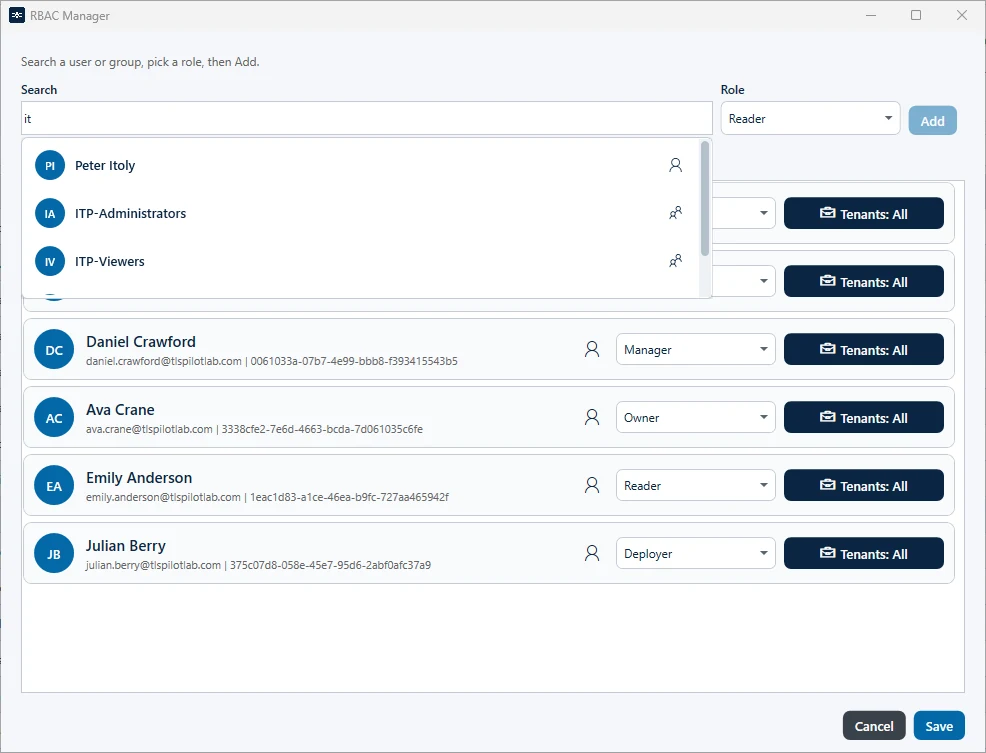
- Role: Select the role and click Add. Search, role and Add sit on one row. To remove an entry, select it in the list and click Remove; the button is available only when an entry is selected.
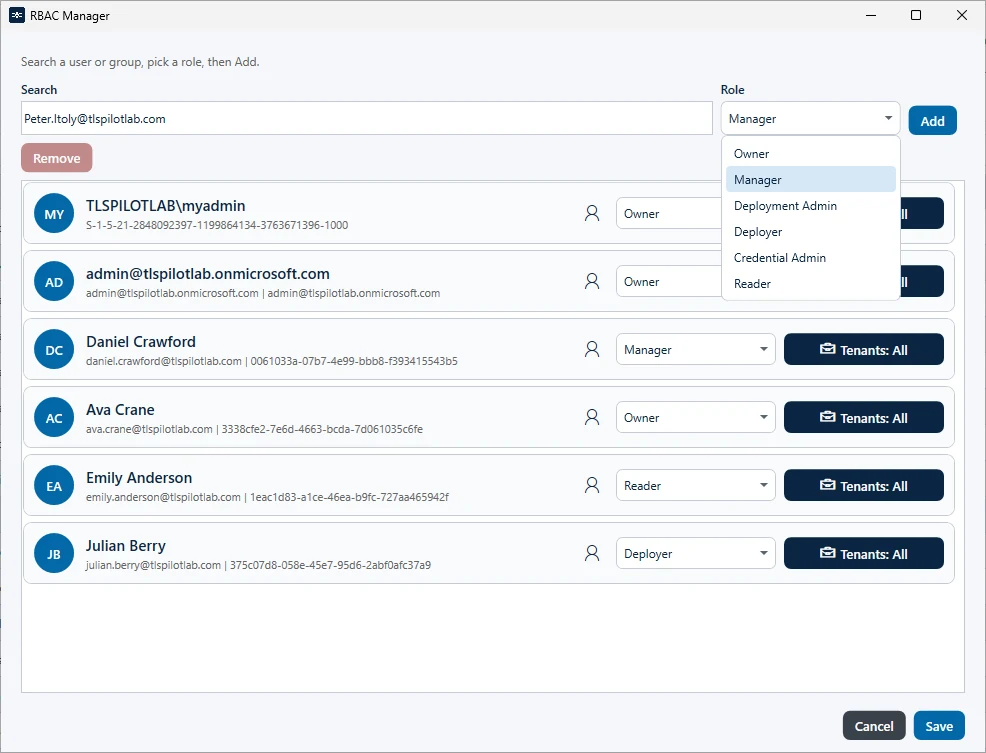
- Click Save. Assign at least one Owner; without one, only the local Administrators (break-the-glass) can manage TLSPilot.
Changes apply immediately, without the user having to sign in again. If a user receives roles through several entries, for example through a group and personally, the permissions add up. A user without any role sees Access Denied when signing in to the WebUI.
You can also restrict each role to specific tenants, see chapter Restrict roles to tenants.