
External credential stores · 11.1
Connect an external credential store
On this page
Tutorial 18: External Credential Stores · 6:18Open on the Tutorials page
First, you connect TLSPilot to the external store in the settings.
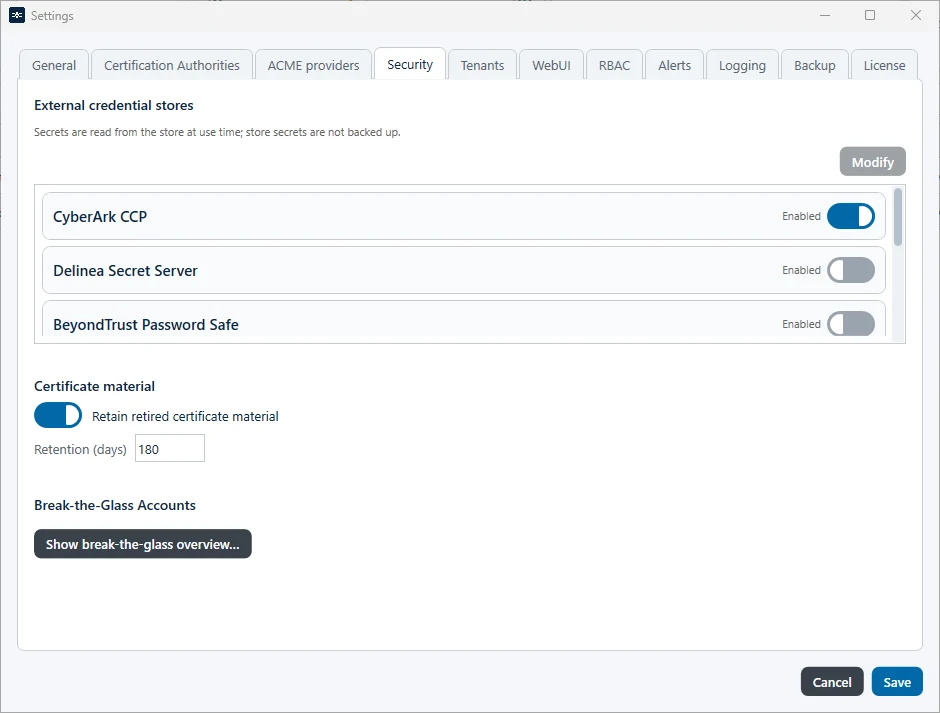
- Click Settings… at the bottom right of the Desktop Admin console and open the tab Security.
- Under External credential stores, select the store, for example HashiCorp Vault KV, and click Modify.
- Vault base URL: Enter the address of the vault.
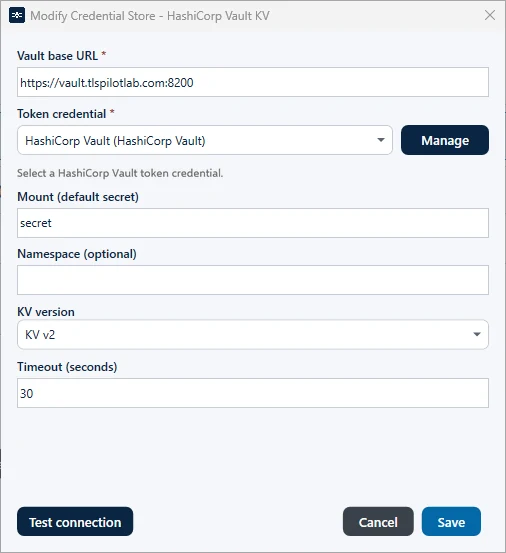
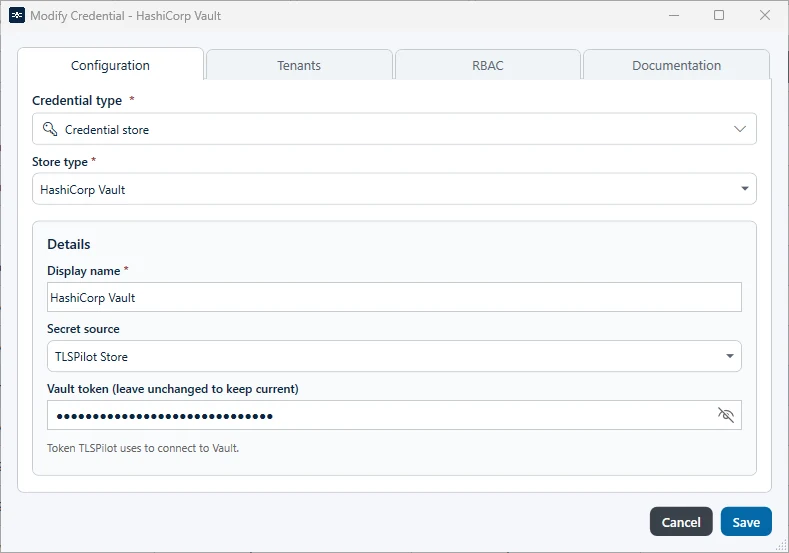
- Token credential: Select the credential with the vault token. If none exists yet, click Manage, click Add… in the Credentials Manager, select the Credential type Credential store and the Store type HashiCorp Vault, enter a Display name and the token under Vault token. Click Save and close the Credentials Manager. The credential is then selected automatically.
- Adjust Mount (default secret), Namespace (optional), KV version and Timeout (seconds) if required.
- Click Test connection to check the settings. For CyberArk, Safe and Object in the store are used only by Test connection; each credential sets its own Safe and Object.
- Click Save, switch on Enabled next to the store and click Save to apply the settings.