
Backup and restore · 14.1
Scheduled backup
To create a same-host backup automatically every day, proceed as follows:
- Click Settings… at the bottom right of the Desktop Admin console and open the tab Backup.
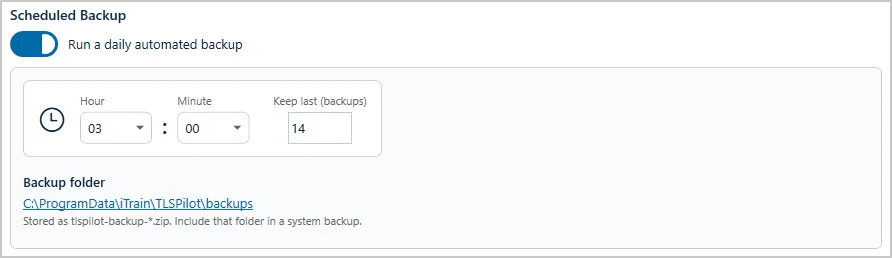
- Under Scheduled Backup, switch on Run a daily automated backup.
- Define the time of the backup under Hour and Minute, by default 03:00, and under Keep last (backups) how many backups are kept, by default 14.
- Click Save.
The backups are stored as tlspilot-backup-*.zip under %ProgramData%\iTrain\TLSPilot\backups. Every backup, including manual and migration backups, is also stored in this folder, and Keep last (backups) applies to all files in it. Include this folder in your system backup.
If a scheduled backup cannot read an item, for example a secret that cannot be decrypted on this computer, TLSPilot saves the readable items as a partial backup and sends the alert Backup failed. The alert lists each missing item as Not included: <item> - <reason> and the path of the partial backup, Partial backup saved to <path>. On the tab Backup, the result of the last run then reads Backup failed with the same list. If no backup file can be written at all, TLSPilot sends Backup failed with the error message.