My first certificates · 5.1
Private CA (PC)
On this page
Tutorial 03: Private CA certificate · 5:33Open on the Tutorials page
This example issues a certificate from the Private CA.
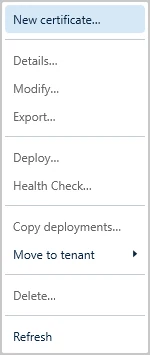
- Click New Certificate at the bottom left of the Desktop Admin console. Alternatively, choose New certificate… in the Action menu, or right-click anywhere in the certificate list and choose New certificate….
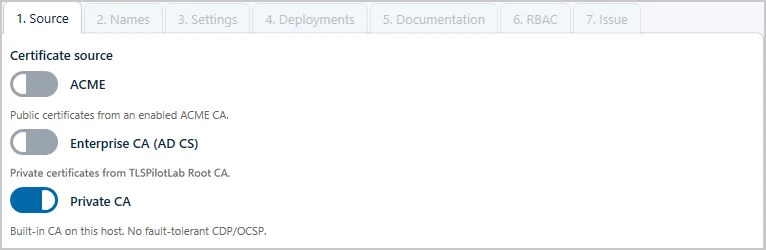
- Source: Select Private CA if it is enabled.
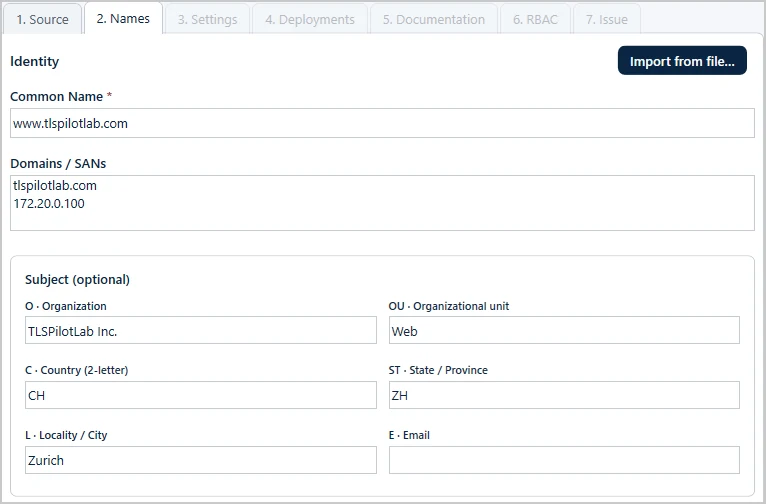
- Names: Enter the Common Name, for example “www.tlspilotlab.com”, and further names or IP addresses under Domains / SANs. Optionally, add details such as organization, organizational unit or city under Subject. Alternatively, click Import from file… and select an existing CSR or certificate file (CRT). TLSPilot takes over the Common Name and the SANs; enter the Subject details yourself.
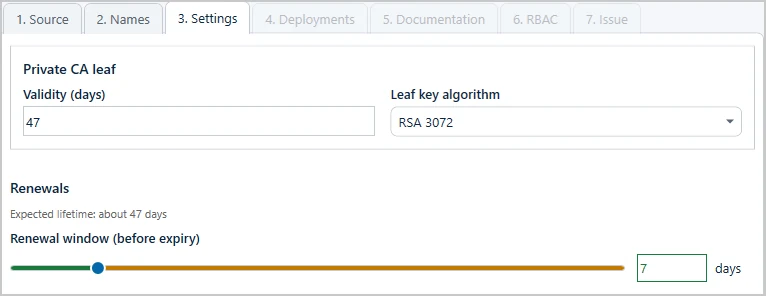
- Settings: Keep the defaults: a validity of 47 days, the key algorithm RSA 3072, which is the recommended key length from around 2028, and a renewal window of 7 days. The private key is always kept in the certificate store iTrain TLSPilot on the management host, so the certificate can be deployed again at any time.
- Deployments: Skip this step for now, see chapter My First Deployments.

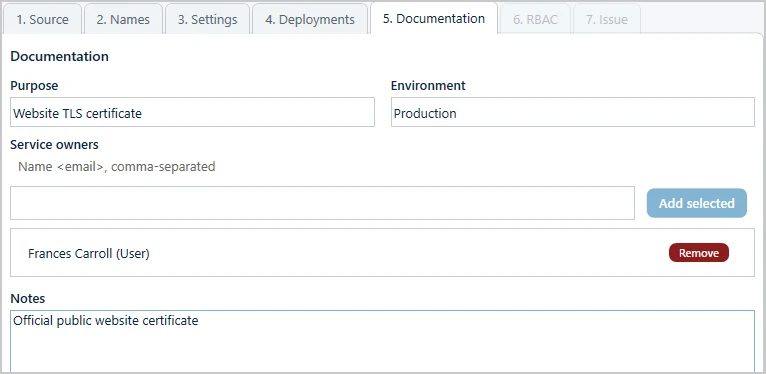
- Documentation: Optionally describe the purpose and environment, and add notes. If WebUI and RBAC are licensed and RBAC is switched on, you can also add service owners under Service owners: enter at least two characters of a name, select the match and click Add selected. Otherwise, enter the owners as free text under Owners (Name <email>, comma-separated). Service owners can also receive alerts, for example when the certificate has been renewed.
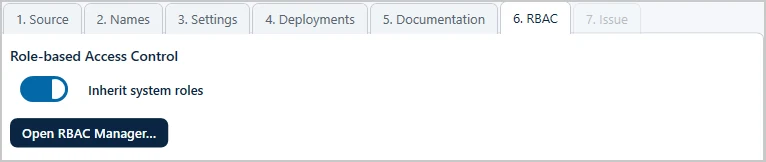
- RBAC: If WebUI and RBAC are licensed, keep Inherit system roles switched on. The tab RBAC then shows only this switch and the button Open RBAC Manager…, see chapter Permissions for a single certificate. The tab is greyed out until RBAC is switched on in the settings on the tab RBAC.
- Issue: Select Issue now and click Finish. If you select Wait for cycle instead, the certificate is issued during the next daily cycle.

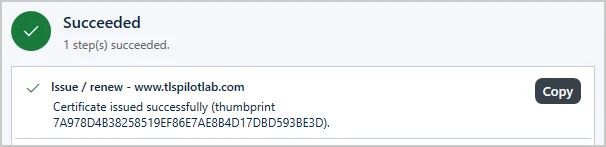
TLSPilot issues the certificate immediately and confirms it with its thumbprint.
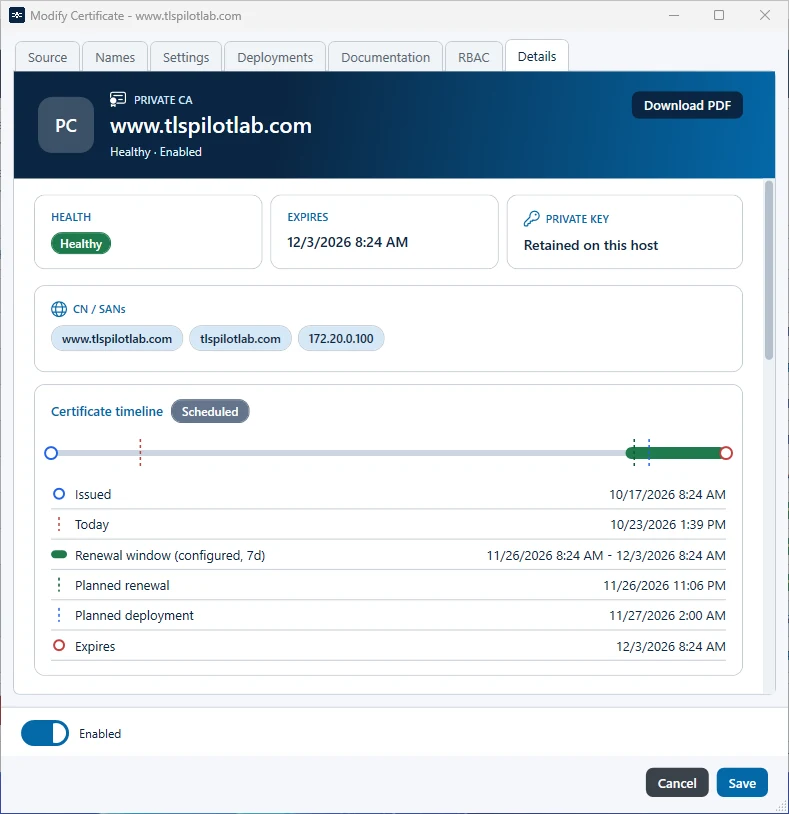
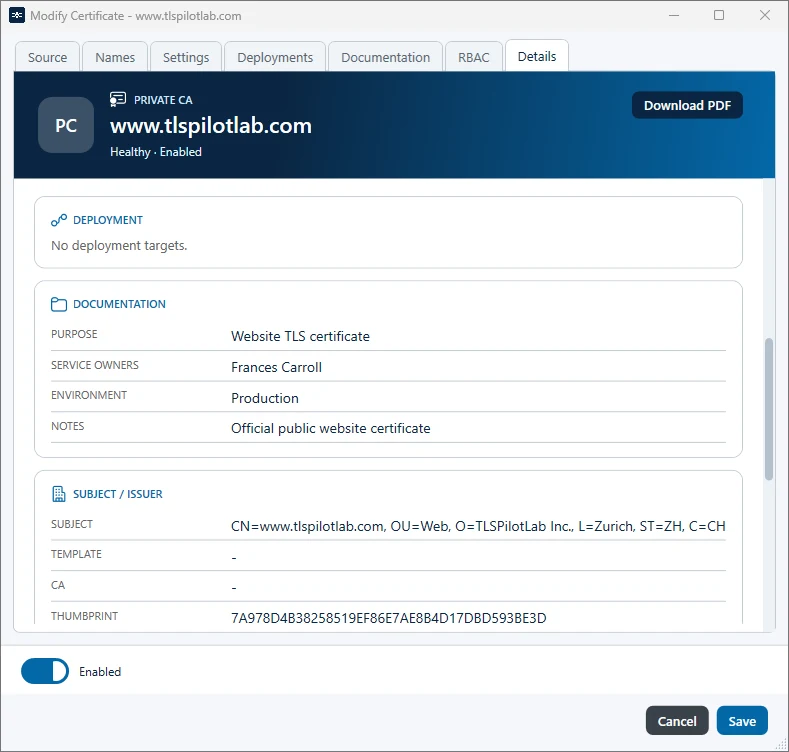
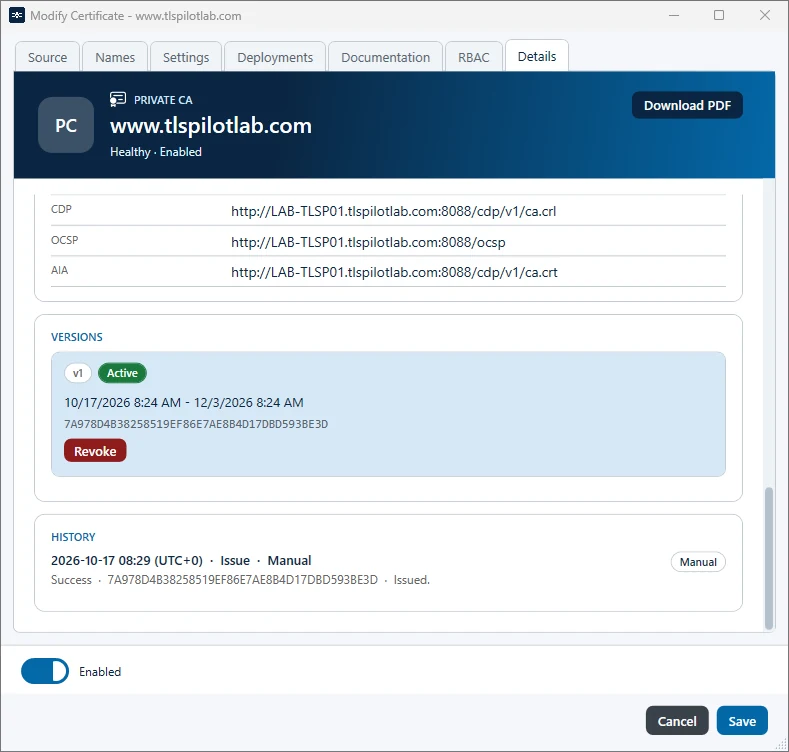
Double-click the certificate in the list to see its names, deployments and documentation on the corresponding tabs. The tab Details shows Health, Expires, Private key, CN / SANs and the Certificate timeline with Planned renewal and Planned deployment. Further down it shows the CDP and AIA paths, the versions and the history, including who issued it and whether manually or by the cycle. Click Download PDF there to save the documentation as a PDF file.