
Getting started · 4.4
The TLSPilot Dashboard
After the setup, the Desktop Admin console opens with the dashboard. It shows the state of TLSPilot at a glance and is the starting point for all tasks. The figure shows a management host that is already in use; right after the setup, the list only contains the certificates described in chapter After the setup. The numbers refer to the figure below.
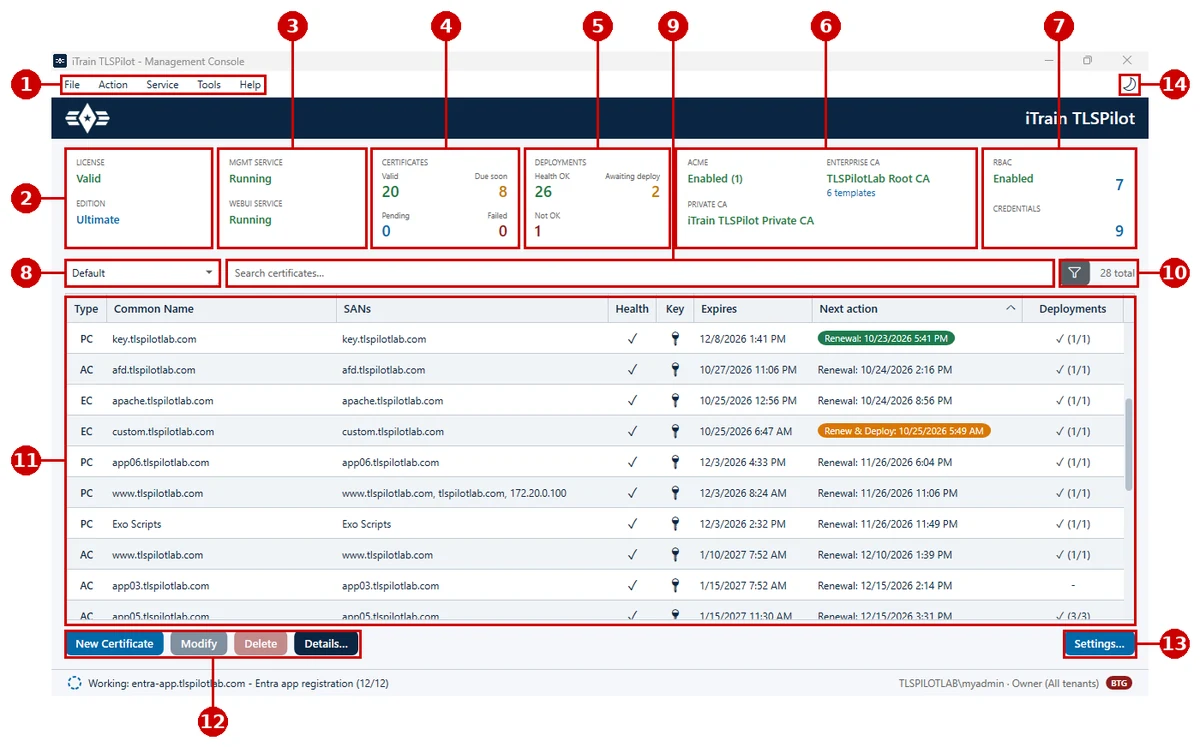
- Menu bar: File contains, for example, RBAC Manager… and Restore configuration…, Action contains New certificate…, Service contains Run deployment & health cycle now, Restart management service… and Restart Web UI service…, Tools contains View logs & audit…, Generate documentation… and TLS Explorer…, see chapter Tools: documentation and TLS Explorer, and Help contains TLSPilot User Manual, Open Support Ticket…, Check for updates and About iTrain TLSPilot.
- License: Shows whether the license is activated and which edition you use, see chapter License.
- Services: Shows whether the management service and the WebUI service are running, see chapter Setup.
- Certificates: Shows how many certificates are valid, due soon, pending or failed. Due soon follows the same rule as the column Next action, see chapter Where you see the state. Failed counts certificates whose material is in error or expired, and certificates whose latest renewal failed, including certificates whose renewal attempts are exhausted. After a successful renewal or issue, the certificate leaves this count.
- Deployments: Health OK and Awaiting deploy on the first row. Not OK is under Health OK. Awaiting deploy waits for the next cycle and counts only deployments with a completed health check whose last result is not faulty. A deployment that was never checked counts as Not OK, see chapter Where you see the state.
- Issuers: Shows the state of the ACME providers, the Enterprise CA with the number of available templates, and the Private CA.
- RBAC and Credentials: Shows whether RBAC is enabled and how many credentials exist. Click the tile to open the RBAC Manager or the Credentials Manager, see chapters Assign roles and External credential stores.
- Tenant picker: Switches between tenants, see chapter Tenants. It is shown only in editions with tenants (Ultimate); in other editions, number 8 is not visible.
- Search field: Narrows down the certificate list, for example by entering a name.
- Filter: Filters the certificate list by Type (External (ACME), Enterprise CA (AD CS), Private CA), Deployment (with or without targets, target type) or Renewal (due for renewal). Clear filters shows all certificates again. Next to it, TLSPilot shows how many certificates are listed.
- Certificate list: Lists all certificates with their type (PC for the Private CA, EC for the Enterprise CA, AC for ACME), names, Health, expiry date and deployments. If the latest renewal of a certificate failed, its Health shows Renew failed; the tooltip shows the last error. Double-click the type, Common Name, SANs or deployments of a certificate to open its tab Deployments; double-click Health, Key, Expires or Next action to open Details. Right-click a certificate for further actions such as Modify…, Force renew…, Deploy…, Health Check…, Copy deployments…, Move to tenant, Export… and Delete… Deploy… and Health Check… are available only when at least one selected certificate has an enabled deployment; otherwise their tooltip reads Add a deployment to this certificate first. In a multiple selection, certificates without deployments are skipped and listed in the result as No deployments configured. Skipped. The column Key shows whether the private key is kept on the management host (key icon) or not (–), and Next action shows the next step for the certificate, for example Renewal:, Deploy:, Renew & Deploy:, Retry renewal: or Waiting. Its tooltip shows the full plan, see chapter Where you see the state.
- New Certificate, Modify, Delete and Details…: Create a new certificate or edit, delete or view the selected certificate.
- Settings…: Opens the settings, for example for the WebUI, RBAC, ACME providers, alerts, logging and backups. If you are signed in with a break-the-glass account, a red BTG icon appears at the bottom right of the status bar, see chapter Break-the-glass accounts.
- Light/dark mode: The button at the top right of the title bar switches between light and dark mode. The WebUI has the same button.