
Alerts and logging · 12.2
Create alerts
An alert profile defines when TLSPilot sends a notification, to whom and via which channel.
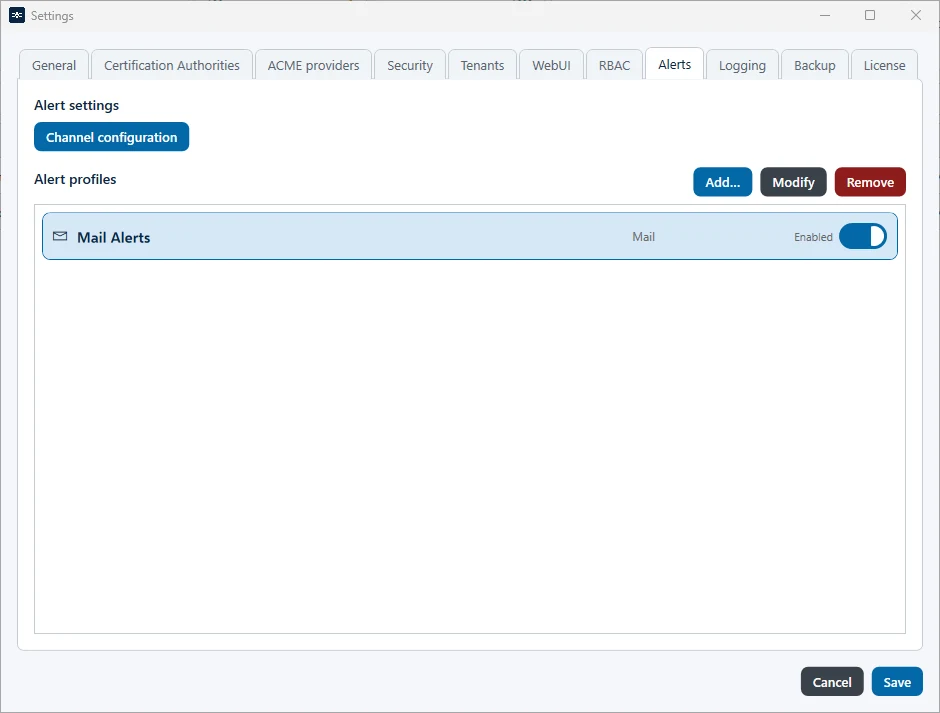
- On the tab Alerts, click Add… and enter a Name for the alert profile, for example “Message to owner”.
- Type and Channel: Select the type and the channel you configured.
- Recipients (comma-separated): For the type Mail, enter the recipients. With RBAC enabled, you can in addition or instead switch on Send alert to service owner to notify the service owners defined in the documentation of the certificate or deployment, see chapter Private CA (PC); without RBAC, the service owners are always copied. If a service owner is a group, the group email address is notified. If only service owners are notified, the system events (license, service, cycle and backup) are not available. Tenants… is shown only if your license includes tenants.
- Conditions: Click Tenants… to restrict the alert to specific tenants. Choose Cycle to be notified only about the daily cycle, or Cycle and Manual to include actions started manually in the Desktop Admin console or the WebUI, for example Check Now in a deployment and Health Check… on a certificate. A Health check after a deployment and a check after enabling or copying a deployment send no Failed health check. If Drift remains at the retest 60 seconds after a deployment, the Deploy warnings alert is sent.
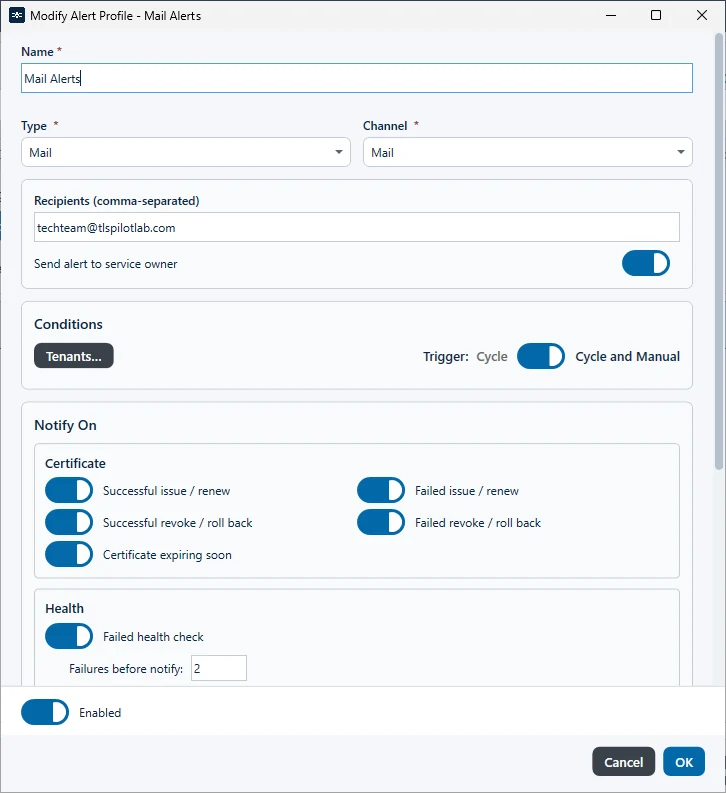
- Notify On: Switch on the events for which you want to be notified. The events are grouped: Certificate with Successful issue / renew, Failed issue / renew, Successful revoke / roll back, Failed revoke / roll back and Certificate expiring soon; Health with Failed health check; Deployment with Successful deploy, Deploy warnings and Failed deploy; System with Backup failed, External credential resolve failed, Service failed, Cycle finished with failures, License expiring soon (with Days before expiry) and License issues. The System events concern the whole host. Under Failures before notify, you define after how many Unreachable results in a row of a Health check that you start you are notified, by default 2, so a single Unreachable result does not trigger an alert. The toggles Successful deploy, Deploy warnings and Failed deploy control the notifications about deployments.
- Certificate expiring soon: Only the daily cycle and Run deployment & health cycle now evaluate this event. Run deployment & health cycle now counts as manual, so it notifies only profiles set to Cycle and Manual. There is no days setting: the threshold follows the renewal window of each certificate. For ACME certificates whose CA offers ARI, this is the window of the CA; for Enterprise CA certificates with Follow template renewal period, the renewal period of the template; otherwise the renewal window of the certificate, which TLSPilot presets to about one third of the validity, at most 30 days, for example for Private CA certificates. TLSPilot notifies you when a certificate is past the middle of this window and has not been renewed, for example with 15 days left for a 90-day ACME certificate with a 30-day window, or with 8 hours left for a 48-hour Private CA certificate with a 16-hour window. A normal renewal happens at the start of the window, so this alert means that the renewal has not succeeded in the first half. You are notified once per certificate version. Issue now, Force renew…, deployments and Health checks never send this event.
- Health check results: This applies to Health checks that you start, with Cycle and Manual; automatic checks never send Failed health check. Drift or Unknown sends Failed health check. For Unreachable, TLSPilot sends Deploy warnings while the certificate on the target is before the renewal threshold, and Failed deploy at the threshold or after it expired, if that entry is switched on. Otherwise Unreachable sends Failed health check when the number of Unreachable results in a row reaches Failures before notify. One check sends one notification per target.
- One notification per action: Each action on a certificate, for example an issue or renewal, and each action on a deployment sends one notification per alert profile.
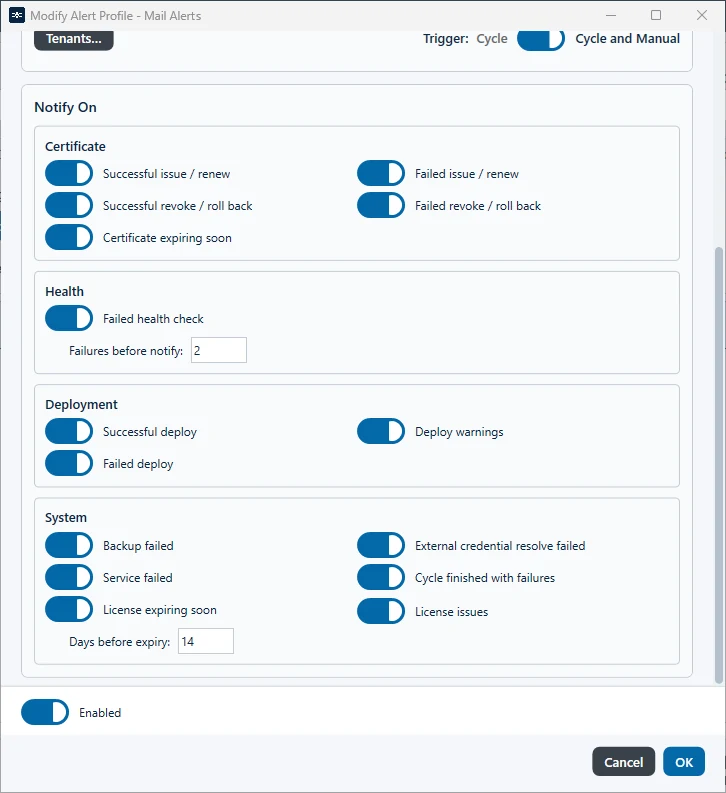
- Click OK and then Save.
You can enable or disable each alert profile individually.
Weekly report
Under Weekly report below the alert profiles, TLSPilot mails the Upcoming week report once a week: a PDF file with the renewals and deployments scheduled for the coming seven days. The section is on the tab Alerts in the Desktop Admin console and in the WebUI, see Figure Weekly report on the tab Alerts in the settings.
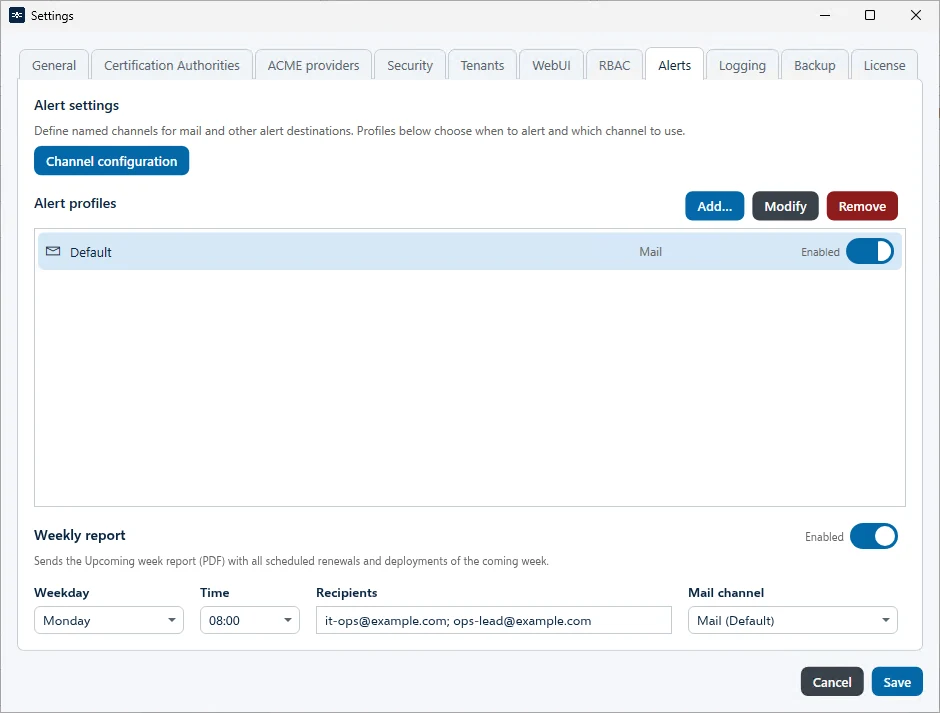
By default the report is Disabled. Switch the toggle to Enabled, set the following fields and click Save:
- Weekday: Monday to Sunday, by default Monday.
- Time: a full hour from 00:00 to 23:00, by default 08:00. Weekday and time are the local time of the management host.
- Recipients: one or more email addresses, separated by a semicolon (;).
- Mail channel: a channel of the type Mail, see chapter Configure alert channels.
The report covers the seven days from the moment it is sent. If the send time passes while the management service is stopped, TLSPilot sends the report once at the next start. If sending fails, TLSPilot tries again after 5 minutes. The mail uses the standard layout of the alert mails with a neutral band titled Upcoming week report and carries the report as Upcoming-week-report.pdf.
To create the report at any time, choose Tools, Upcoming week report in the Desktop Admin console, which opens the PDF, or in the WebUI, which downloads it. The report has A4 landscape pages (see Figure Example weekly report (excerpt)):
- The key figures Renewals, Deployments, Expiring and Not healthy.
- Needs attention, only if there are entries, for example failed renewals and deployments with Drift or Unreachable.
- Schedule: one table with the columns Time, Action, Certificate, Issuer, Deployment target and Tenant. A light-grey band shows each day with the weekday and the date in the short date format of the host; the rows below it show only the time. A renewal shows its planned time, or the time span as long as TLSPilot has not set the time yet; a retry shows the time of the next retry. A renewal that is deployed in the same run is one row Renew & Deploy, with its deployment targets one below the other.
- Statistics on the last page, with the charts Certificates by issuer and Deployments by target type. With more than eight issuers or target types, a chart shows the seven largest and combines the rest as Other.
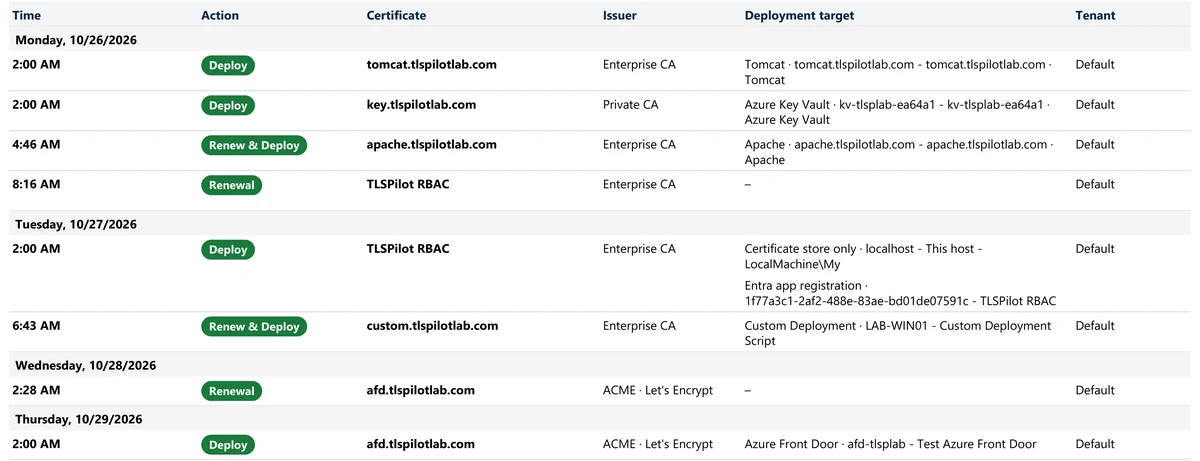
The footer reads Scheduled operations only. Times in followed by the time zone of the host, as its standard name and UTC offset, for example UTC (UTC+00:00).