
My first deployments · 6.8
App registration
On this page
This example protects an Entra app registration with a certificate instead of a client secret. App registrations are often used, for example, for scripts that access Exchange Online or Azure, and usually authenticate with a client secret. Anyone who has the secret together with the tenant ID and application ID can act on behalf of the app, and the secret is only valid for a limited time. TLSPilot uses a certificate instead and renews it automatically. Unlike the previous examples, this is not a TLS certificate for a web server, but a certificate with which a computer authenticates to the app registration.
- Issue a certificate from the Private CA as described in chapter Private CA (PC), for example with the Common Name “exoscripts”. As the certificate is only used for authentication, the Common Name does not have to be an FQDN.
- Open the tab Deployments of the certificate as described in chapter Local store, switch on Automatic deployment if it is not yet on, and click Add…
- Linked service: Select Entra app registration.
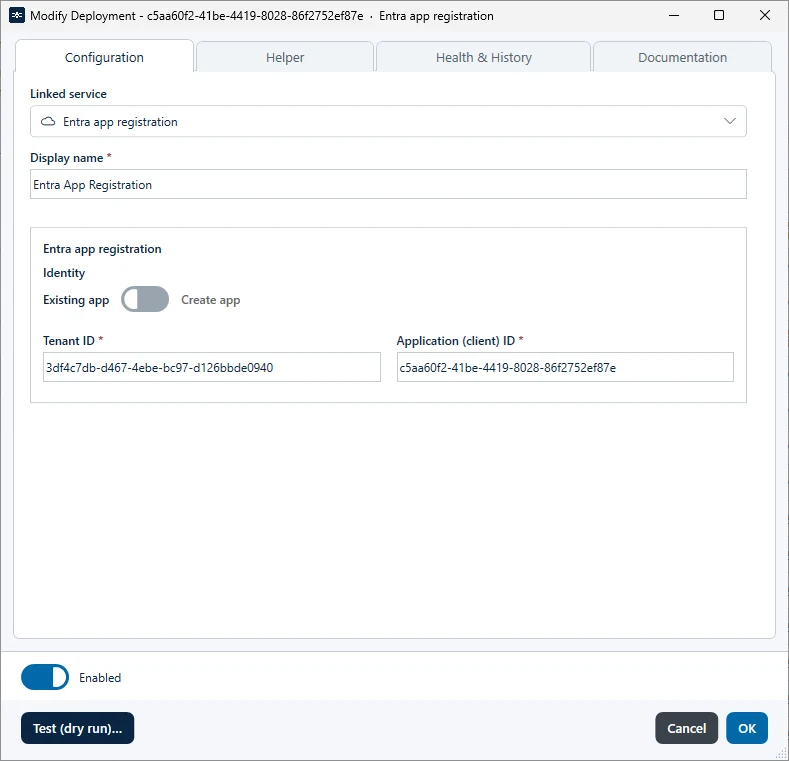
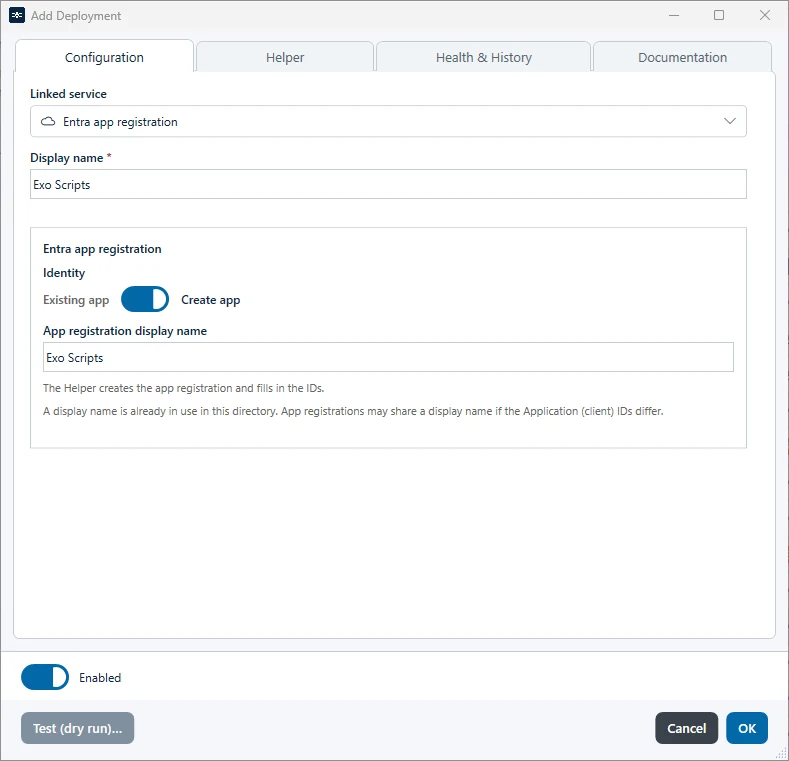
- Display name: Enter a name for the deployment, for example “AppReg Exo Scripts”. With Create app, TLSPilot uses this name as App registration display name and keeps both fields in sync until you change one of them separately. After the helper, the display name takes the name of the created app. With Existing app, TLSPilot fills in the name of the app when it can resolve it.
- Choose whether to use an existing app registration or create a new one:
- Existing app: Enter the Tenant ID and the Application (client) ID, which you can copy from the app registration in Entra. If TLSPilot does not yet have the permissions to deploy the certificate to the app registration, it indicates this.
- Create app: Under App registration display name, check the name of the new app registration, for example “Exo Scripts 2”.
- Helper: Click Open Helper or open the tab Helper. It shows whether all required fields are set, the roles you need and what the helper changes, as described in chapter Entra ID helper. For an existing app, it also removes any further owners and the permission Application.ReadWrite.All.
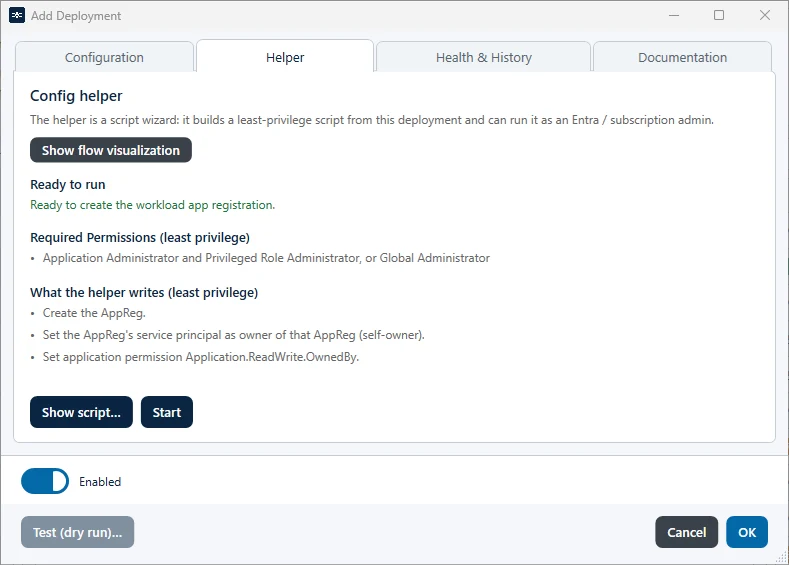
- Click Start. The helper works as described in chapter Entra ID helper. If you have already signed in during an earlier helper run, PowerShell asks whether to continue with this account (Y) or to sign in with another account (A). Press Enter in the PowerShell window when prompted.
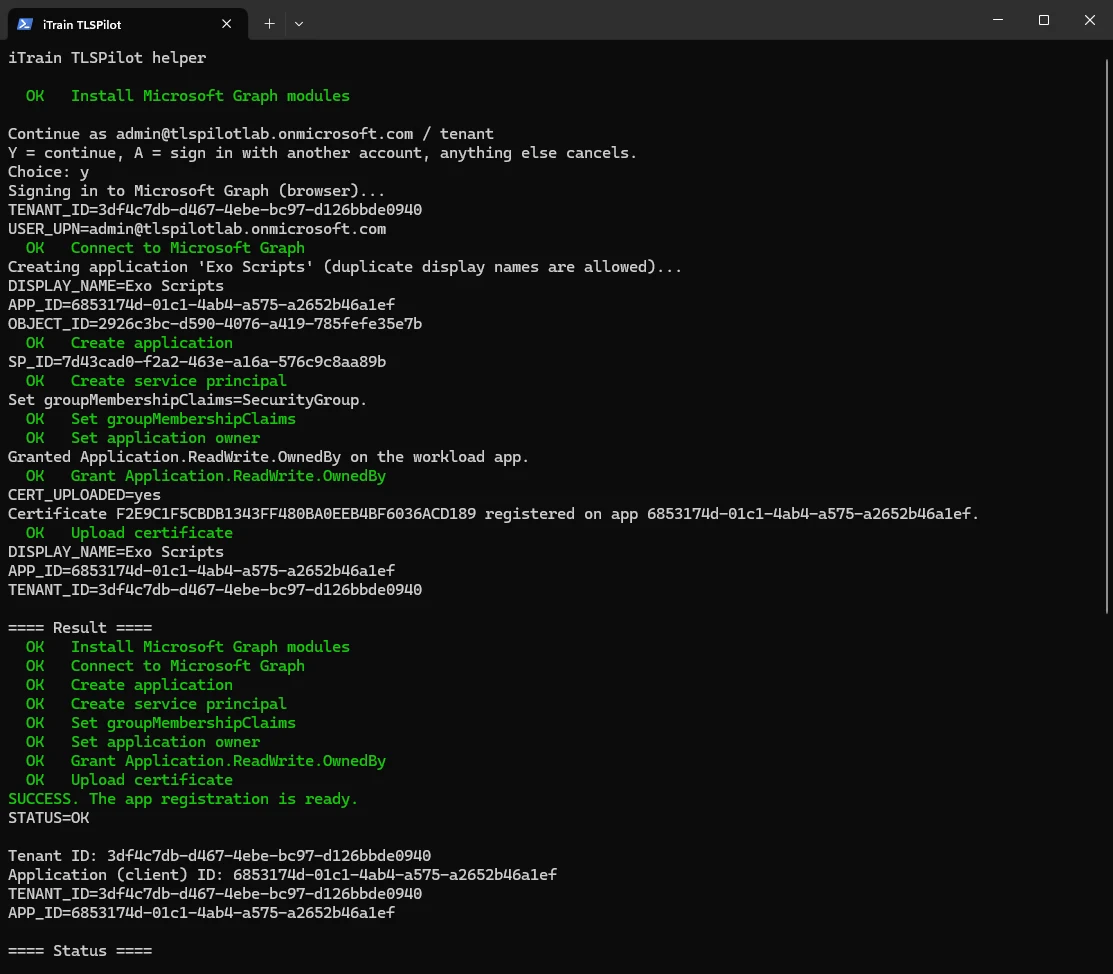
- Click OK and then Save. With Existing app, confirm the deployment with Yes. With Create app, the helper has already stored the certificate in the new app registration.
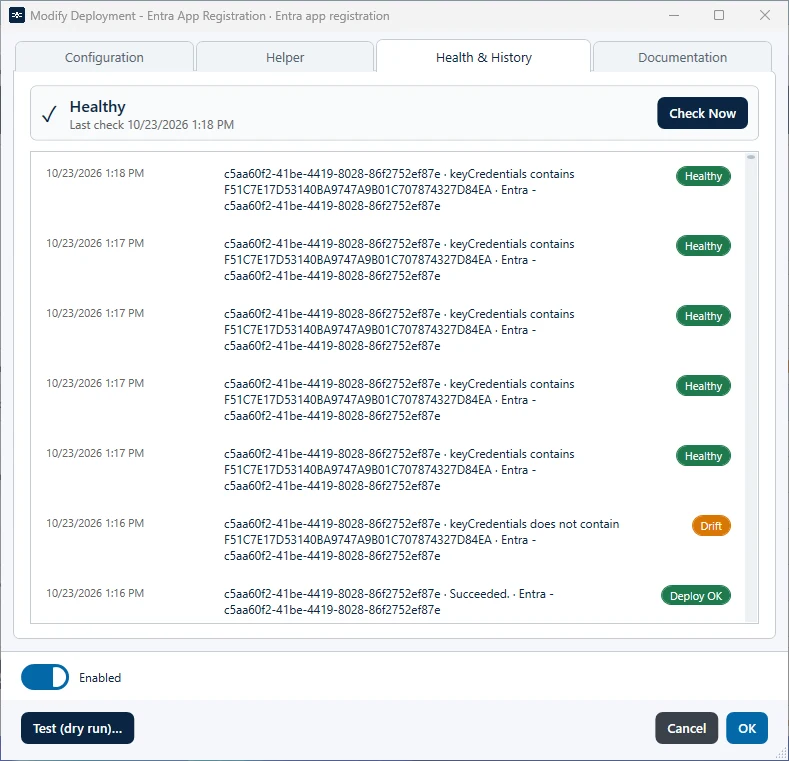
In the deployment type App registration, TLSPilot stores the certificate in the app registration and checks the Health. While a newly issued certificate waits for its deploy and the certificate on the target is still valid, the Health check signs in with the deployed certificate, not with the new one. This applies to the automatic check and to Check Now. If Entra rejects the client certificate, for example with AADSTS700027, or the certificate is not listed on the app registration, the Health is Drift and shows the message of Entra. If the deployed certificate has expired, the Health is Drift and shows the time of expiry, and TLSPilot does not contact Entra. If the key of the deployed certificate is missing in the certificate store, the Health is Unreachable and shows the error of the store, and TLSPilot does not sign in with the new certificate. A real outage, for example a timeout, a refused connection or a 5xx error, stays Unreachable. In Entra, you can check that the app registration is its own owner, has the permission Application.ReadWrite.OwnedBy instead of Application.ReadWrite.All and contains the certificate under Certificates & secrets.
With Create app, TLSPilot then switches the deployment to Existing app and enters the Tenant ID and Application ID of the new app registration. Add the API permissions that your scripts need to the app registration in Entra yourself.