
My first deployments · 6.9
Azure Key Vault
On this page
Tutorial 13: Azure Key Vault · 8:46Open on the Tutorials page
This example stores a certificate in an existing Azure Key Vault, as an example of the Azure deployment types. TLSPilot does not access the vault with your user account, but with an app registration of its own, which authenticates with a certificate. The helper of the Key Vault deployment only assigns permissions to an existing app registration, so you create this app registration first. You therefore need two certificates: one with which the app registration authenticates, and the one you want to store in the vault.
Create the app registration
- Issue a certificate from the Private CA as described in chapter Private CA (PC), for example “Key Vault Service Account”. Keep the default settings and skip the deployments.
- Add a deployment of the type Entra app registration to this certificate with Create app as described in chapter App registration, for example “Azure Key Vault Service Account”. Use a separate app registration for each automation. After the helper has finished, TLSPilot adds the credential of the new app registration to the Credentials Manager automatically.
Store the certificate in the vault
- Open the tab Deployments of the certificate you want to store in the vault as described in chapter Local store, switch on Automatic deployment if it is not yet on, and click Add…
- Linked service: Select Azure Key Vault.
- Enter the Tenant ID, the Subscription ID, the Resource group, the Key Vault name and the Object name of the certificate in the vault. Under Store as, choose whether the certificate is stored as a certificate or as a secret.
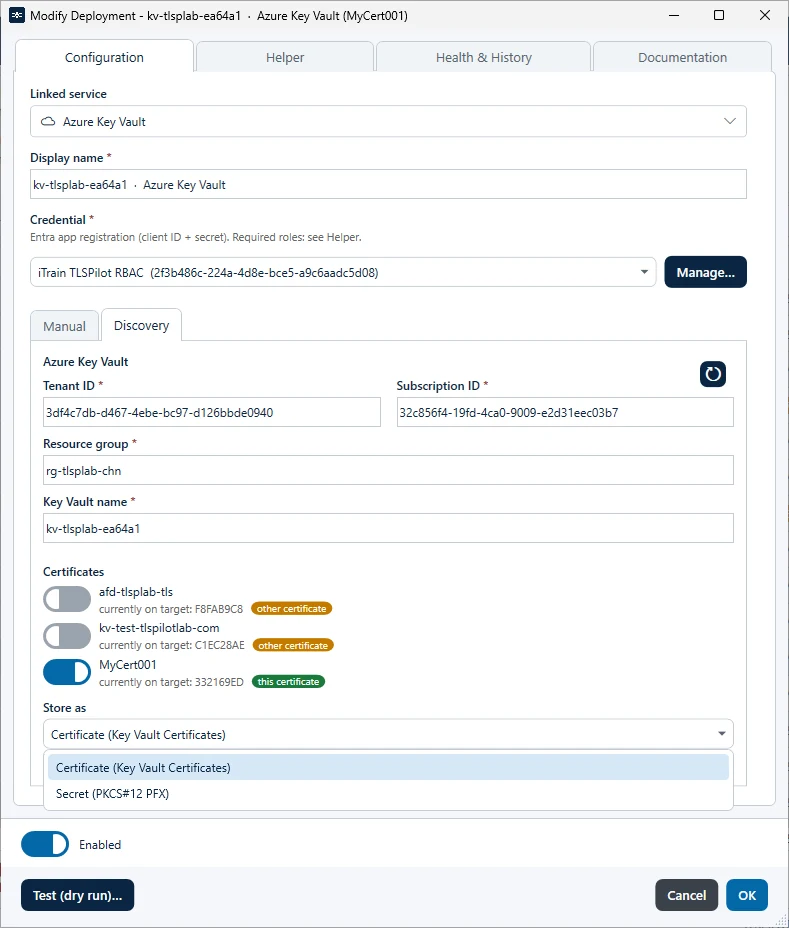
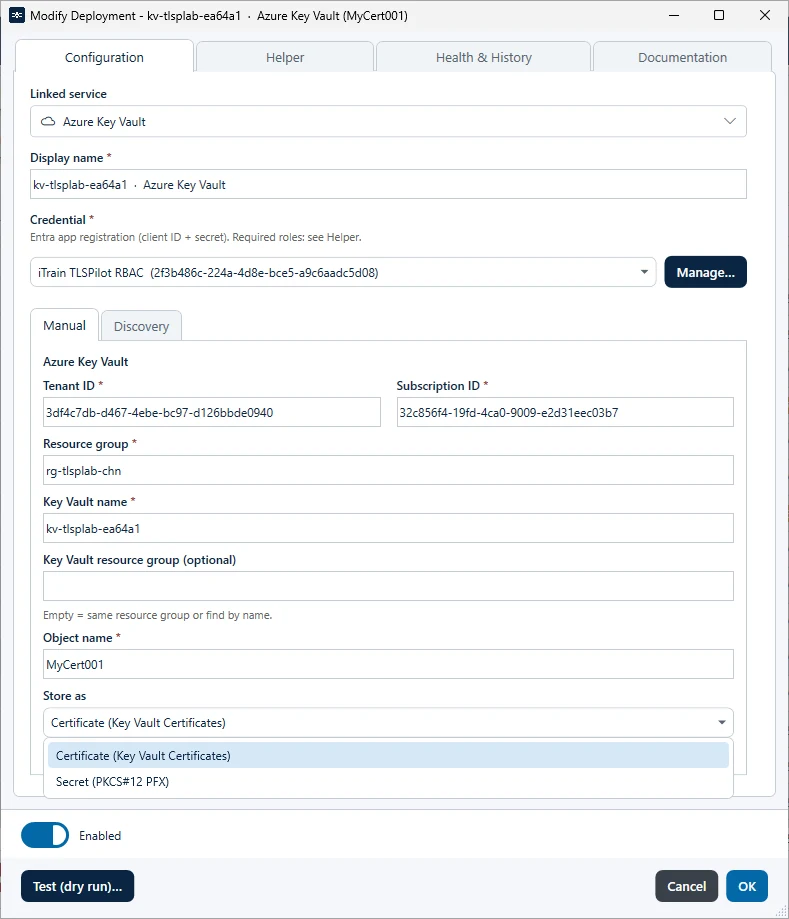
- Credential: Select the app registration you created above, for example “Azure Key Vault Service Account”. By default, the app registration of the RBAC setup is preselected. Do not use it.
- Helper: Click Open Helper or open the tab Helper. It shows the roles you need (User Access Administrator or Owner on the vault) and the role it assigns to the app registration: Key Vault Certificates Officer or Key Vault Secrets Officer, depending on Store as. Instead of using the helper, you can also assign the role to the app registration manually in the Key Vault.
- Click Run. The helper signs in to Azure with your account, installs missing modules and assigns the role.
- Click Test (dry run)… A warning that the object does not exist yet is expected before the first deployment.
- Click OK and then Save. When asked whether to deploy now, click Yes.
TLSPilot stores the certificate in the Key Vault and checks the Health. Click Close once the deployment has finished.