Certificate options · 13.3
Versions of a certificate
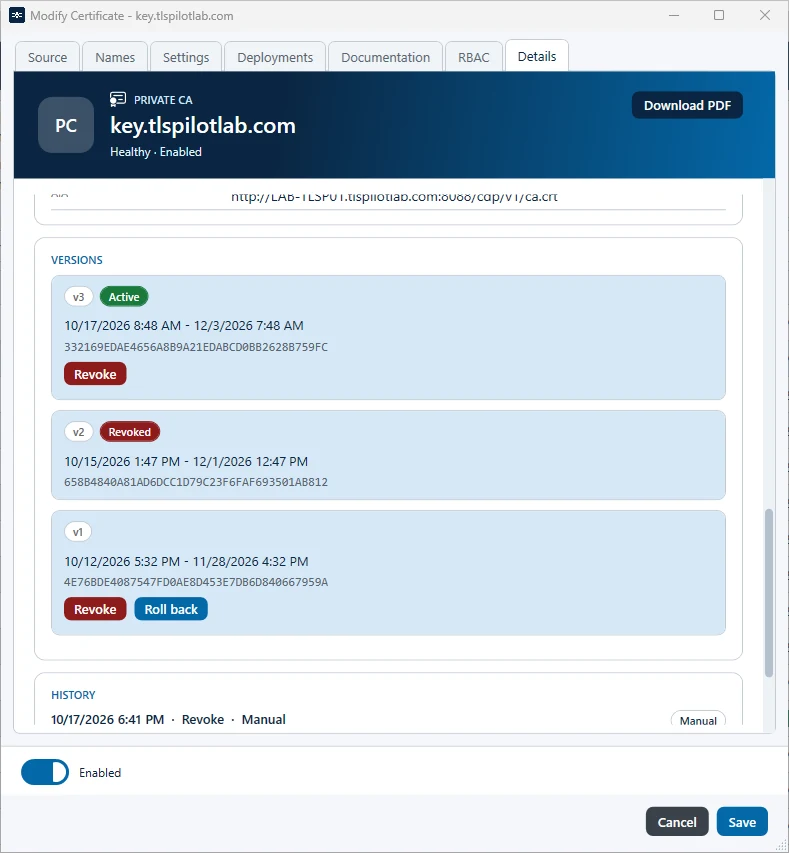
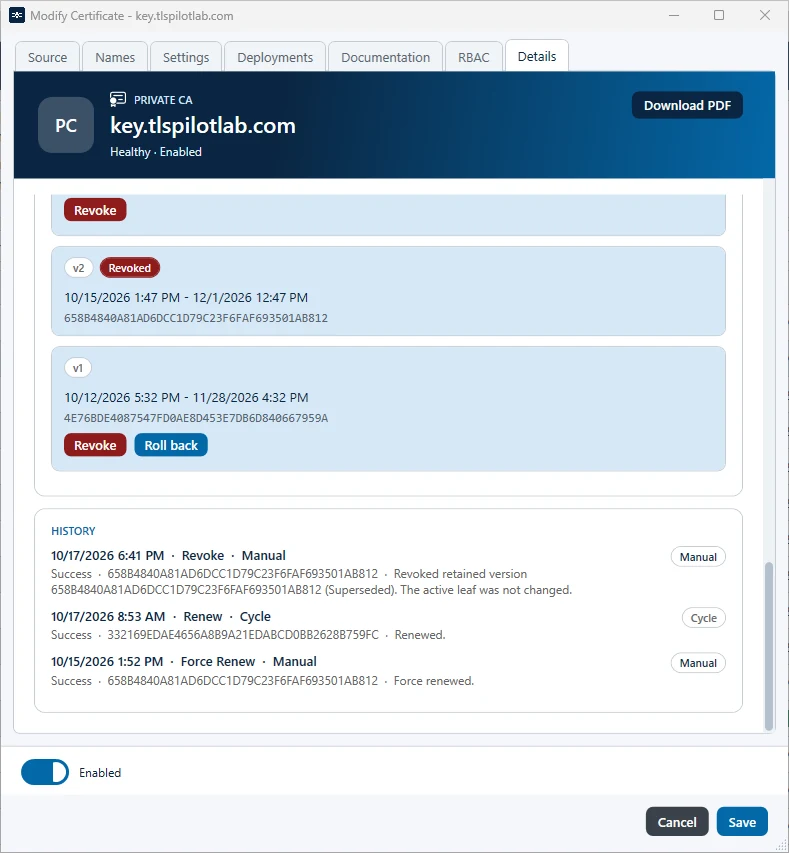
Each renewal creates a new version of the certificate. To see the versions, double-click the certificate and open the tab Details. Under Versions, each version is shown with its number, for example v1, its validity and its thumbprint. The version that is currently deployed is marked Active. In each version card, Revoke is the first button and Roll back sits to its right; the active version has no Roll back. Without previous versions, the list reads No retained versions. Previous versions are retained while Retain retired certificate material is switched on in the settings on the tab Security (default on), for the Retention (days) set there (default 180), so you can return to them if required. Without retained material, Roll back is not available. Under History, you see which action was performed when, by whom and whether manually or by the cycle. A renewal appears at the time of issuance, followed by its deployments, labelled Deploy (after Renew). Deployments that you start yourself or that follow a failed Health check are labelled Deploy. A roll back appears as Roll back with the version before and after, and the deployment that follows it as Redeploy. History and Versions show local time: the Desktop Admin console uses the time zone of the management host, the WebUI the time zone of the browser. The history is kept across service restarts and updates, lists each operation once and is included in backups.