
Getting started · 4.2
Initial Setup Wizard
On this page
The Initial Setup Wizard guides you through the basic configuration of TLSPilot.
What the wizard does
The wizard covers the following steps:
- Migration: Takes over the configuration of an existing installation from a migration backup.
- License: Activates your license with the One-Time Key you received after your purchase.
- Issuers: Configures the issuers from which TLSPilot obtains certificates.
- WebUI: Enables the WebUI and defines which certificate it uses.
- Access: Defines who may access TLSPilot with role-based access control (RBAC).
- Daily check: Defines when TLSPilot runs the daily cycle: deployments, health checks, issuing certificates set to Next cycle and the backstop, see chapter Deployment & health cycle. Renewals run at their own time.
All settings can be changed later in the settings of the Desktop Admin console. Nevertheless, it is recommended to complete the wizard when you start using TLSPilot, as it sets up everything you need for your first certificates.
The steps shown depend on your edition and on the options you select. This chapter describes all steps as they appear when your edition includes all features. In this case, the wizard has 12 steps. Until the license is activated, the header counts only the steps known at that point, for example Step 2 of 5.
Before you start
Prepare the following information before you start the wizard. You only need the items for the features you plan to use.
| Item | What to prepare |
|---|---|
| License | The One-Time Key you received after your purchase. Without a key, the free Community license is activated, see chapter License. |
| Let’s Encrypt | If you enable it, an email address for your ACME account, ideally of the person or team responsible for your certificates. |
| ZeroSSL | If you enable it, the EAB Key ID and EAB HMAC key of your ZeroSSL account, which you can generate at https://app.zerossl.com/developer. |
| Enterprise CA | A domain-joined management host and a certificate template with the required permissions for the management host on which TLSPilot is installed. |
| Private CA | A name for your CA and the URL under which clients reach its revocation list (CRL). |
| WebUI | The FQDNs under which users will open the WebUI, including matching DNS entries. If you want to use an existing certificate, it must be installed in the LocalMachine\My certificate store. |
| Entra ID | An account with the roles Application Administrator and Privileged Role Administrator, or Global Administrator, in your Entra tenant. |
| Daily check | A suitable time for the daily check, outside business hours. |
Once TLSPilot is installed and you have the required information ready, you can start setting up TLSPilot with the Initial Setup Wizard as described in the following sections.
Migration or fresh start
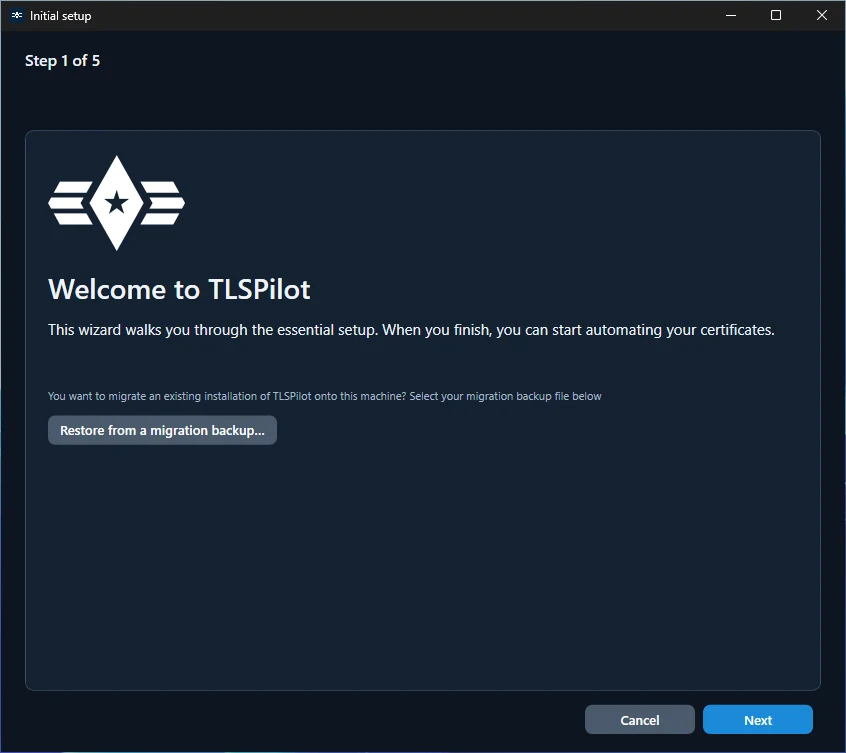
The first step of the wizard lets you take over the data of an existing TLSPilot installation, for example when you move TLSPilot to another management host.
- New installation: If you have not used TLSPilot before and therefore have no migration backup, click Next to continue.
- Migration from another installation: Click Restore from a migration backup… and select the migration backup of the source installation. TLSPilot always restores the complete migration backup; individual areas cannot be selected. A migration backup is restored only here, on a freshly installed management host that has not been set up yet. A migration backup of a Community installation without license is accepted as well; TLSPilot then runs as Community. To restore a migration backup on a management host on which TLSPilot is already set up, uninstall TLSPilot with Delete all TLSPilot data, install it again and choose Restore from a migration backup on the first screen of the wizard.
After the restore, the wizard lists the result per area, including the row Private CA - restore with the subject and the version of the CA, and the row Logs with the number of restored log files. Each row shows the actual outcome. The list also reports the items that the backup did not include, local deployments that failed after the restore and the result of the license activation. If a row is not ok, the wizard stays on the result page and shows the reason. The finish page shows the title Finished with a subtitle that confirms the migration restore. It recommends creating a same-host backup on this computer and offers a button for it, because the private keys and credentials in same-host backups of the source computer cannot be decrypted on this computer. After the migration, the wizard does not open again.
For details on migration backups and on the license when you move TLSPilot to another host, see chapter Backup and Restore.
License
In this step, you activate your license.
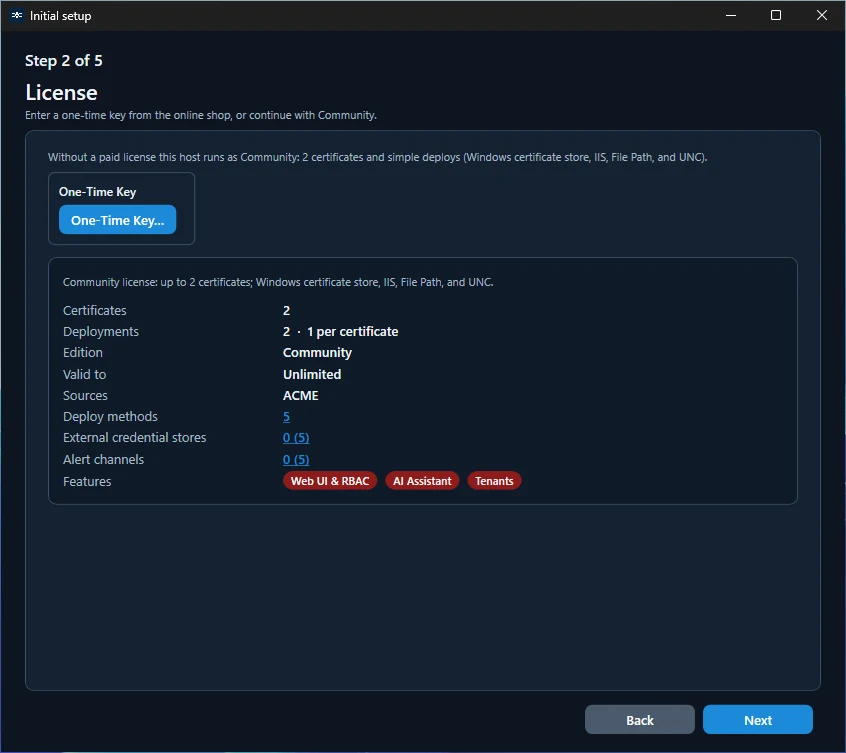
- Community license: If you do not enter a One-Time Key, the free Community license is activated. It is limited to two certificates with one deployment each and to simple Windows deployment types such as the Windows certificate store, IIS, UNC and File Path. Alert channels and external credential stores are not included, and further features are limited.
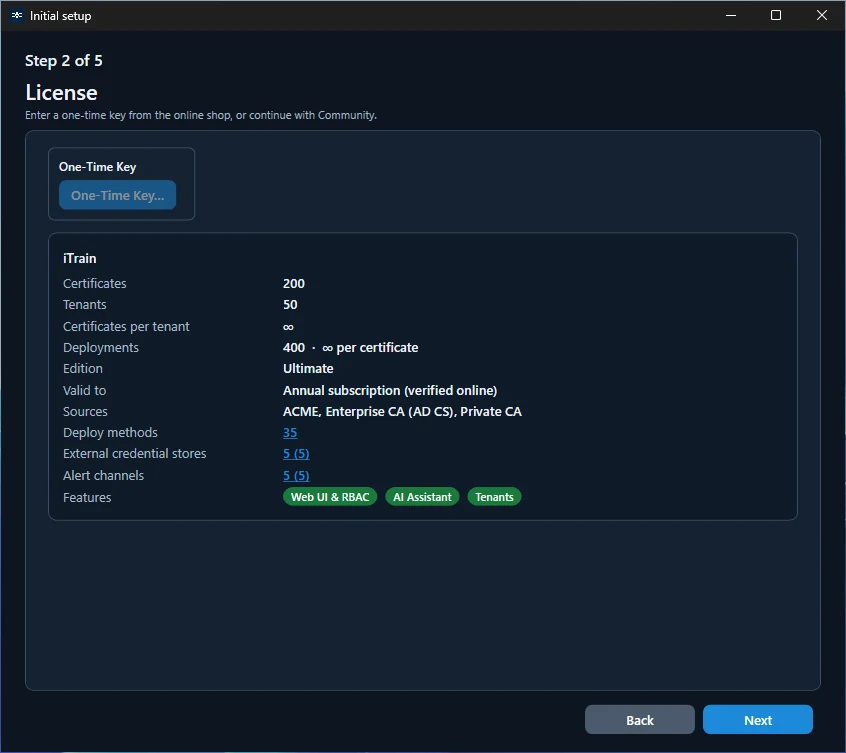
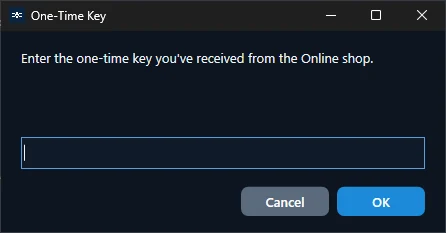
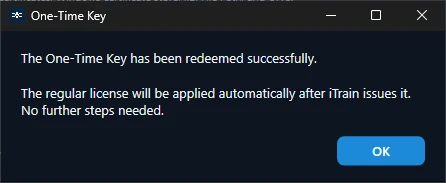
- Purchased license: Click One-Time Key… and enter the key you purchased or received via the shop, see Figure One-Time Key dialog. TLSPilot then reads in the license automatically and confirms the redeemed key, see Figure One-Time Key redeemed. For this, the management host connects to license.itrain.ch via TLS 1.3. The license service can take up to about 40 seconds.
After the activation, the page shows the details of your license, such as the number of certificates, deployments and tenants, the available issuers and the included features. Features such as WebUI & RBAC, AI Assistant or Tenants are shown as pills: green means included, red means not included.
Until iTrain has confirmed the final license, the page shows Activated (License pending) and TLSPilot runs with a temporary license. You can already use all features of your edition in the meantime. The final license is usually delivered automatically within 24 hours, and no further action is required.
After the setup, the settings show the same details on the tab License. There you enter a further One-Time Key with One-Time Key…, check the license online with Check now, or release the license seat of this host with Deactivate, for example before you move TLSPilot to another management host, see chapter Create a backup manually.
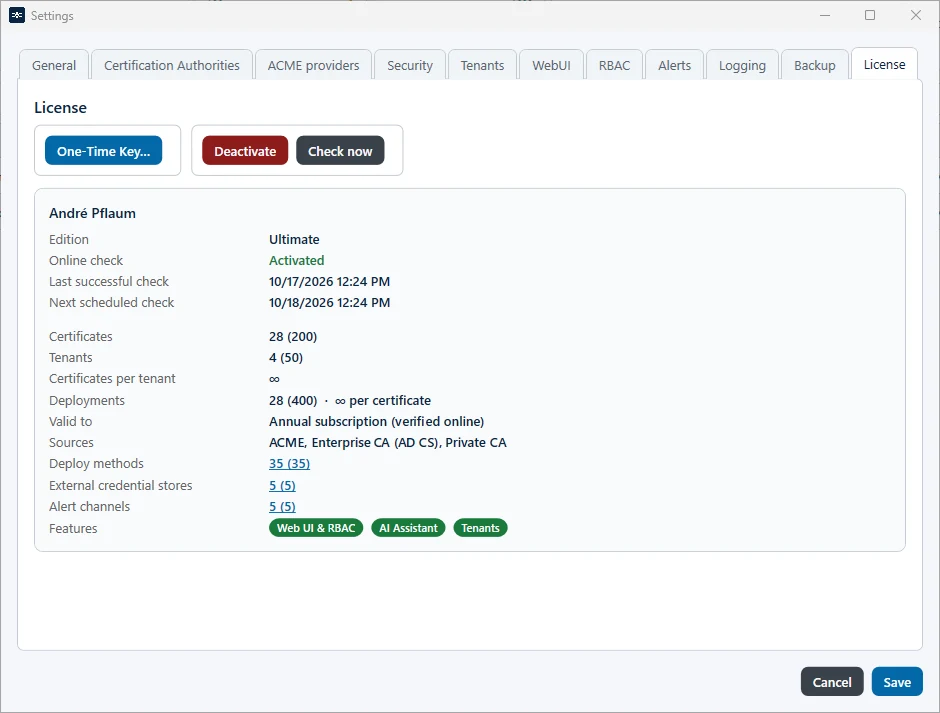
On the tab License, Valid to shows Annual subscription (verified online) for a subscription. A license with a fixed end date, for example a trial, shows the date, then Grace until <date> and finally Expired <date>. The Community license shows Unlimited. Valid to stays unchanged when the license is revoked, is in the grace period after a revocation, or its seat is deactivated; this status only shows in the tile License, in the row Online check and in the status dialog. A subscription license stops working in two cases:
- Subscription cancelled: If you cancel your subscription, the license is revoked only at the end of the paid period. TLSPilot detects the revocation at the next online check. A grace period of 7 days follows, in which all licensed features and limits keep working unchanged. After Check now, and once per session when the Desktop Admin console starts or the WebUI opens, a status dialog shows License revoked. Operations continue until <date time>. The tile License on the dashboard shows Revoked until <date>. After the grace period, TLSPilot deactivates the license and reduces the features as with an expired license: the WebUI, RBAC, tenants, the AI Assistant and the issuers and deployment types of your edition are no longer available and cannot be switched on again until a valid license is active. Their settings show Unavailable until a valid license is active. If RBAC was switched on, it stays enforced. See chapter License and activation.
- Seat deactivated after a migration backup: There is no grace period. TLSPilot immediately stops the WebUI service and the management service and closes the Desktop Admin console, so that you can activate the new management host with the same license, see chapter Create a backup manually.
Issuers
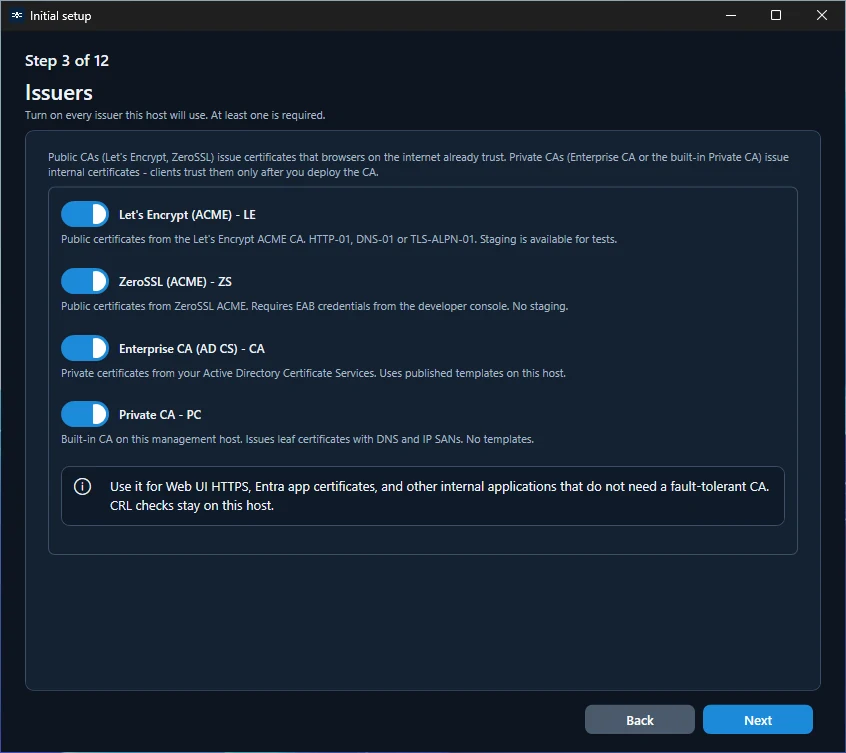
In this step, you select the issuers, that is, the sources from which TLSPilot obtains certificates. At least one issuer must be enabled: the ACME providers Let’s Encrypt and ZeroSSL for public certificates, or, depending on your edition, your Enterprise CA and the built-in Private CA for internal certificates.
Further ACME v2 providers can be added afterwards in the settings under ACME providers, see chapter ACME settings.
Let’s Encrypt
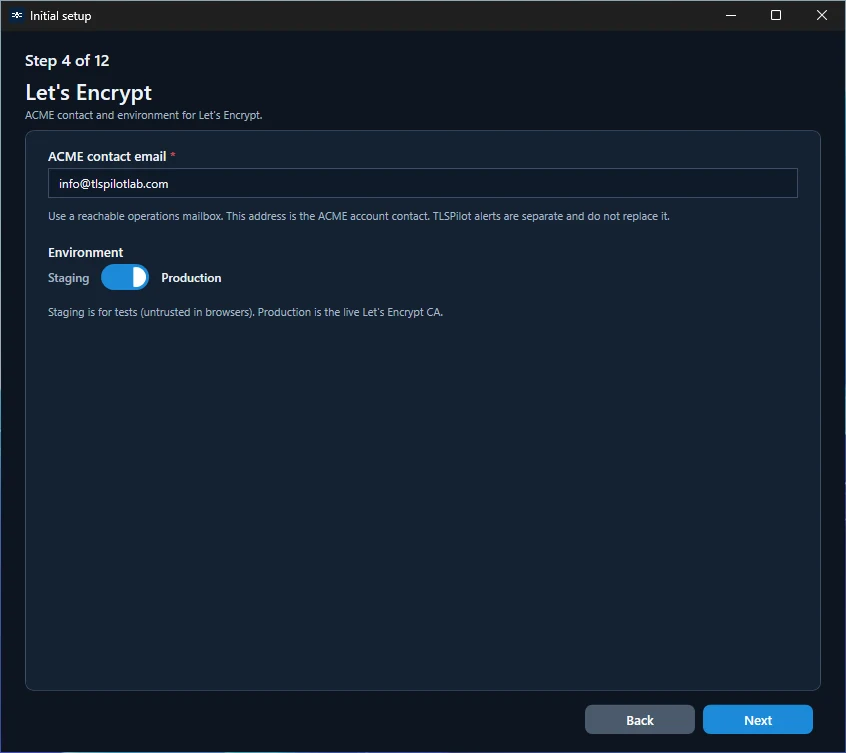
Let’s Encrypt is a public ACME provider that issues free certificates. Configure the following settings:
- ACME contact email: Optional. If you enter an address, TLSPilot registers it as the contact of your ACME account; if the field is empty, the account is registered without a contact. Let’s Encrypt does not store contact addresses and does not send expiry emails, so use the alerts of TLSPilot to be warned about expiring certificates, see chapter Create alerts.
- Production URL and Staging URL: Prefilled with the directory URLs of Let’s Encrypt. Both fields are required. Keep the prefilled values unless you use a different endpoint; TLSPilot uses the URLs as entered.
- Environment: Production is the live CA of Let’s Encrypt and is selected by default. Its certificates are trusted by all common browsers. Staging is intended for tests only: Staging certificates are not trusted by browsers. The switch selects which of the two URLs TLSPilot uses.
ZeroSSL
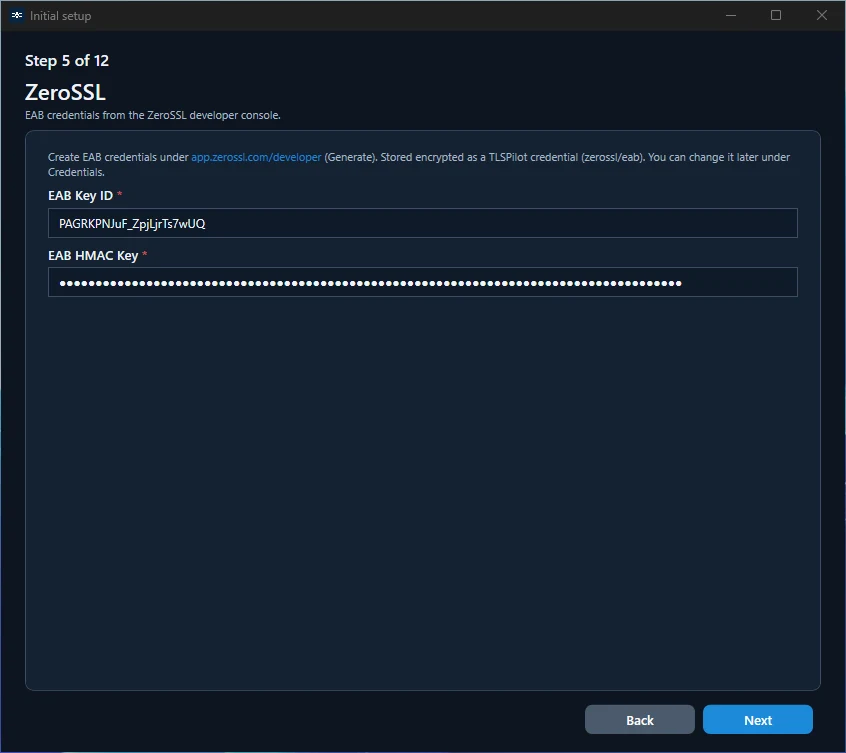
ZeroSSL is a public ACME provider and an alternative to Let’s Encrypt. Unlike Let’s Encrypt, it requires External Account Binding (EAB), which links TLSPilot to your ZeroSSL account. Configure the following settings:
- EAB Key ID and EAB HMAC key: Enter the EAB credentials of your ZeroSSL account. ZeroSSL has no contact email field: the ACME account is linked to your ZeroSSL account through EAB, and the contact address is managed there.
TLSPilot stores the credentials encrypted as the credential zerossl/eab in its Credentials Manager, which keeps them in the Windows Credential Manager.
ZeroSSL does not offer a staging environment, so all certificates are issued by the live CA.
Enterprise CA
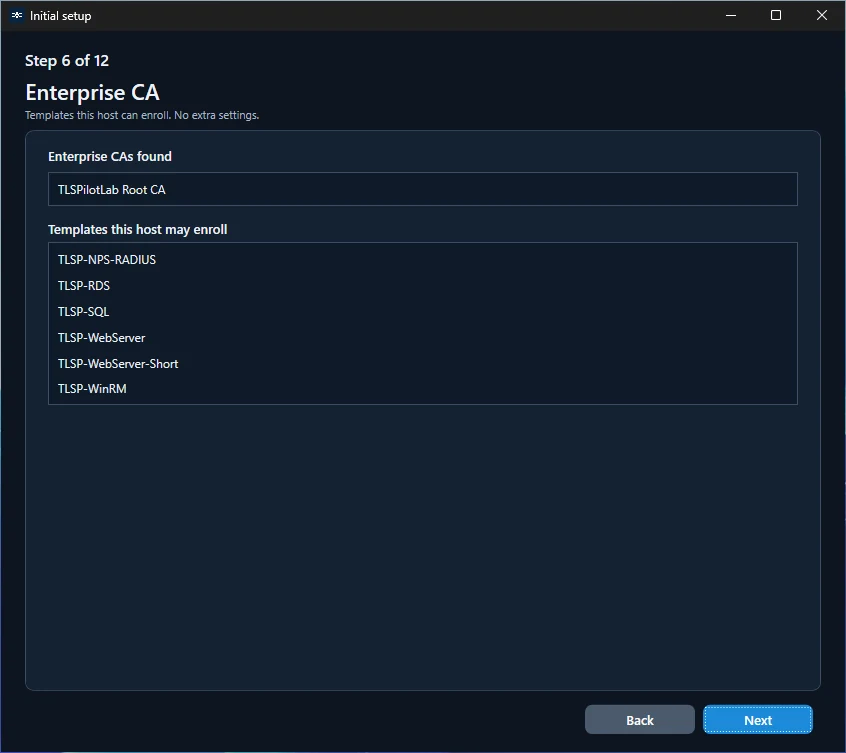
The Enterprise CA integrates your existing Active Directory Certificate Services, so certificates are issued by the CA of your own organization. TLSPilot detects the CA in the domain or forest automatically, so no entries are required in this step.
The step lists the certificate templates that TLSPilot can use. Only templates that support Server Authentication and on which the computer account of the management host has the permissions Read and Enroll are listed. If a template you expect is missing, check these permissions on your CA.
Private CA
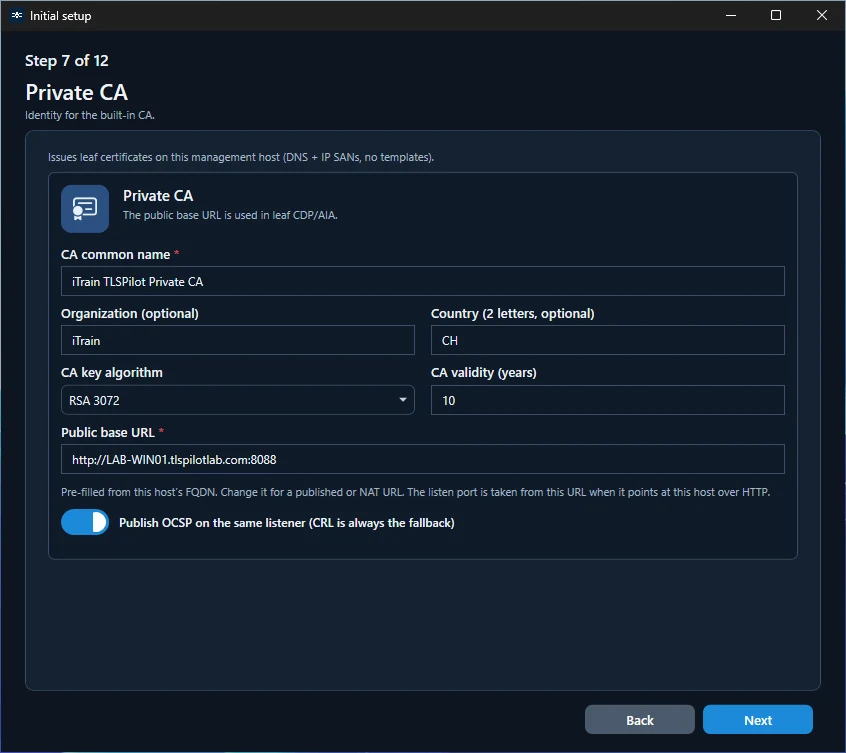
The Private CA is a certificate authority built into TLSPilot. It issues real certificates signed by this CA, not self-signed certificates, and it publishes its revocation list (CRL) and, optionally, OCSP directly on the management host. In this step, you define the identity of the CA. These settings apply to all certificates:
- CA common name: The name of the CA, which appears as issuer in every certificate it issues.
- Organization and Country: Optional details of your organization.
- CA key algorithm and CA validity: The signing key of the CA and how long the CA itself is valid. The defaults are RSA 3072 and 10 years.
- Public base URL: The address under which clients reach the revocation list and the certificate of the CA. It is pre-filled with the host name of the management host and port 8088. Change it if clients reach the host under a different address, or if the port is already in use. The port must be open in the Windows Firewall, so that clients can check the revocation list.
- Publish OCSP on the same listener: Additionally provides OCSP, so clients can check the status of individual certificates directly. The revocation list remains available as fallback if OCSP does not respond. The option is switched on by default. The addresses of the revocation list and, if enabled, OCSP are included in every certificate.
WebUI
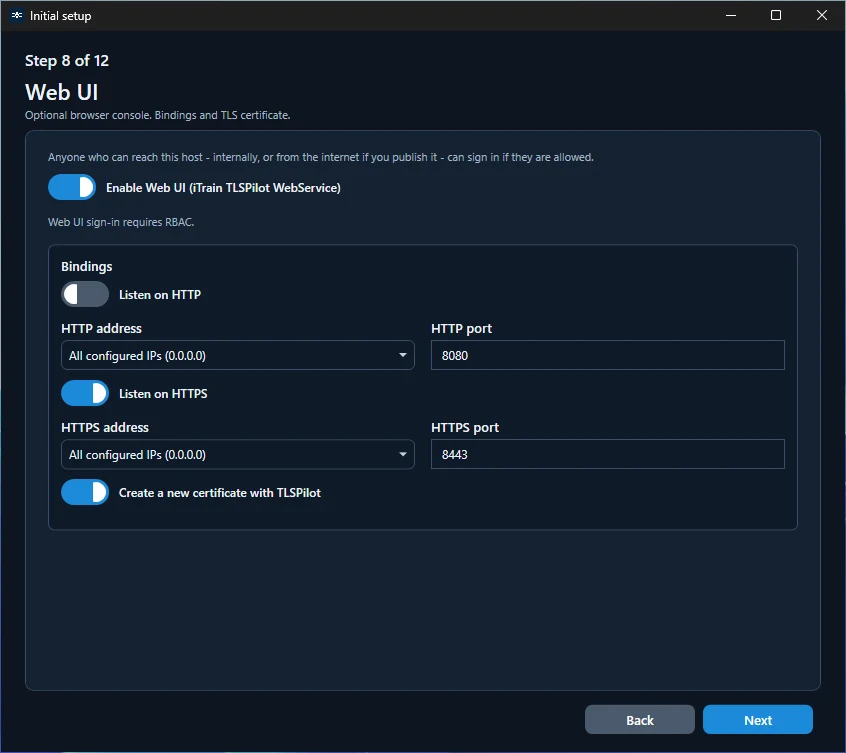
Enabling the WebUI is recommended. It lets you manage TLSPilot from anywhere in a browser, protected by RBAC, without signing in to the management host. For details and how to change these settings later, see chapter WebUI.
- Enable Web UI: Turns on the WebUI service. WebUI sign-in requires RBAC, which you set up in the next step. Switching on Enable Web UI also switches on Enable RBAC in the next step.
- Bindings: HTTPS on port 8443 is enabled by default and listens on all IP addresses of the host. You can change the IP address and the port. HTTP on port 8080 is optional, disabled by default and not recommended.
- Certificate: Enable Create a new certificate with TLSPilot, so that TLSPilot renews the certificate automatically and rebinds it to the WebUI. Alternatively, select a certificate that is already installed in the LocalMachine\My certificate store. In this case, you have to replace it yourself before it expires, as automatic renewal only works for certificates managed by TLSPilot with the deployment target WebUI.
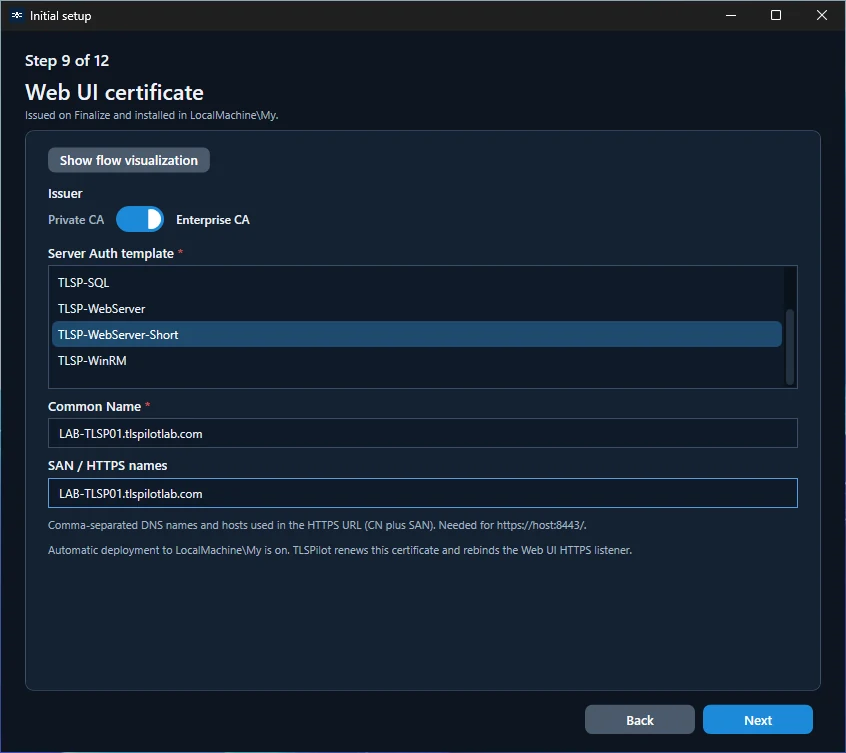
WebUI certificate
If TLSPilot creates the certificate, you define it in this step:
- Issuer: Select the Enterprise CA, which is preselected if available, or the Private CA. For the Enterprise CA, also select a template. For the Private CA, specify the validity of the certificate. The default is 47 days, which is not a problem, as TLSPilot renews the certificate automatically. A new WebUI certificate needs the Private CA or the Enterprise CA; turn one on or choose an existing certificate. You can switch to an ACME certificate later in the settings on the tab WebUI.
- Common Name and SAN/HTTPS names: Enter the FQDNs under which the WebUI will be opened. The FQDN in the certificate must match the access URL to prevent certificate warnings.
The certificate is issued during Finalize and bound to the WebUI.
Authentication and access
In this step, you define who may use TLSPilot with the switch Enable RBAC (role-based access control). Without RBAC, everyone who can reach the console has full control, and nobody can sign in to the WebUI. You assign roles to users and groups after the setup, see chapter Assign roles.
Local administrators of the management host always remain Owners, see chapter Break-the-glass accounts.
Select the identity directory that TLSPilot uses to resolve users and groups:
- Active Directory / Windows: Users and groups of your Active Directory domain or local accounts of the management host. No further configuration is required.
- Entra ID: Users and groups of your Entra tenant. This requires an app registration, which TLSPilot uses to read users and groups. Entra ID also requires the WebUI with HTTPS and the Private CA or the Enterprise CA for the certificate of the app registration. If the WebUI is off, the wizard offers to turn it on and returns to the WebUI step.
For Entra ID, TLSPilot creates the app registration itself during Finalize. This is the recommended way: the app registration authenticates with a certificate. TLSPilot does not support client secrets, which would have to be renewed regularly and can be copied and used elsewhere. The Entra ID helper creates the app registration on your behalf with delegated permissions, so you do not need to enter a Tenant ID or Application ID, see chapter Entra ID helper.
- Identity certificate issuer: Select the issuer of the certificate with which the app registration authenticates: the Private CA, which is the default, or the Enterprise CA. TLSPilot renews this certificate automatically and updates it in the app registration.
- App name: The app registration is named iTrain TLSPilot RBAC.
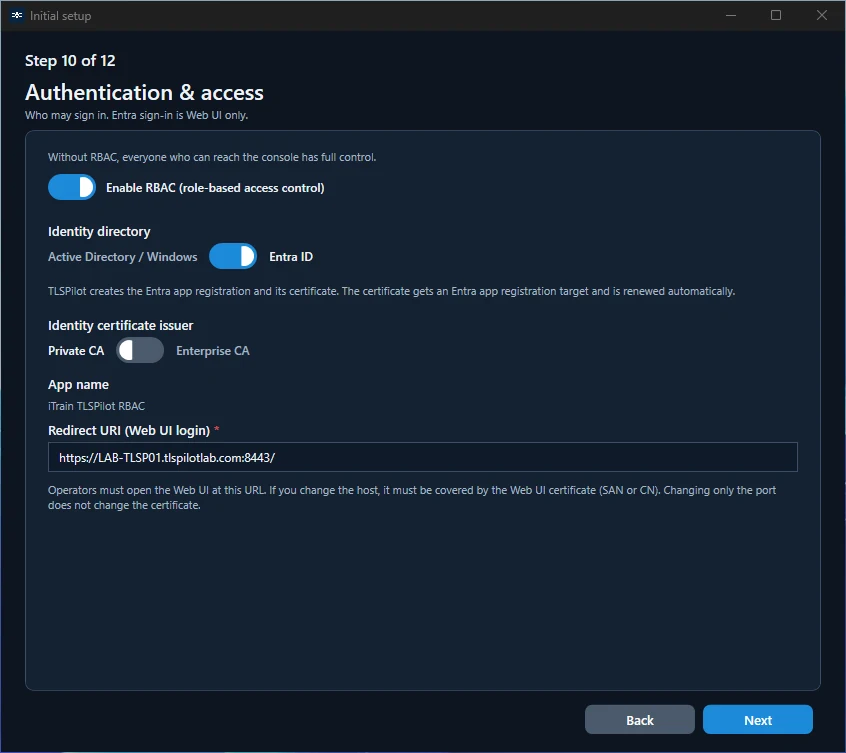
- Redirect URI: Must be the same as the URL under which users open the WebUI. It is pre-filled with the host name of the management host and port 8443. The host name must be included in the WebUI certificate.
If you do not want TLSPilot to create the app registration, skip Entra ID in this step. After the setup, create a certificate with an App registration deployment for your own app registration, see chapter App registration, and select it in the settings on the tab RBAC, see chapter Set up RBAC in the settings.
Daily check
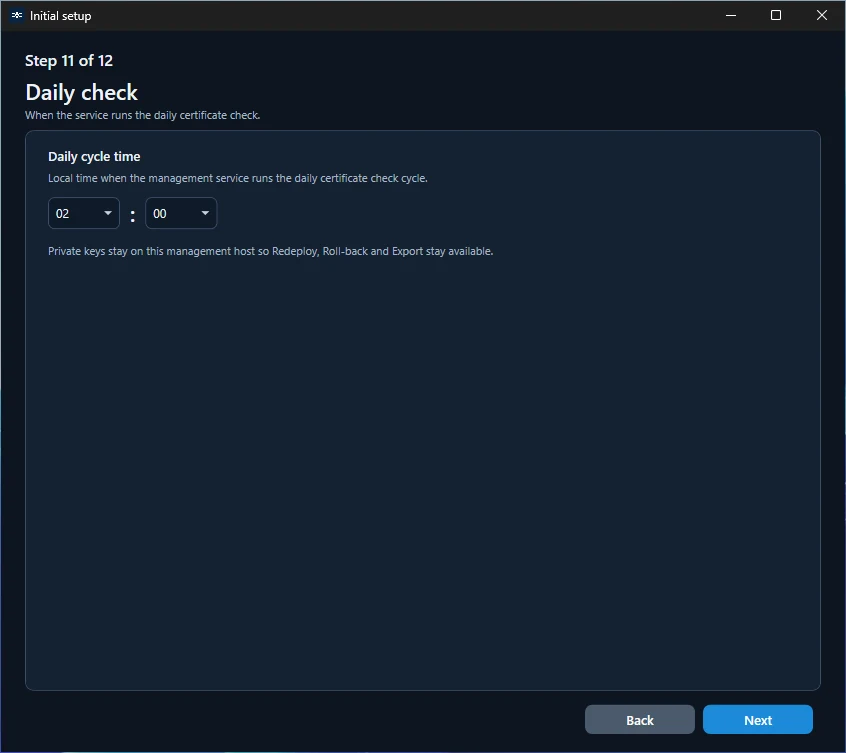
In this step, you define under Daily cycle time when the service runs the daily certificate check. The cycle deploys, checks health, issues certificates set to Next cycle, and retries an overdue renewal. A regular renewal runs at its own time, see chapter Keep it renewing.
- Renewal: A planned renewal runs at its own time and does not deploy. The next cycle deploys the new certificate. See chapter Keep it renewing.
- Health check: All deployments are checked, even when no renewal is due. If a target does not use the correct certificate, for example because the binding or the thumbprint does not match, TLSPilot deploys the certificate again automatically.
- No revocation: The cycle never revokes certificates. After a renewal, the previous certificate stays valid until it expires.
As a certificate change can briefly restart services, schedule the cycle for off-peak hours, typically at night. The default is 02:00 AM local time of the management host. Renewals run at their own time and the new certificate is deployed on the next cycle, see chapter Keep it renewing. A window the CA pulls forward is renewed and deployed at once only when Renew immediately on CA emergency is on. You can change the time later in the settings on the tab General, see chapter Deployment & health cycle.
Summary and Finalize
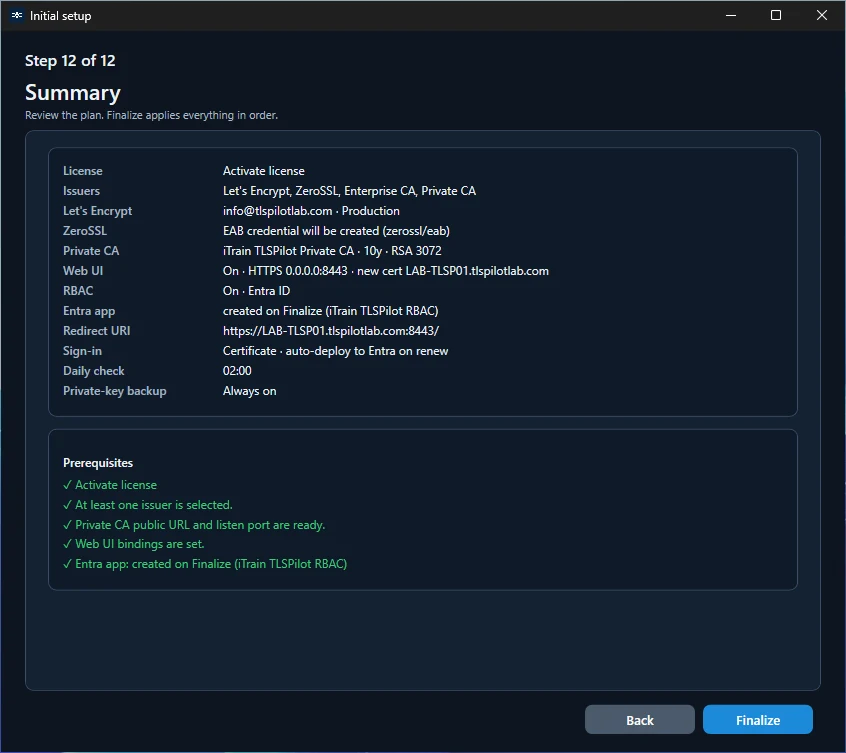
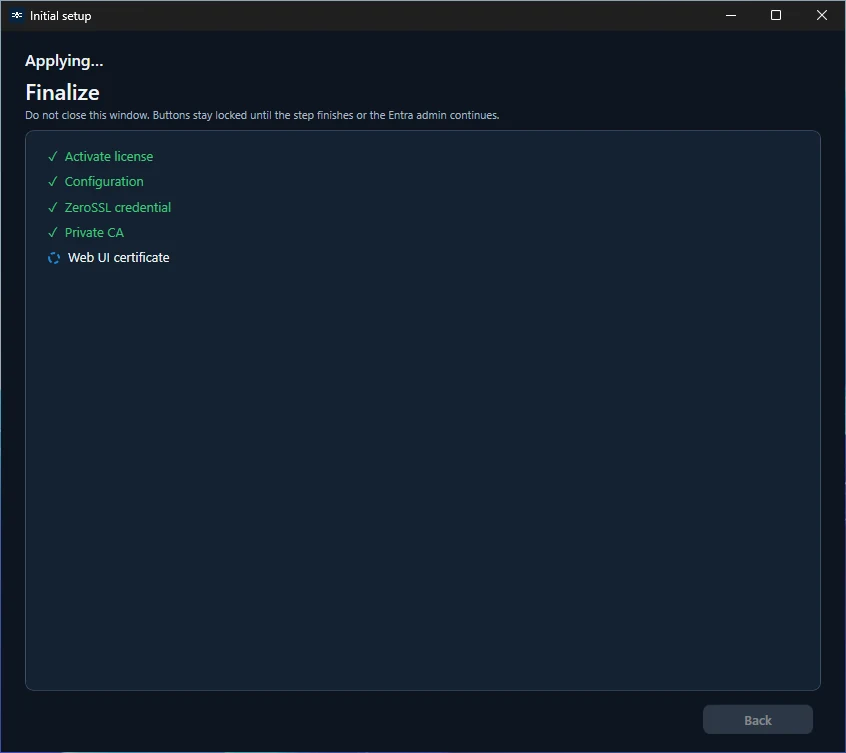
The last step shows a summary of your settings and checks whether the prerequisites are met. Click Finalize to apply the configuration. TLSPilot then shows the progress of each step. If a step fails, Finalize stops and shows the error. Click Back to correct the settings, then click Finalize again.
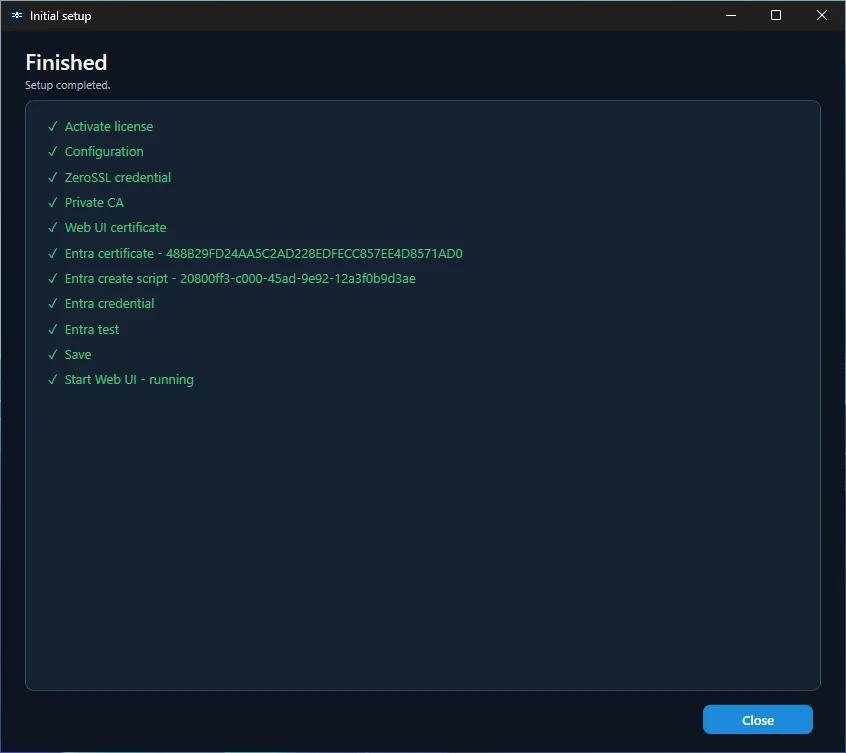
During Finalize, the page shows each step with its state, see Figure Initial Setup Wizard: Finalize in progress. The buttons stay locked until the step is completed. When all steps are completed, the page shows the title Finished with the subtitle Setup completed. and the list of the completed steps, see Figure Initial Setup Wizard: Finished.
If TLSPilot creates the app registration for Entra ID, the Entra ID RBAC Helper opens after the first steps. In this case, continue with chapter Entra ID helper. Otherwise, click Close once all steps are completed and continue with chapter After the setup.
Entra ID helper
If TLSPilot creates the app registration for you, the Entra ID RBAC Helper opens after the first steps of Finalize. It works with delegated permissions, which means you authenticate once and give your consent, and the helper then acts with your account and only for this step. It creates the app registration in your tenant and hands the Tenant ID and Application ID back to TLSPilot, so you do not have to copy them yourself.
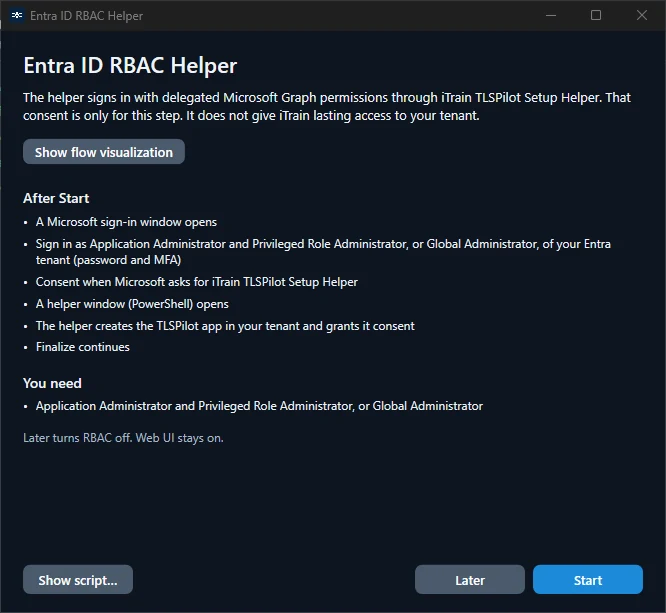
Before you start the helper, the dialog shows which steps follow after you click Start, and you can review what the helper does:
- Show flow visualization: Shows the individual steps of the helper, the first deployment of the certificate and how it is renewed later.
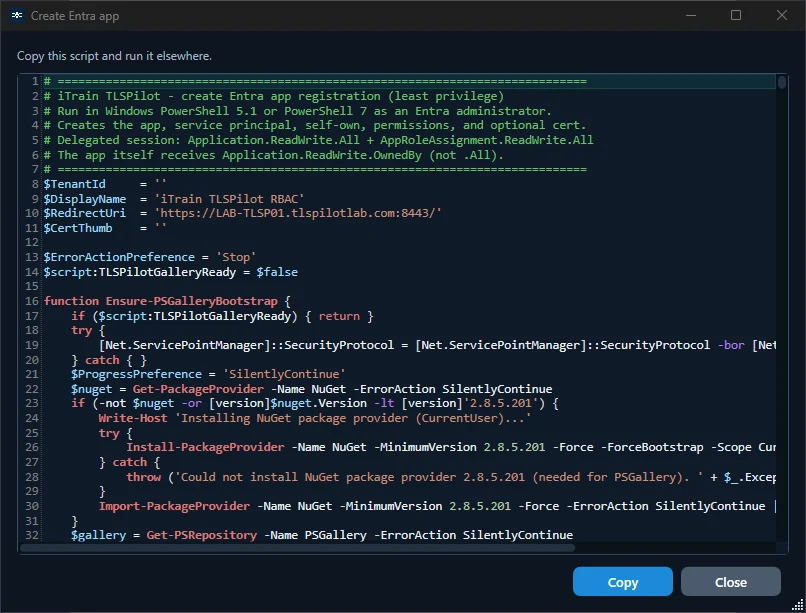
- Show script…: Shows the PowerShell script that the helper runs. You can copy it and run it yourself instead, see Figure Script of the Entra ID RBAC Helper.
If you are not ready to create the app registration now, click Later. Later turns RBAC off; the WebUI stays on.
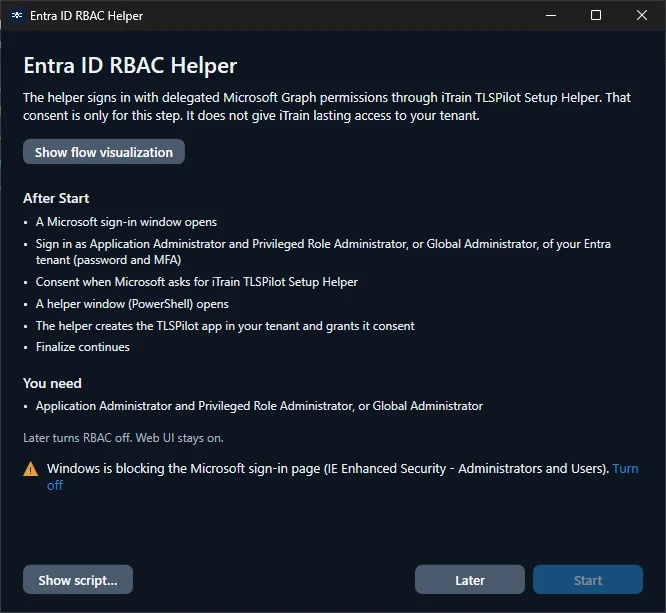
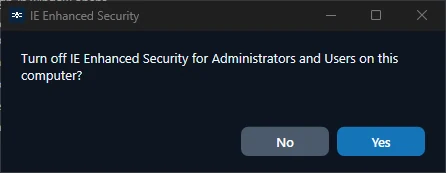
To create the app registration:
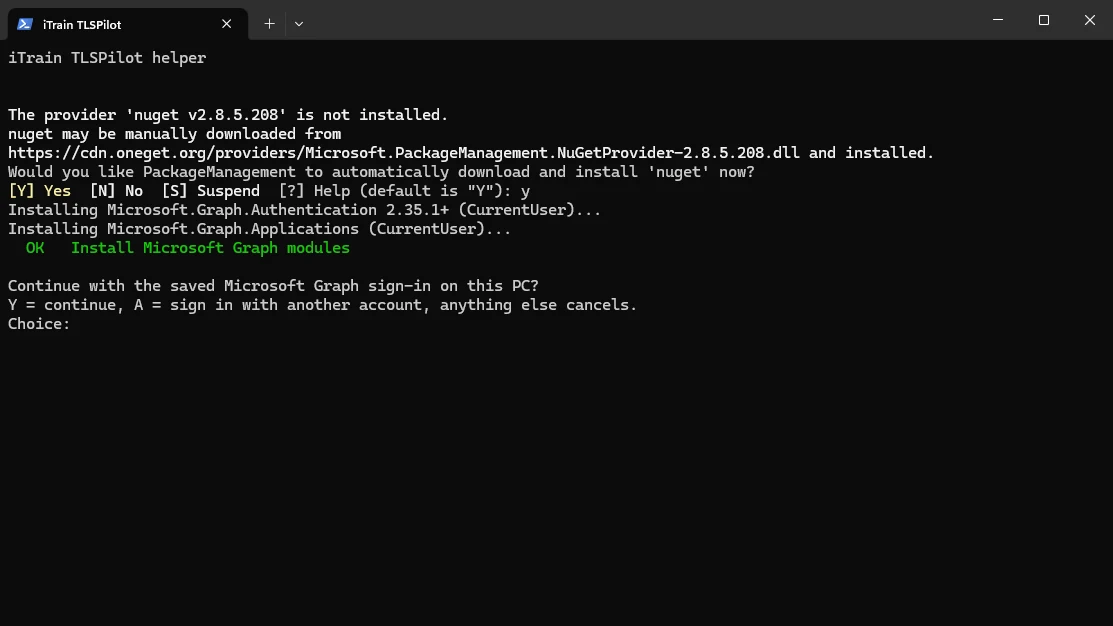
- Click Start in the helper dialog. A PowerShell window opens. If the Microsoft Graph PowerShell module is missing, it is installed automatically; a compatible version that is already installed is used as it is.
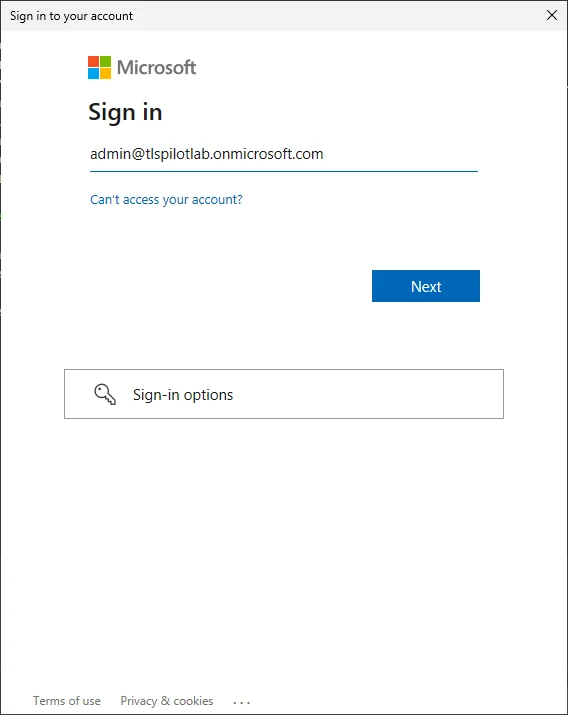
- Shortly afterwards, the Microsoft sign-in window opens. Sign in with an account that has the required roles, see chapter Before you start, and complete MFA if required.
- The sign-in window shows the requested permissions. Review them and click Accept. You do not need to consent on behalf of your organization.
- The PowerShell window continues and shows each step. The helper creates the app registration and its service principal, sets groupMembershipClaims, the application owner and the redirect URI, grants the required Microsoft Graph application permissions and uploads the certificate. When it shows SUCCESS. The app registration is ready., continue with the next step.
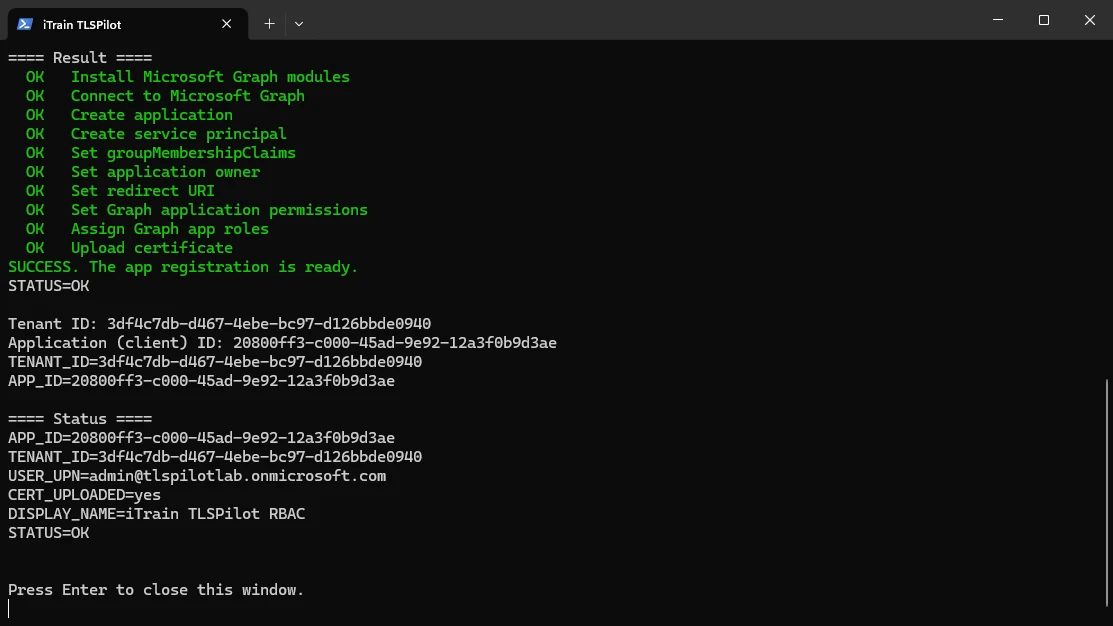
- Press Enter in the PowerShell window. The Tenant ID and Application ID are applied automatically.
- Finalize continues with the remaining steps, for example storing and testing the certificate of the app registration and starting the WebUI.
Once all steps are completed, click Close to finish the wizard.