
Certificate options · 13.4
Revoke a certificate
You revoke a single version of a certificate on the tab Details.
- Double-click the certificate and open the tab Details.
- Under Versions, click Revoke below the version you want to revoke, usually the version marked Active.
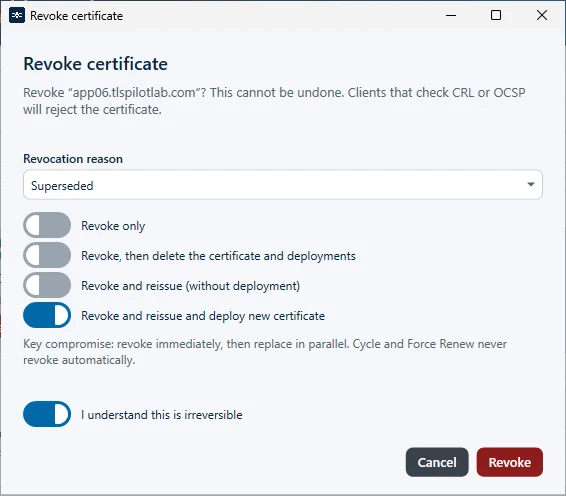
- Revocation reason: Select the reason; Superseded is preselected. The reasons depend on the issuer: Let’s Encrypt and ZeroSSL offer Unspecified, Key compromise, Affiliation changed, Superseded and Cessation of operation; other issuers also offer CA compromise, Privilege withdrawn and AA compromise. Certificate hold is not offered.
- Choose how to proceed. For a retained older version, these options are not shown; the dialog shows only Revoke only. The active leaf stays.
- Revoke only: TLSPilot revokes the version. The certificate remains in TLSPilot and stays deployed on its targets.
- Revoke, then delete the certificate and deployments: TLSPilot revokes the version and then deletes the certificate and all its deployments.
- Revoke and reissue (without deployment): TLSPilot revokes the version and issues a new certificate, but does not deploy it.
- Revoke and reissue and deploy new certificate: Preselected if the certificate has enabled deployments, otherwise Revoke only is preselected. Usually the most sensible choice. TLSPilot issues a new certificate and deploys it to the targets.
- Switch on I understand this is irreversible and click Revoke.
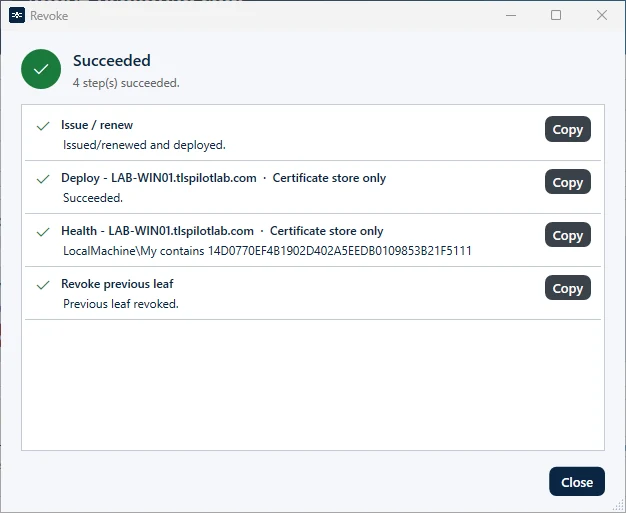
With Revoke and reissue…, TLSPilot revokes the previous certificate at the CA after the replacement is active. If this revocation fails, the certificate shows Retry revoke and the banner Revoke failed: the previous leaf is still valid at the issuing CA. The daily cycle retries it up to five times; afterwards click Retry revoke on the version card. Cancel revoke… in the context menu or the menu Action stops the attempt without calling the CA; the new certificate stays active.