Certificate options · 13.6
Roll back to a previous version
If a new version causes problems, you can return to a retained previous version that is neither revoked nor expired and has no pending revocation. Roll back… is also available in the context menu of the certificate and in the menu Action:
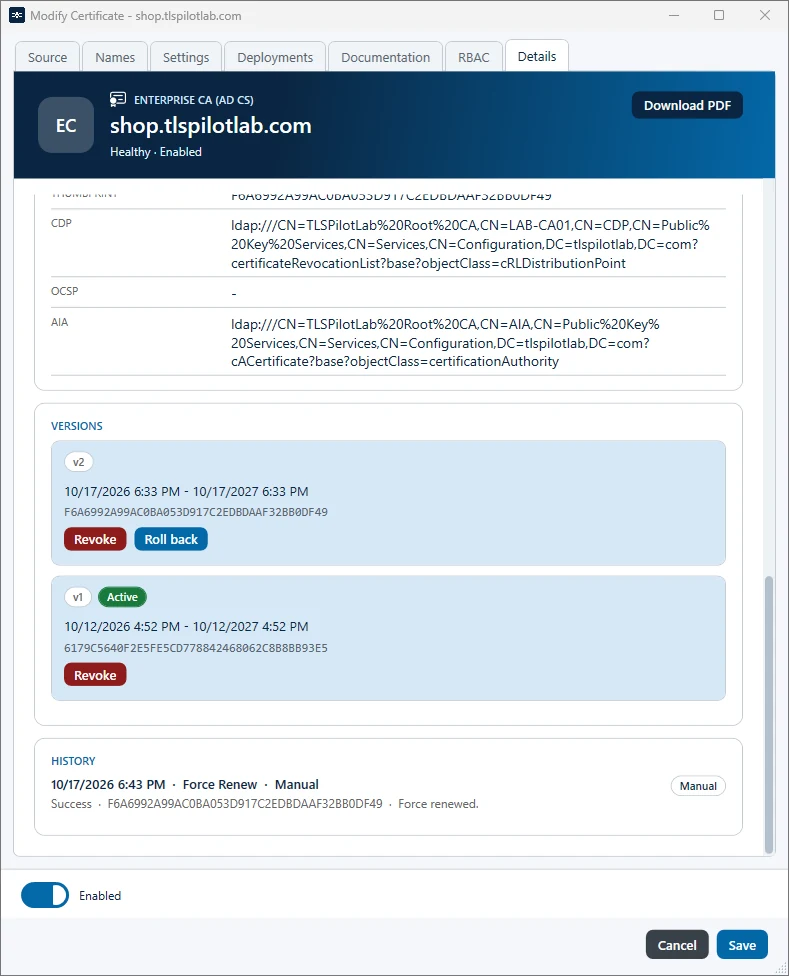
- Double-click the certificate and open the tab Details.
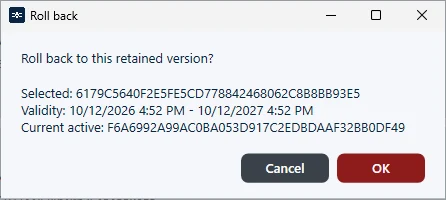
- Under Versions, click Roll back below the version you want to restore. TLSPilot shows the selected version, its validity and the currently active version. Confirm with OK.
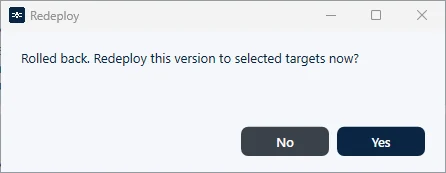
- TLSPilot asks whether to deploy this version again. Click Yes, select the targets and click Deploy.
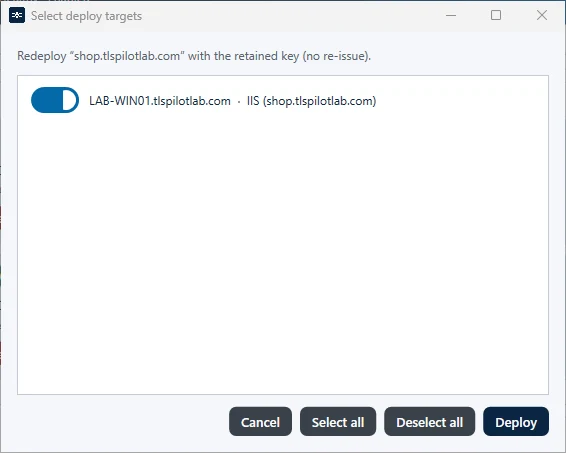
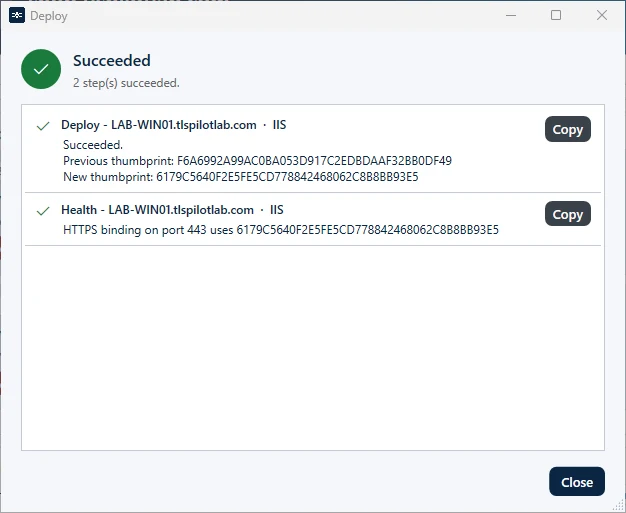
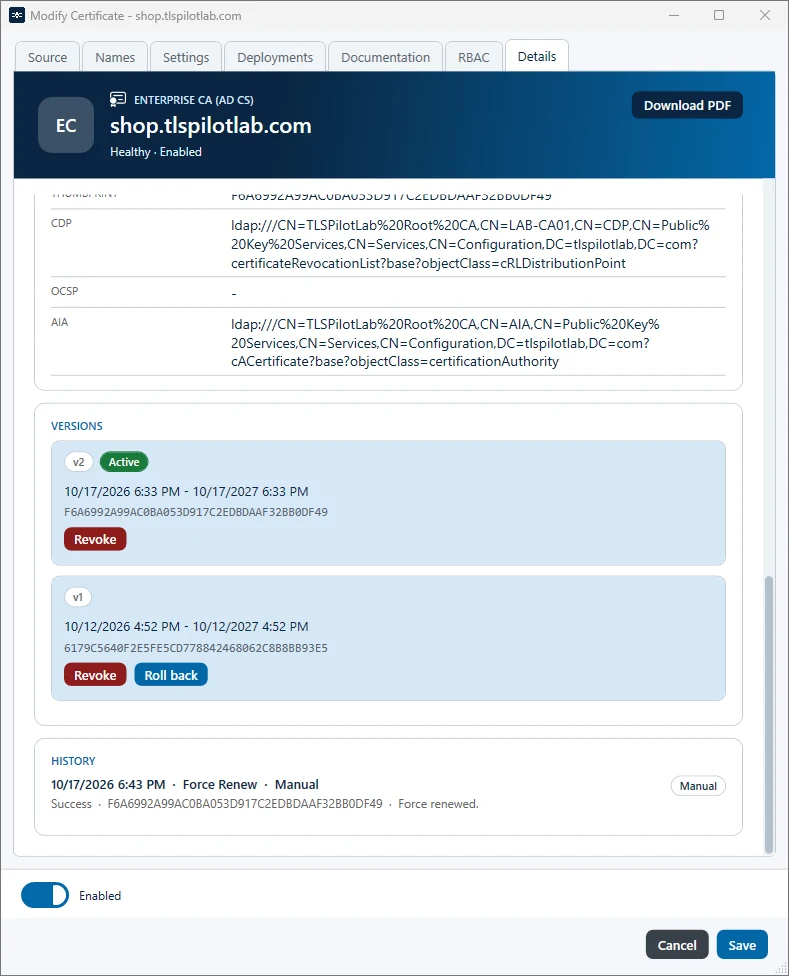
The selected version is then marked Active again. You can switch back to the newer version in the same way at any time.