My first deployments · 6.1
Local store
On this page
This example deploys a certificate to the certificate store LocalMachine\My of a remote Windows server. The basic procedure is the same for all deployment types, only the settings of the linked service differ. The management host must reach the server via WinRM, see chapter Network connectivity.
- Open the tab Deployments of the certificate: Double-click the certificate in the list, which opens this tab directly. Alternatively, right-click the certificate, choose Modify… and open the tab Deployments.
- Switch on Automatic deployment and click Add… You can add several deployments to a certificate.
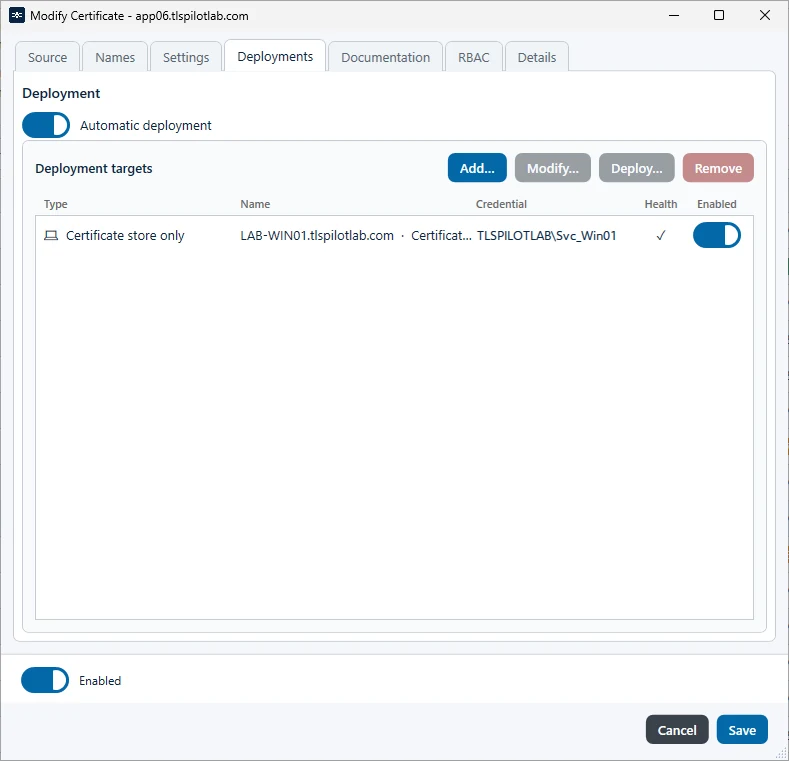
- Linked service: Select Certificate store only.
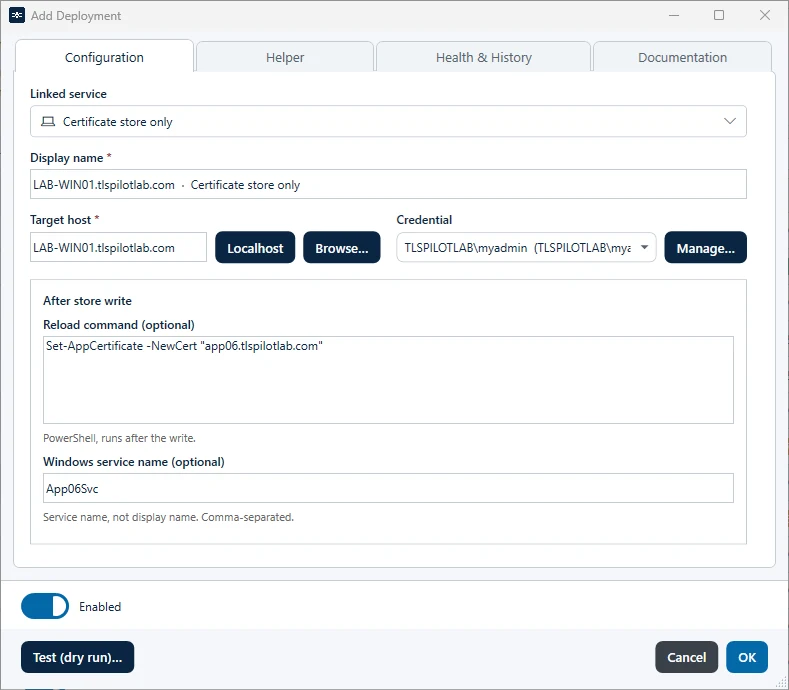
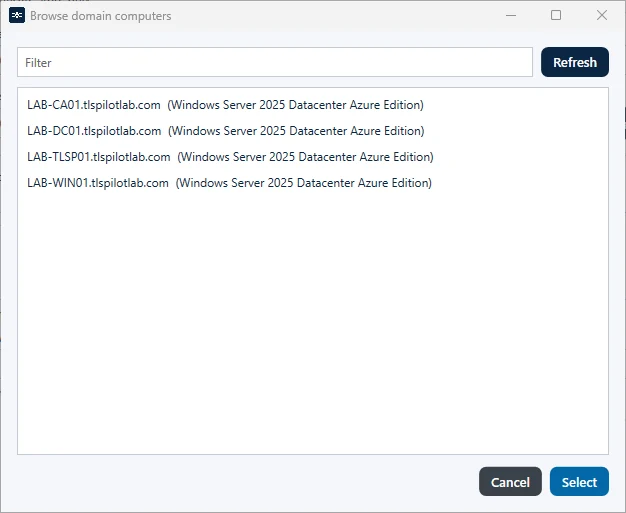
- Target host: Enter the name or IP address of the server, or click Browse… to select it in Active Directory. For the management host itself, click Localhost.
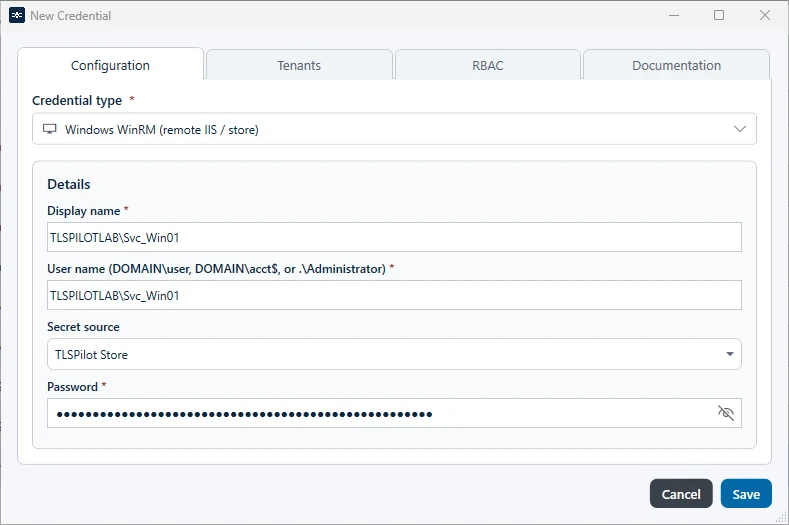
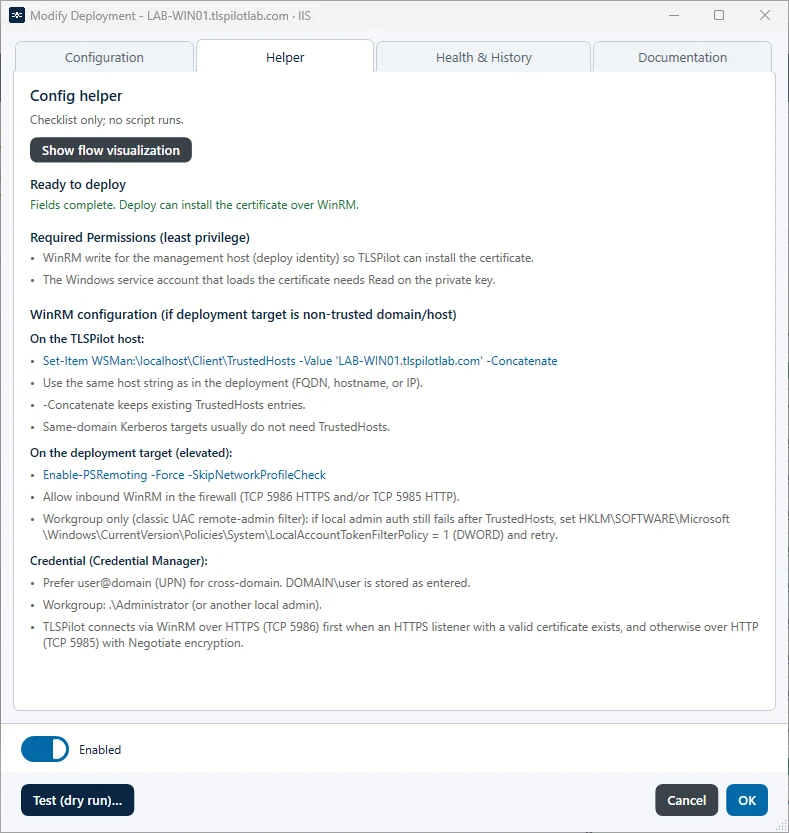
- Credential: Select a WinRM credential. If none exists yet, click Manage…, click Add… in the Credentials Manager and create a credential of the type Windows WinRM (remote IIS / store). Enter a Display name, the User name in the format DOMAIN\user, DOMAIN\acct$ or .\Administrator, and the Password. Click Save and close the Credentials Manager. The credential is then selected automatically. Instead of a user account, you can use a group managed or delegated managed service account, which requires no password, see chapter Use managed service accounts. For Localhost, no credential is required. If the server is not in the same domain as the management host, the tab Helper shows how to configure WinRM, see step 9.
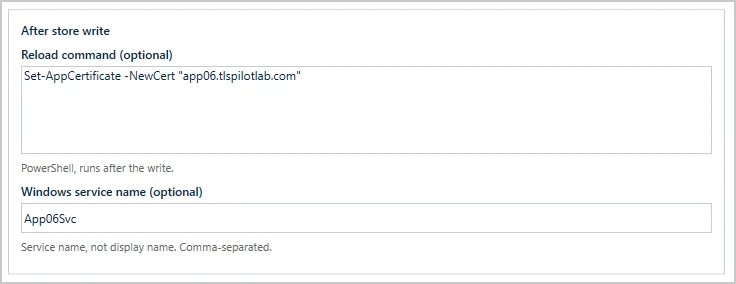
- Reload command (optional): From the Enterprise edition, you can enter PowerShell commands that run after the certificate has been written to the store, for example to copy it to further paths or to bind it to services. Multiple lines are possible.
- Windows service name (optional): Enter the internal names of the Windows services to be restarted after the reload commands, separated by commas. The services are only restarted if the reload commands ran successfully. Use the service name from the properties in services.msc, not the display name.
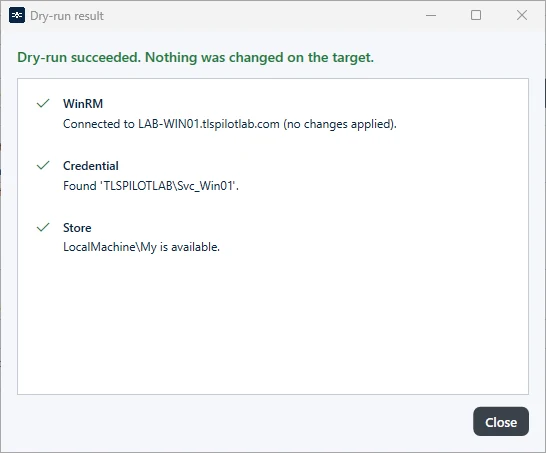
- Click Test (dry run)… TLSPilot checks whether the deployment would work, for example whether the credential is valid. If it reports an error, correct the settings and run the test again.
- Helper (optional): The tab Helper shows whether everything is ready for the deployment, the minimum permissions of the account and how to configure WinRM for servers outside your domain. Show flow visualization shows what happens during the setup, the first deployment and every renewal.
- Click OK and then Save. When asked whether to deploy now, click Yes. With No, the certificate is deployed during the next daily cycle.
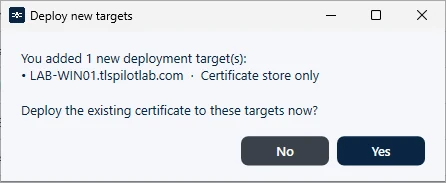
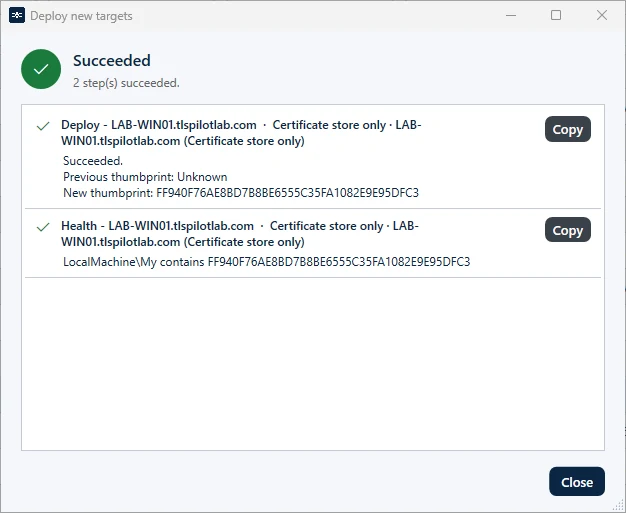
TLSPilot deploys the certificate, runs the reload commands, restarts the services and then checks the Health. Click Close once the deployment has finished. You can enable or disable each deployment individually, or start it at any time by selecting it and clicking Deploy…
Before TLSPilot replaces a certificate, it reads which certificate is currently bound on the target. For IIS, RDS, SQL Server, NPS and AD FS, the result of the deployment shows this certificate as Previous thumbprint. If the target cannot be read, TLSPilot shows the certificate that was active before this deployment, if it is known. For Windows targets, the result, the dry run and the tab Health & History also show the WinRM connection used, for example WinRM over HTTPS (5986), on a line of its own, see chapter WinRM within the domain. The Desktop Admin console, the WebUI and the PDF report show the same information.